How do I sign in with a one-time code (2FA)?
For extra security (two-factor authentication, or 2FA), after you enter your password Factura HRMS sends you a one-time code. You type the code to finish signing in. This protects your account even if someone learns your password.
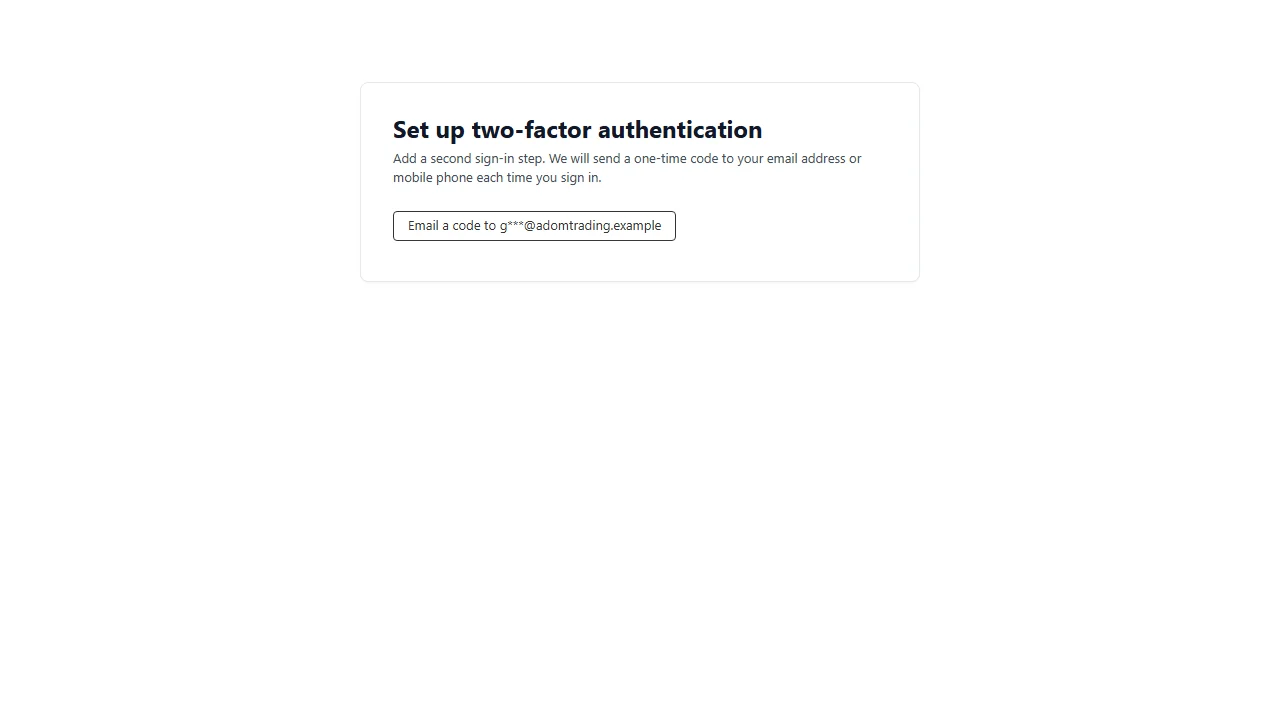
First sign-in: set it up
- Sign in with your username and password as usual.
- On the setup page, choose how you want to receive codes: Email or SMS.
- Enter the 6-digit code that is sent to you.
- Factura shows your recovery codes. Copy or download them and keep them somewhere safe (for example a password manager or a printed copy). They are shown only once.
Later sign-ins
- Enter your username and password.
- A code is sent to you automatically. If you have both Email and SMS set up, choose which one to use.
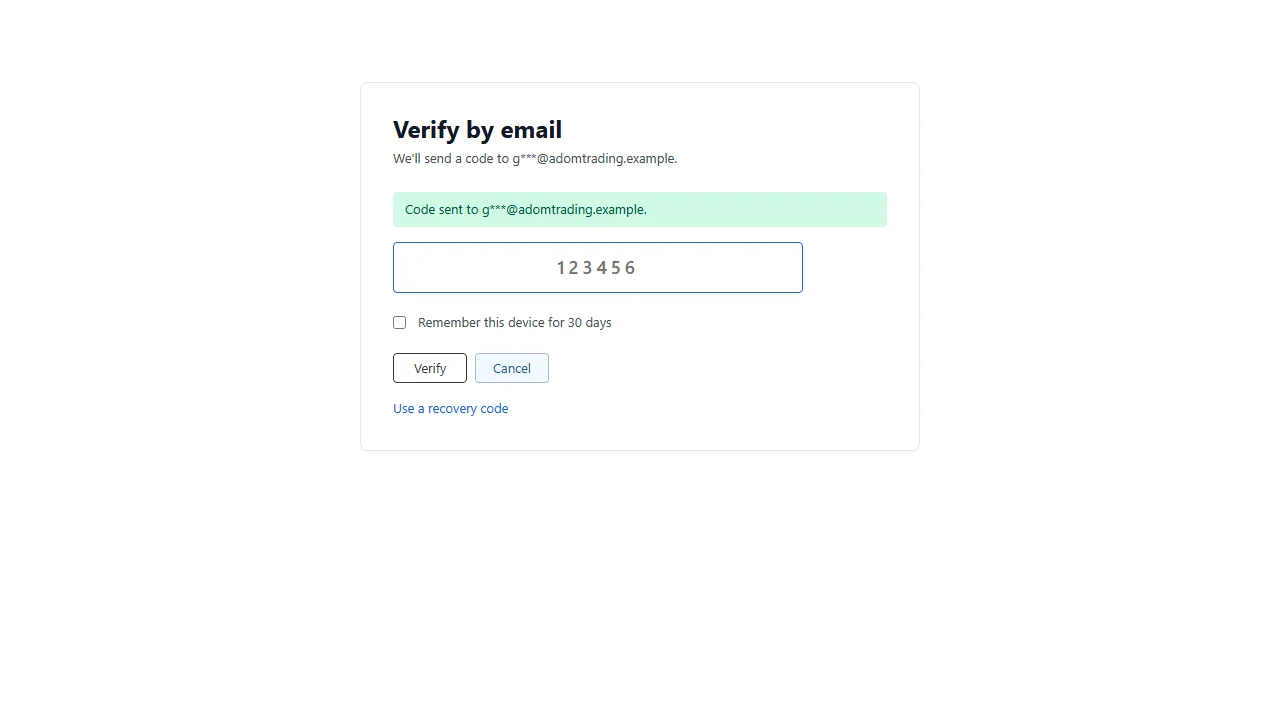
- Type the 6-digit code and click Verify. The code is valid for 5 minutes.
Remember this device
Tick Remember this device on the code page to skip the code on that browser for a number of days. Only use this on your own computer, never on a shared or public one.
Lost your phone, or cannot reach your email?
- Click Use a recovery code on the code page and enter one of the recovery codes you saved. Each code works once.
- If you have no recovery codes left, ask your administrator to reset your two-factor sign-in. You will set it up again at your next sign-in.
Did not receive a code?
- Check your spam/junk folder.
- Wait a few minutes, as messages can be delayed. Codes expire after 5 minutes, and only a few codes can be sent in a short time, so avoid requesting many.
- After that, click Back to sign in and sign in again to get a new code.
- If the page says "No email address or mobile number is on file", you cannot receive a code yet. Ask your administrator to add your email address or mobile number.
The Security & 2FA page
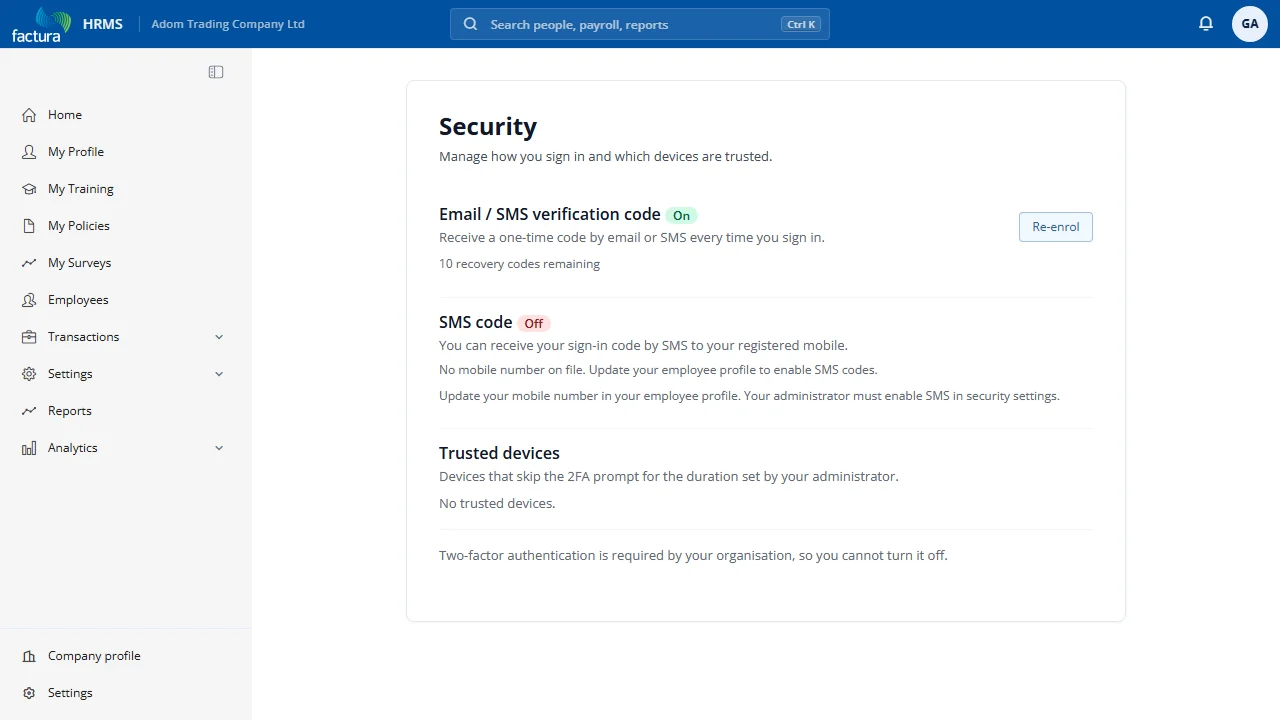
To review your own settings, click your avatar in the top-right corner and choose Security & 2FA. Here you can see how your codes are delivered and manage your recovery codes and trusted devices.