
How do I add subtasks and checklists to a task?
Subtasks let you break a task into a checklist of smaller steps. They appear on saved, top-level tasks (not on subtasks themselves — only one level of nesting is allowed).
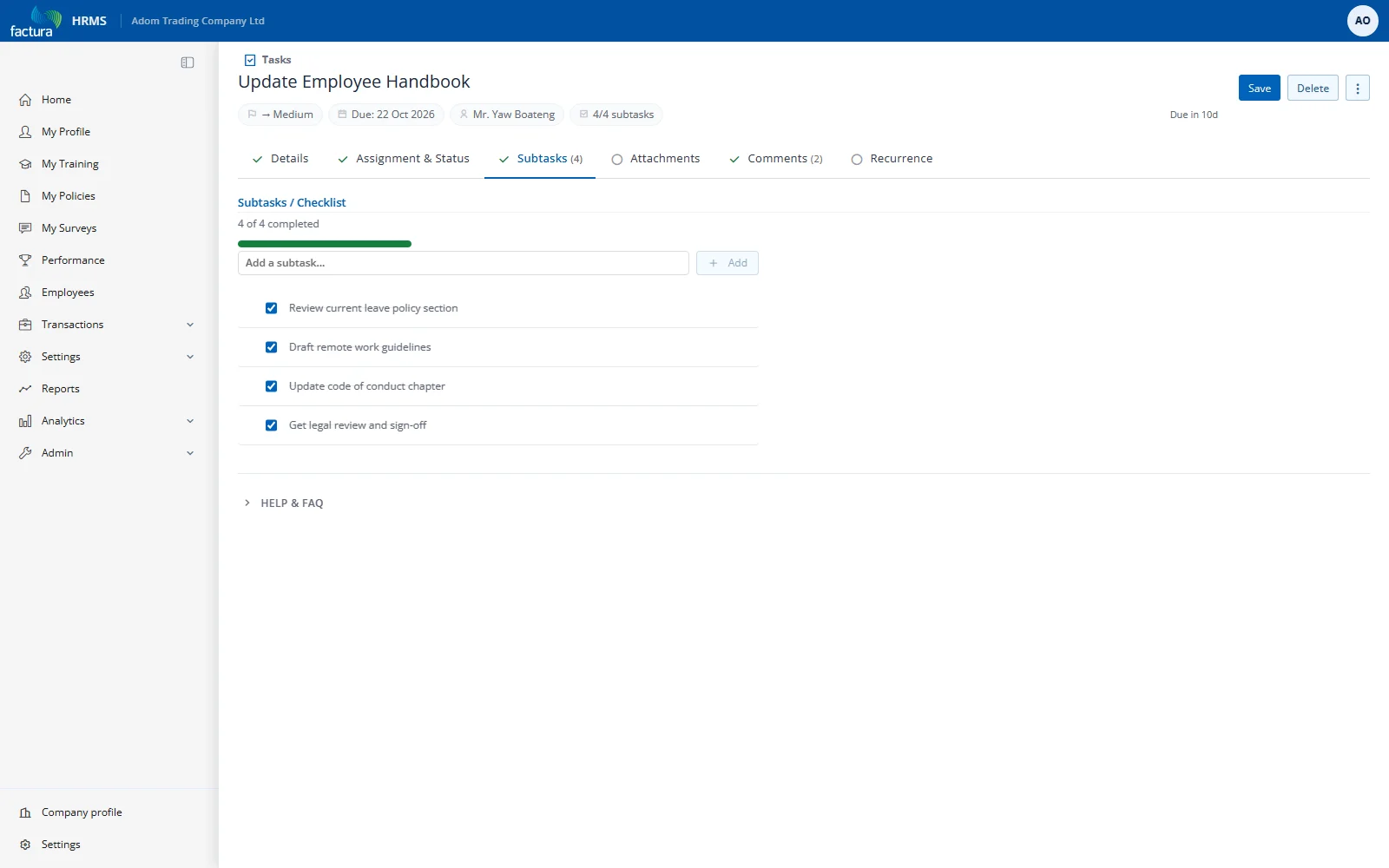
Adding Subtasks
- Open a saved task and go to the SUBTASKS tab
- Click the placeholder line with the checkbox
- Type the subtask subject
- Press Enter to add it
Completing Subtask Items
Click the checkbox next to any subtask to toggle it complete. Completed items show with ~~strikethrough~~ text.
Progress Tracking
The progress bar at the top shows "X of Y completed" with a visual fill bar.
Reordering
Drag the grip handle (visible on hover) to reorder subtasks.
Removing Subtasks
Click the X button (visible on hover) next to any subtask. Only the task creator or admin can remove subtasks.