
How do I sign in to Factura HRMS?
The login page is the first screen you see when you open Factura HRMS.
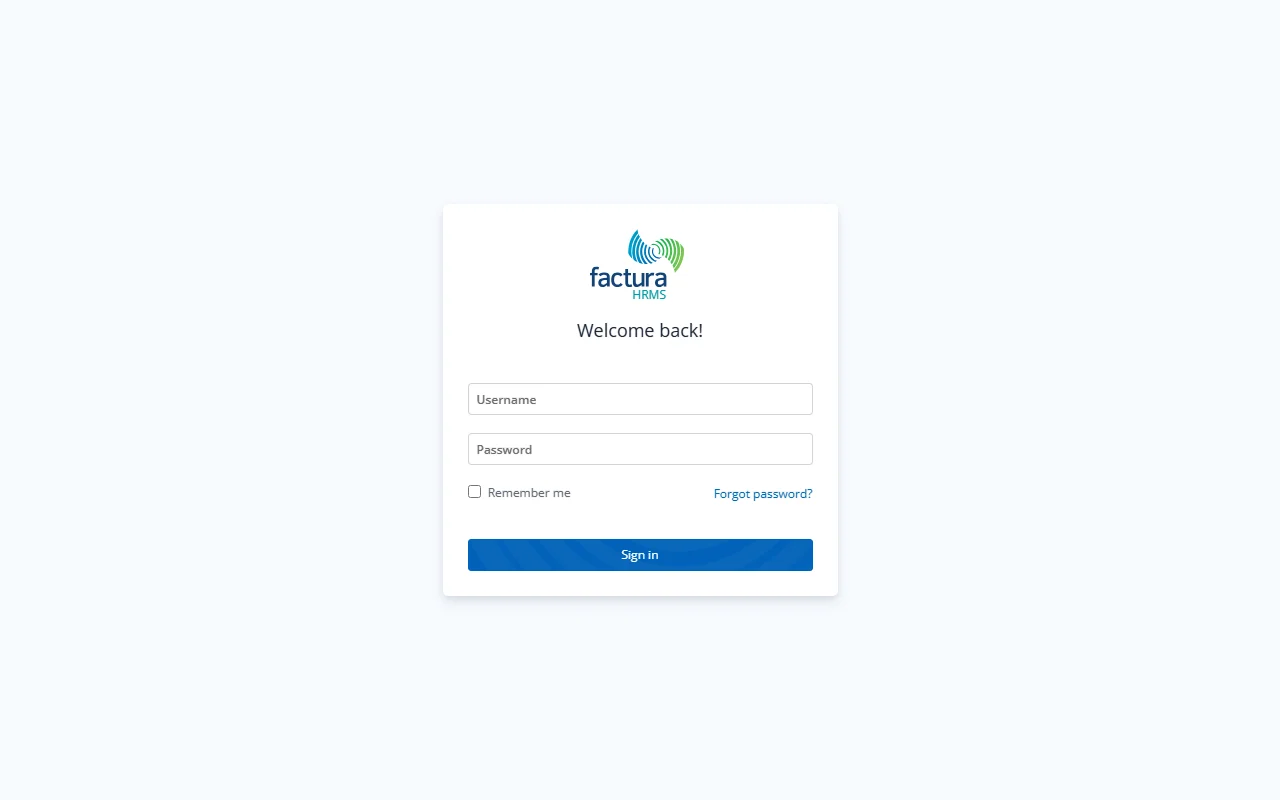
Steps
- Open your web browser and navigate to the Factura HRMS URL provided by your administrator.
- Enter your Username in the first field.
- Enter your Password in the second field.
- (Optional) Check Remember me if you want the browser to keep you signed in across sessions.
- Click the Sign in button.
What Happens Next
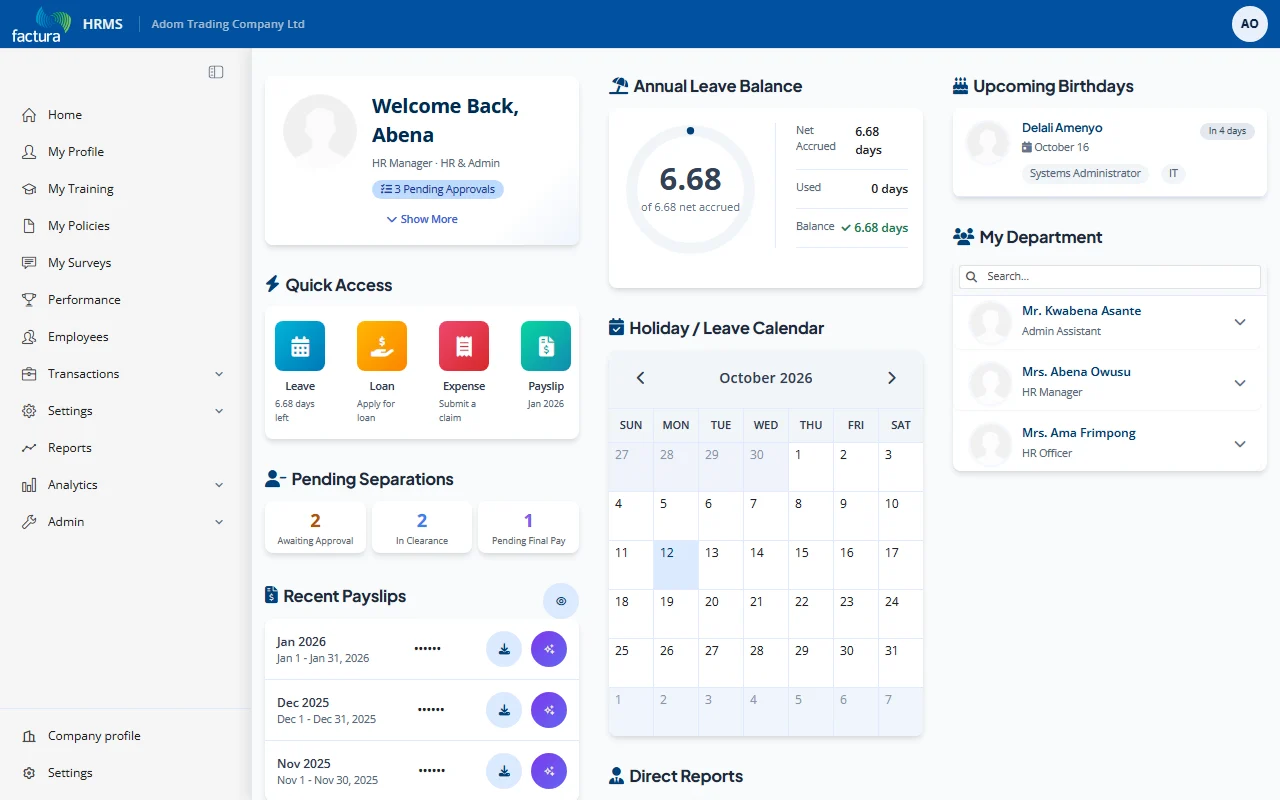
- Successful login: You are redirected to the Dashboard (home page), which displays your profile summary, annual leave balance, holiday/leave calendar, upcoming birthdays, your department, recent payslips, and quick-access shortcuts. The navigation menu runs down the left-hand side of the screen (Home, My Profile, Employees, Transactions, Settings and so on).
- Failed login: An error message appears below the password field. Double-check your username and password, then try again.
Tips
- The Username field is required -- you will see a validation error if it is left blank.
- You can press Enter on your keyboard instead of clicking the Sign in button.
- If you cannot remember your password, click Forgot password? (see Section 2 below).