
How do I approve or reject a request?
When you are assigned as an approver, here is how you see and act on pending requests.
Dashboard - Pending Approvals
The home dashboard shows a Pending Approvals badge and section:
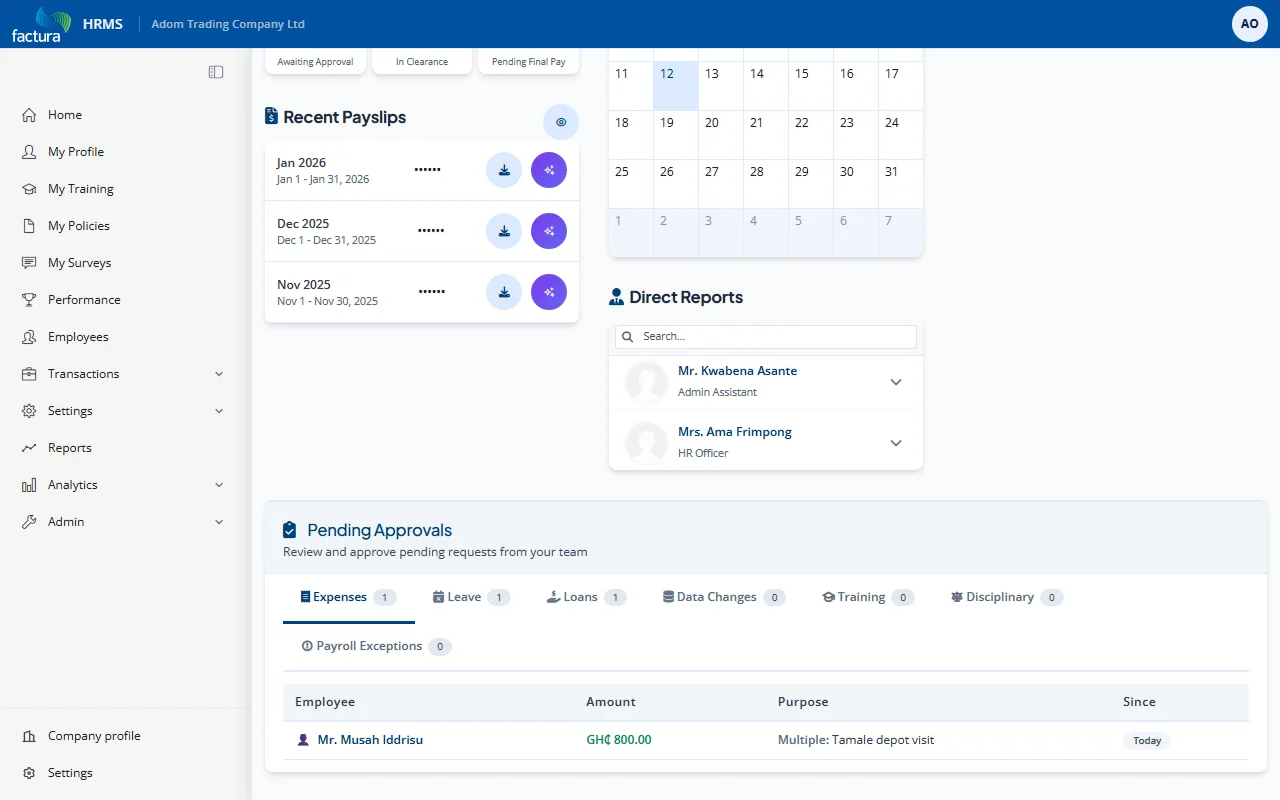
- The Pending Approvals section appears at the bottom of the dashboard with the subtitle: "Review and approve pending requests from your team".
- Requests are organized into tabs by type, each with a count badge:
- Expenses (e.g., 2)
- Leave (e.g., 3)
- Loans (e.g., 2)
- Data Changes (e.g., 2)
- Training, Disciplinary and Payroll Exceptions
Each pending item shows:
| Column | Description |
|---|---|
| Employee | Name of the employee who submitted the request |
| Amount | Total amount of the expense/loan |
| Purpose | Expense type and description |
| Since | How many days the request has been pending |
Reviewing a Request
Click on a pending item to open the full request detail:
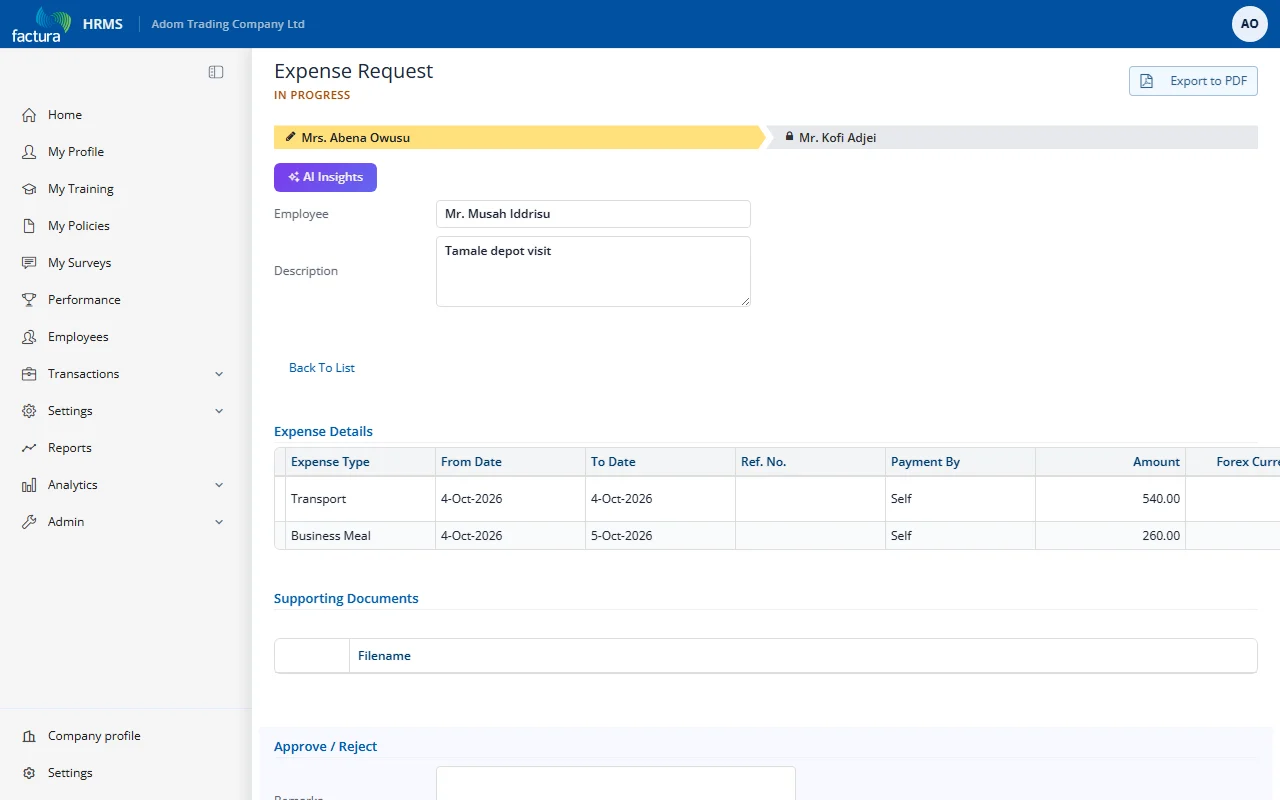
You can review:
- Employee name and description
- Workflow progress bar showing your position in the approval chain
- Expense Details grid with all line items (type, dates, amounts, payment method, remarks)
- AI Insights (button near the top) for an AI-generated review of the request
- Supporting Documents
Approving or Rejecting
Scroll down to the Approve / Reject section. It is shown only to the current approver:
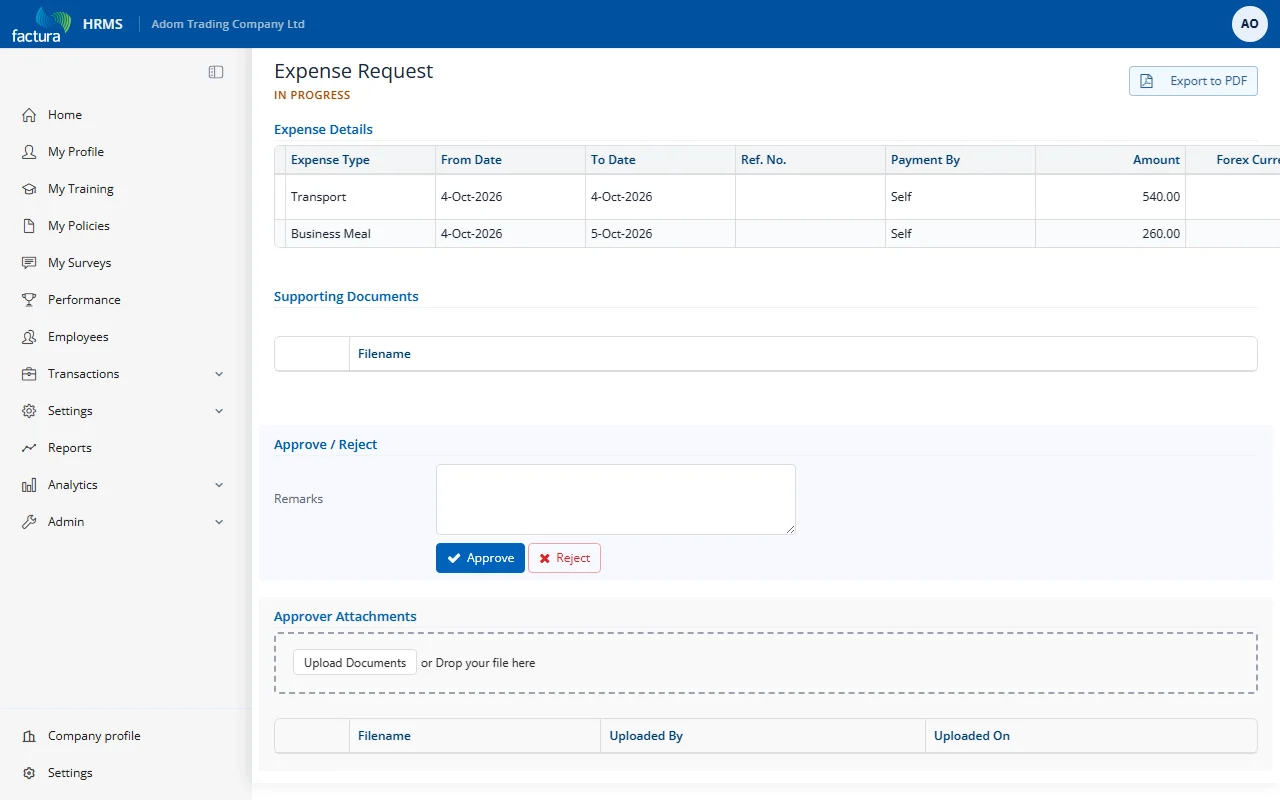
- (Optional) Enter Remarks -- comments explaining your decision. Remarks are visible to the requestor and other approvers.
- Choose an action:
| Action | Button | What Happens |
|---|---|---|
| Approve | Blue button with checkmark | If more approval levels exist, the request advances to the next level and the next approver is notified. If this is the final level, the request is marked as Approved and the requestor + final notifiers are notified. |
| Reject | Red outlined button with X | The workflow is immediately terminated. The request is marked as Rejected. The requestor is notified with your rejection remarks. No further approvers see the request. |
Below the decision buttons, the Approver Attachments section lets you upload your own supporting files.
Accessing Pending Approvals from the Expense List
You can also review pending requests from Transactions > Expense Request > In Progress tab. This shows all in-progress expense requests; click the pencil icon in the Action column to open one.