
How do I comment on a task?
The COMMENTS tab provides an activity timeline combining user comments and system-generated events.
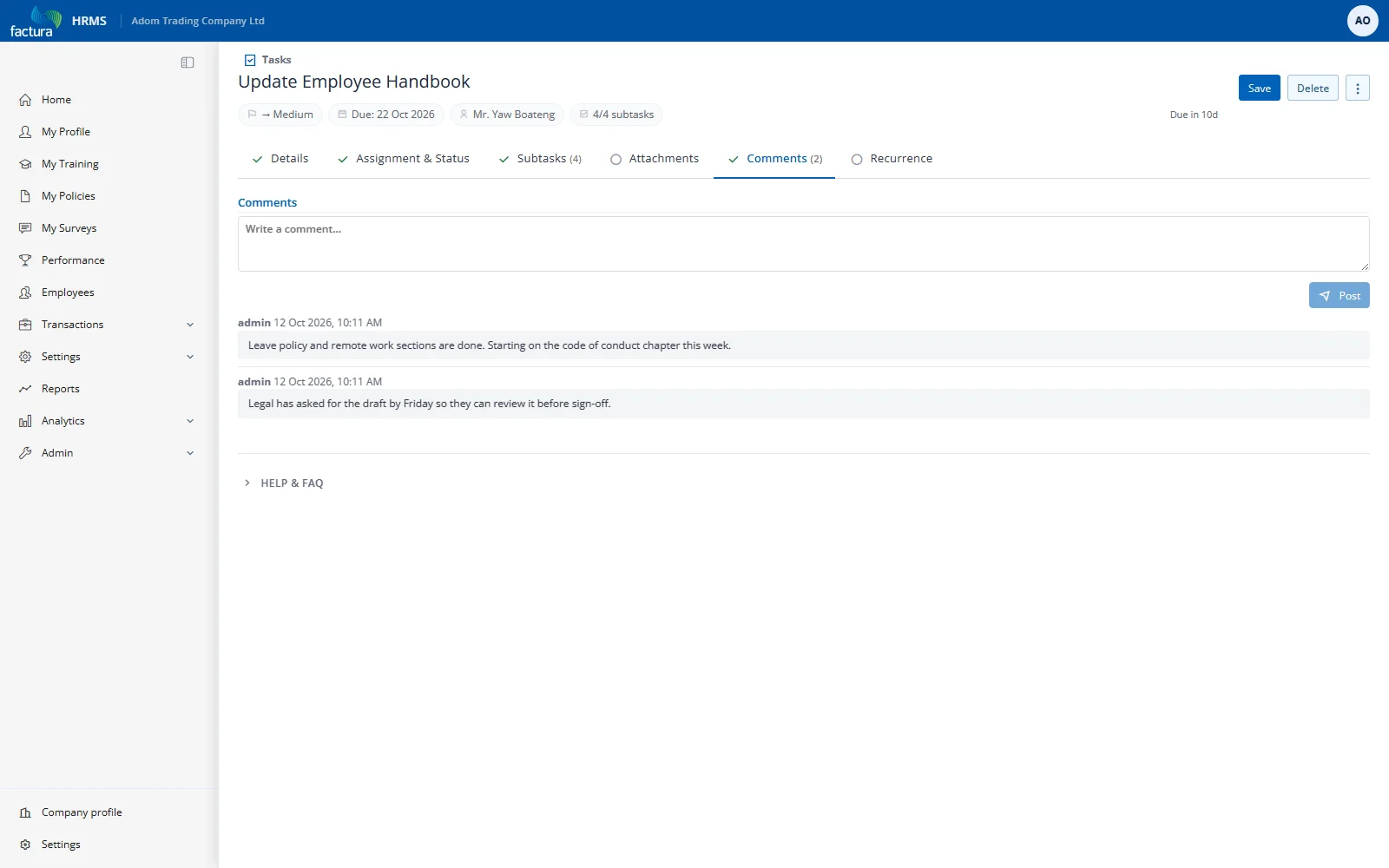
Posting a Comment
- Type your comment in the "Write a comment..." textarea
- Click Post (or press Ctrl+Enter)
- The comment appears at the top of the timeline (newest first)
System Events
The timeline automatically records system events such as:
- Status changes — "[Employee name] changed status to In Progress."
- Reassignments — "Task reassigned from [Employee A] to [Employee B]."
- Subtask completions — "Subtask 'Setup workstation' completed."
System events appear with a clock icon in a compact, muted style to distinguish them from user comments.
Collapsing Older Items
If there are more than 5 items, only the 5 most recent are shown. Click Show all (N) comments to expand the full timeline.
Comment Count
The tab label shows the comment count: COMMENTS (5).