
Training administration
How to administer training in Factura HRMS: create programs, enrol participants, run assessments, collect feedback and issue certificates.
Overview
The Training Administration module provides end-to-end management of employee training programs. It supports:
- Training program scheduling with venue, cost, and capacity tracking
- Employee enrollment — individual, bulk, or department-wide
- Skill assignment — automatically awards skills to employee profiles on training closure
- Post-training assessment with scores, grades, and pass/fail tracking
- Post-training feedback surveys to measure training quality
- Certificate tracking with expiry reminders
- Mandatory training compliance monitoring with overdue alerts
- Training requests — employees and managers can nominate or request training
- Calendar view of all scheduled training programs
- Reports & KPIs — completion rates, costs, skills awarded, compliance metrics
- External training log for conferences, workshops, and courses taken outside the system
- Email notifications for enrollment, reminders, status changes, and certificate expiry
- ESS self-service — employees view their training history and available programs
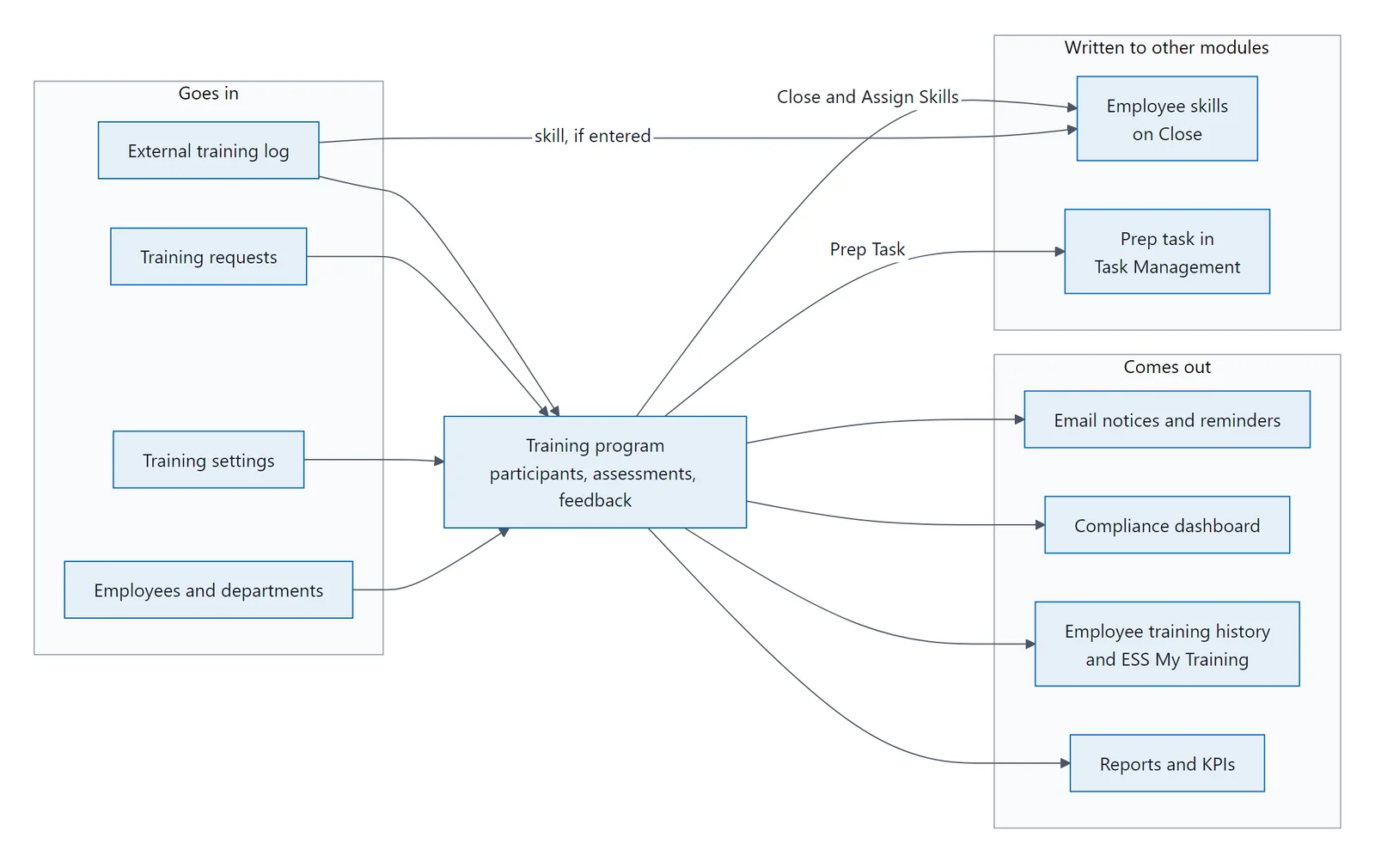
How data flows: employees, settings, requests and the external log go in; skills, tasks, emails, compliance and reports come out.
Articles in this guide
- How do I get started with training administration?Open Training from the left sidebar (look under Transactions ).
- How do I find my way around the training list?The Training List has 5 tabs : A row of one-click status filters sits above the grid: Click an active pill…
- How do I create a training program?Click Add Training Program at the top right of the Training Programs page.
- What goes in a training program's details?The v2 edit form replaces the previous tab pattern with a single workspace organised as: Header bar — page…
- How do I link skills to a training program?The Skills tab defines which skills will be awarded to participants when the training is closed.
- How do I enrol participants in a training program?The Participants tab manages employee enrollment in the training program.
- How do I add training materials?The Materials & Resources tab has two sections for managing training logistics.
- What are the training program statuses?Training programs follow a defined lifecycle with specific transitions: Lifecycle: program statuses from…
- How do I set up training assessments?The Assessments tab appears after a program reaches Completed status (Status >= 3).
- How do I collect post-training feedback?The Feedback tab captures training quality feedback from participants — separate from Assessments (which…
- How do I issue training certificates?Certificate details are captured per participant .
- How do I manage mandatory training?Programs marked as Is Mandatory are tracked for compliance.
- How do I handle training requests?Employees and managers can submit training requests or nominations through the Training Requests tab.
- How do I use the training calendar and trend view?The standalone Calendar tab was removed in v2.
- Which training reports are available?The Reports tab provides management-level analytics and key performance indicators.
- How do I log external training?The External Training tab allows quick entry of training that employees attended outside the system —…
- How do I see an employee's training history?A TRAINING tab on the admin Employee Edit form shows the complete training history for that employee.
- How do employees see their training?Employees can view their training through the Employee Self-Service portal.
- How do I use preparation tasks for training?For programs in Scheduled or In Progress status, a Prep Task button appears in the action bar.
- Which training reminders are sent?The module sends email notifications for key events: Reminders are sent based on two program-level settings:…
- Which training settings can I change?The Training module settings are grouped into five categories.
Use Cases & Examples
Use Case 1: Annual Safety Training (Mandatory Compliance)
Goal: All warehouse employees must complete fire safety training before the annual audit deadline.
Setup:
- Create a training program: "Fire Safety Training 2026"
- Set Training Type = In-House, Category = Safety
- Check Is Mandatory, set Mandatory Due Date to the audit deadline
- Add skills: "Fire Safety" (SkillType), "Certified" (SkillLevel)
- Click Enroll Department and select "Warehouse Operations"
- Add materials: fire extinguisher manual, evacuation map
- Add resource: external fire safety trainer (name, email, cost)
- Click Schedule Training
Result: Reminders go out automatically. After training, the Compliance tab shows completion rate. Any employees who missed it appear in the Overdue Employees grid, and their managers get notified daily.
Use Case 2: New Employee Onboarding Training
Goal: Every new hire completes a 3-day orientation covering company policies, systems training, and role-specific skills.
Setup:
- Create program: "New Employee Orientation — Q1 2026"
- Set dates for the 3-day block, venue = "Training Room A"
- Add skills: "Company Policies" (Compliance), "HRMS Navigation" (Technical), "Workplace Safety" (Safety)
- Enroll the 5 new hires individually via Enroll Employees
- Add resource personnel: HR Manager (facilitator), IT Support (systems demo)
- Schedule and start training
After completion:
- Mark Completed — system auto-marks attended participants
- Fill in assessments (quiz scores, pass/fail)
- Collect feedback surveys from participants
- Close & Assign Skills — all 3 skills automatically appear on each employee's profile
Result: New hires' Skills tab shows "Company Policies", "HRMS Navigation", and "Workplace Safety" with Trained=Yes and the training date. HR can verify onboarding completion from any employee's TRAINING tab.
Use Case 3: Employee-Requested External Workshop
Goal: An employee wants to attend a project management workshop at an external provider.
Flow:
- Employee submits a Training Request via ESS: topic = "PMP Certification Workshop", justification = "Leading new client project", estimated cost = $2,500
- HR sees the request in the Training Requests tab
- HR creates a new program: "PMP Workshop — External Provider", type = External
- HR Approves the request and links it to the new program — employee is auto-enrolled
- After completion, HR enters the certificate details (number, issued date, expiry = 3 years)
Result: The employee's profile shows the PMP training with certificate. 30 days before the 3-year expiry, the employee gets an automatic reminder to recertify.
Use Case 4: Tracking Conference Attendance
Goal: Three employees attended a DevOps conference. HR wants to record it without creating a full program.
Setup:
- Go to the External Training tab
- For each employee, add an entry: title = "DevOps Summit 2026", provider = "TechConf Ltd", dates, cost per person
- Optionally add skills gained
Result: The conference appears on each employee's Training History. Training cost is captured in the Reports KPIs. No scheduling or enrollment workflow needed.
Use Case 5: Quarterly Leadership Development Series
Goal: Run a 4-session leadership program for senior managers, with assessments and feedback after each session.
Setup per session:
- Create program: "Leadership Series — Session 1: Strategic Thinking"
- Enroll the 12 senior managers
- Add skills relevant to the session
- After each session: mark completed, record assessments, collect feedback
- Close to assign skills
Tracking:
- The Reports tab shows cumulative training hours and costs across all 4 sessions
- The Calendar view shows all sessions laid out across the quarter
- Each manager's Training History shows their progression through all 4 sessions
- Feedback Summary helps HR identify which sessions/trainers were most effective and adjust future content
FAQ / Troubleshooting
Q: I created a training program but the Training nav item doesn't appear.
A: The module is disabled by default. Open Settings ▸ Automation ▸ Module Toggles and switch Training Administration ON.
Q: The "Close & Assign Skills" button doesn't work.
A: Check two things:
- The program must be in Completed status (not In Progress)
- If Require assessment before close is enabled, all completed participants must have assessments
- If Require certificate before close is enabled, every completed participant must have a certificate number
Q: Skills weren't assigned after closing.
A: Ensure Auto assign skills on close is set to True in Settings. If it's False, closure succeeds but no skills are created.
Q: I can't schedule a program.
A: The Schedule action validates that the program has at least one skill and at least one participant enrolled. Add both before scheduling.
Q: Certificate expiry reminders aren't being sent.
A: Check that:
- The participant has a certificate with an Expiry Date set
- Certificate expiry reminder days is set (default: 30)
- The HangFire service is running
Q: How do I track training an employee took at a conference?
A: Use the External Training tab on the Training List. This creates a quick entry that appears in the employee's Training History without needing to set up a full program.
Q: Can employees request training themselves?
A: Yes, through the ESS My Training page. They can browse available programs and submit enrollment requests. If Require workflow approval for requests is enabled, requests go through the approval chain.
Q: Where can I see all training for a specific employee?
A: Two places:
- Admin: Open the employee's edit form > click the TRAINING tab (last tab)
- ESS: The employee views their own training under My Training
Q: What's the difference between Assessment and Feedback?
A: Assessment measures the employee's performance (scores, grades, pass/fail — filled by the trainer/HR). Feedback measures the training's quality (satisfaction ratings — filled by the participant).
Q: I cancelled a program — can I undo it?
A: No, Cancelled is a terminal state. Create a new program instead. The cancelled program remains in the system for historical records.
Last updated: 29 April 2026 Module version: v2 (5-stage stepper, hybrid stage card + Skills/Participants/Materials/Assessments/Feedback sub-tabs, ESS card grid)