
How do I change my password?
If you are already logged in and want to update your password, use the Change Password feature.
Steps
- Click your avatar (your initials or photo) in the top-right corner of the screen.
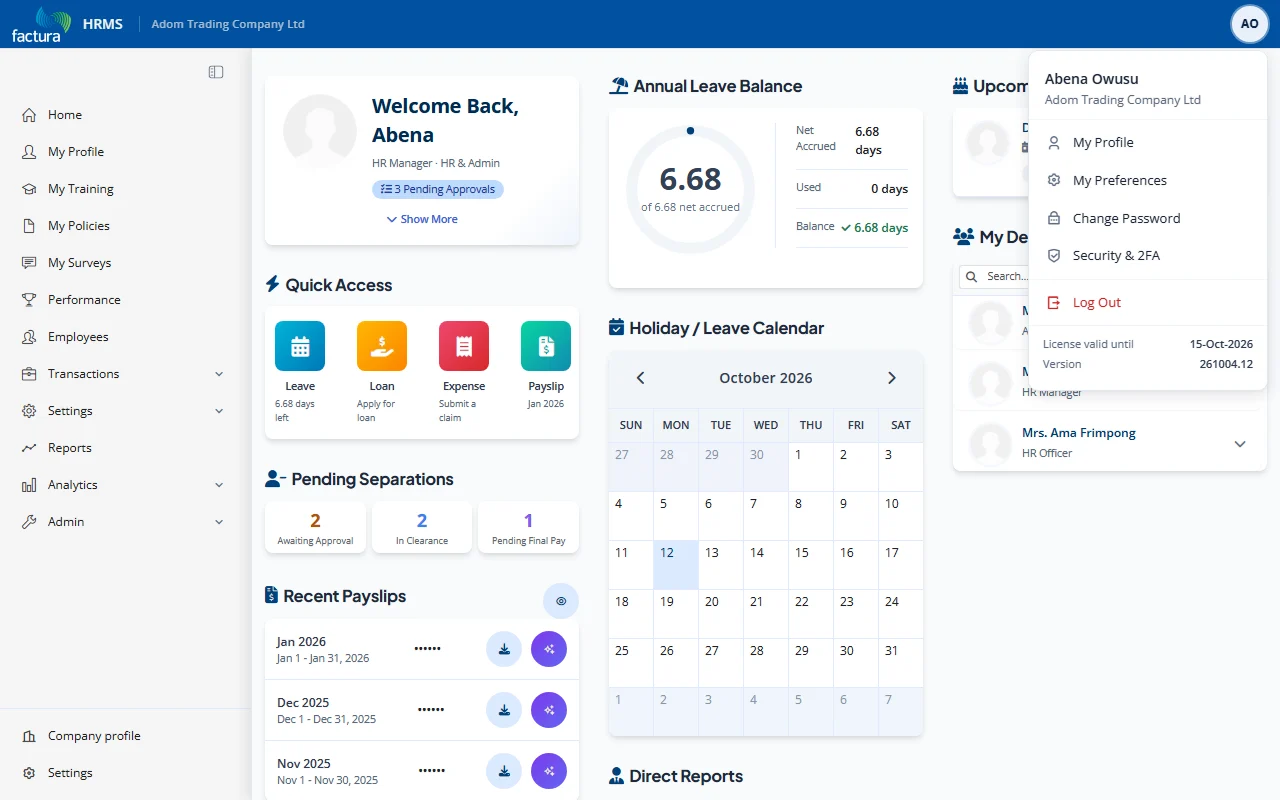
- A menu appears with My Profile, My Preferences, Change Password, Security & 2FA and Log Out. It also shows your licence expiry date and the application version.
- Click Change Password.
- You are taken to the Change Password page, which confirms your current username.
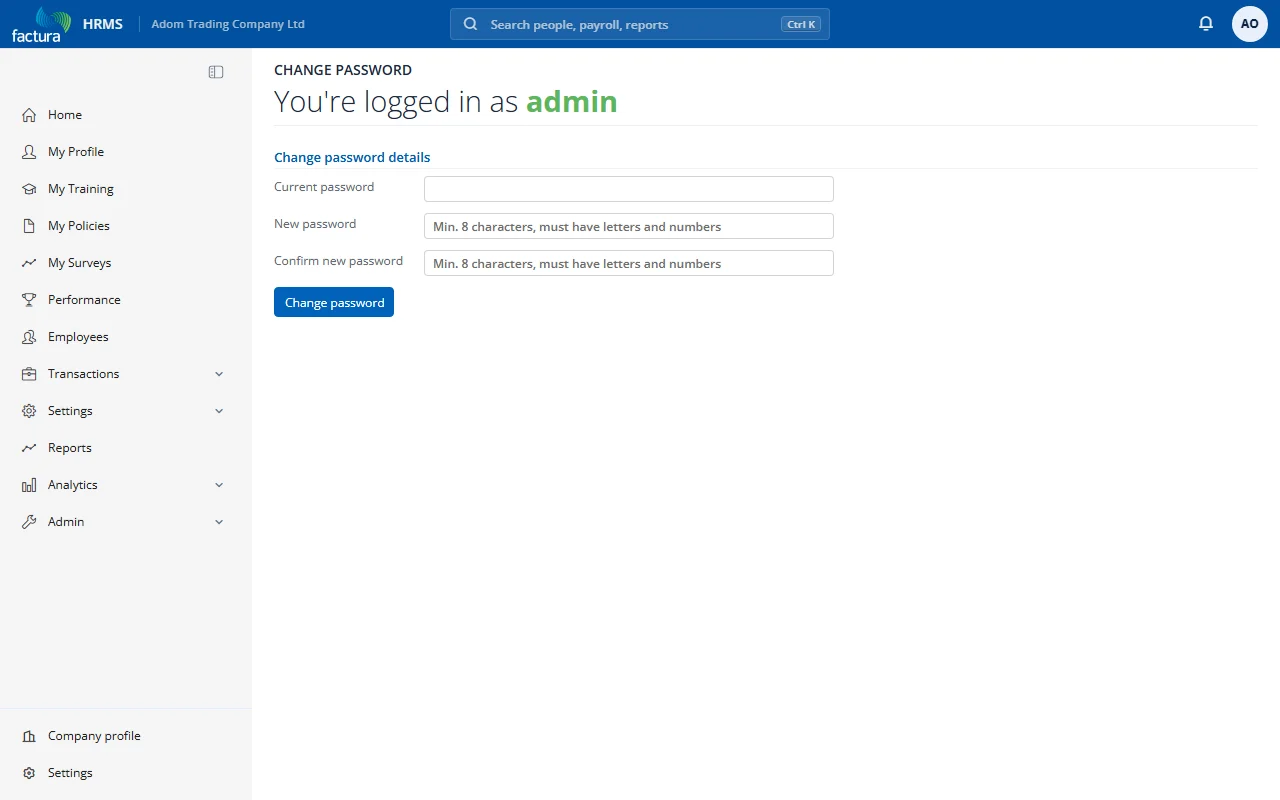
- Fill in the form:
| Field | Description |
|---|---|
| Current password | Enter your existing password |
| New password | Enter your desired new password (min. 8 characters, must contain both letters and numbers) |
| Confirm new password | Re-enter the new password exactly as above |
- Click the Change password button.
What Happens Next
- Success: A confirmation message is displayed, and your password is updated immediately. Use the new password for your next login.
- Failure: An error message appears if:
- The current password is incorrect
- The new password does not meet the minimum requirements
- The new password and confirmation password do not match
Password Requirements
- Minimum 8 characters
- Must contain both letters and numbers