
How do I assign a task and update its status?
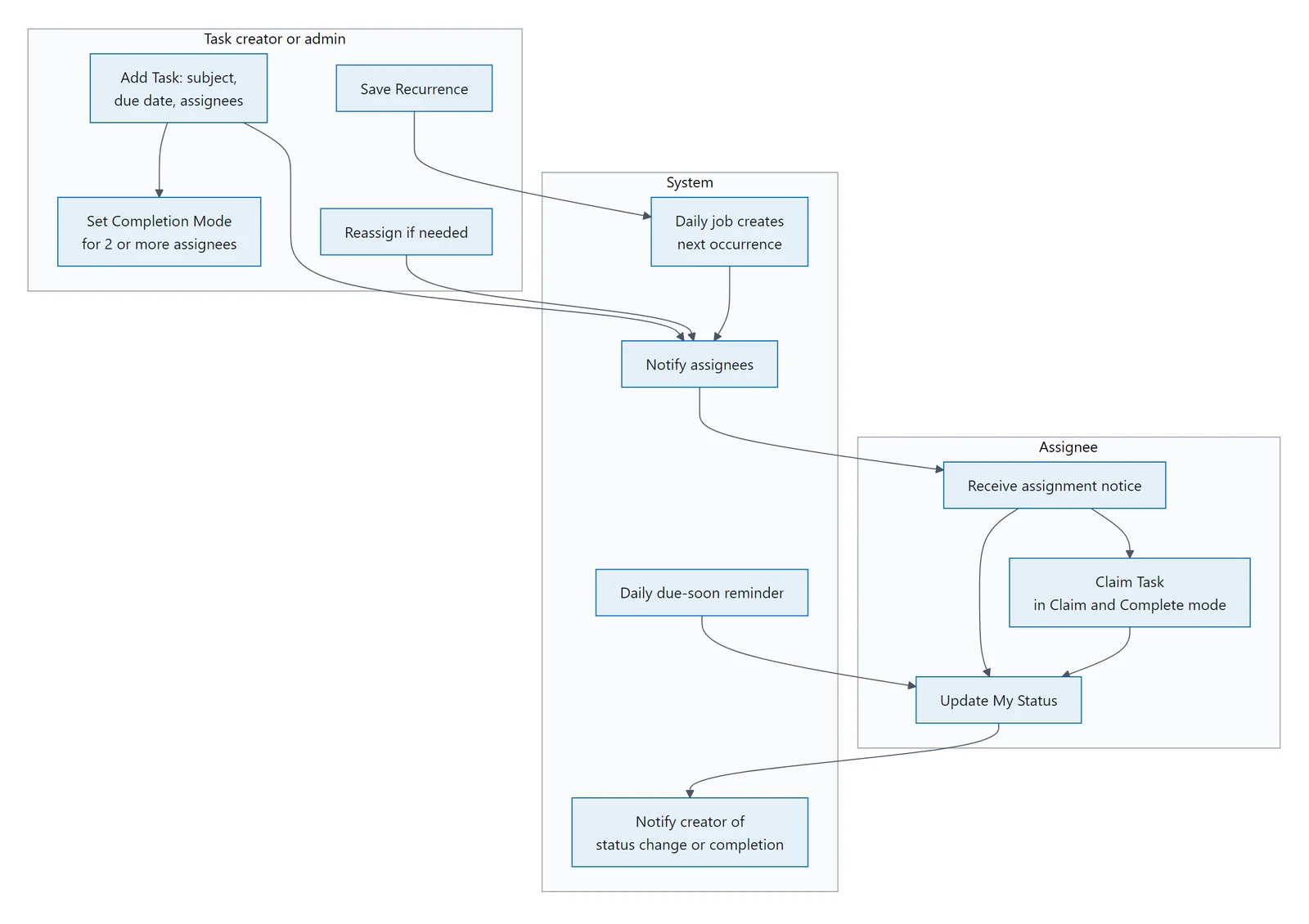
Open a saved task to see the full edit form with header information and multiple tabs.
Header Bar
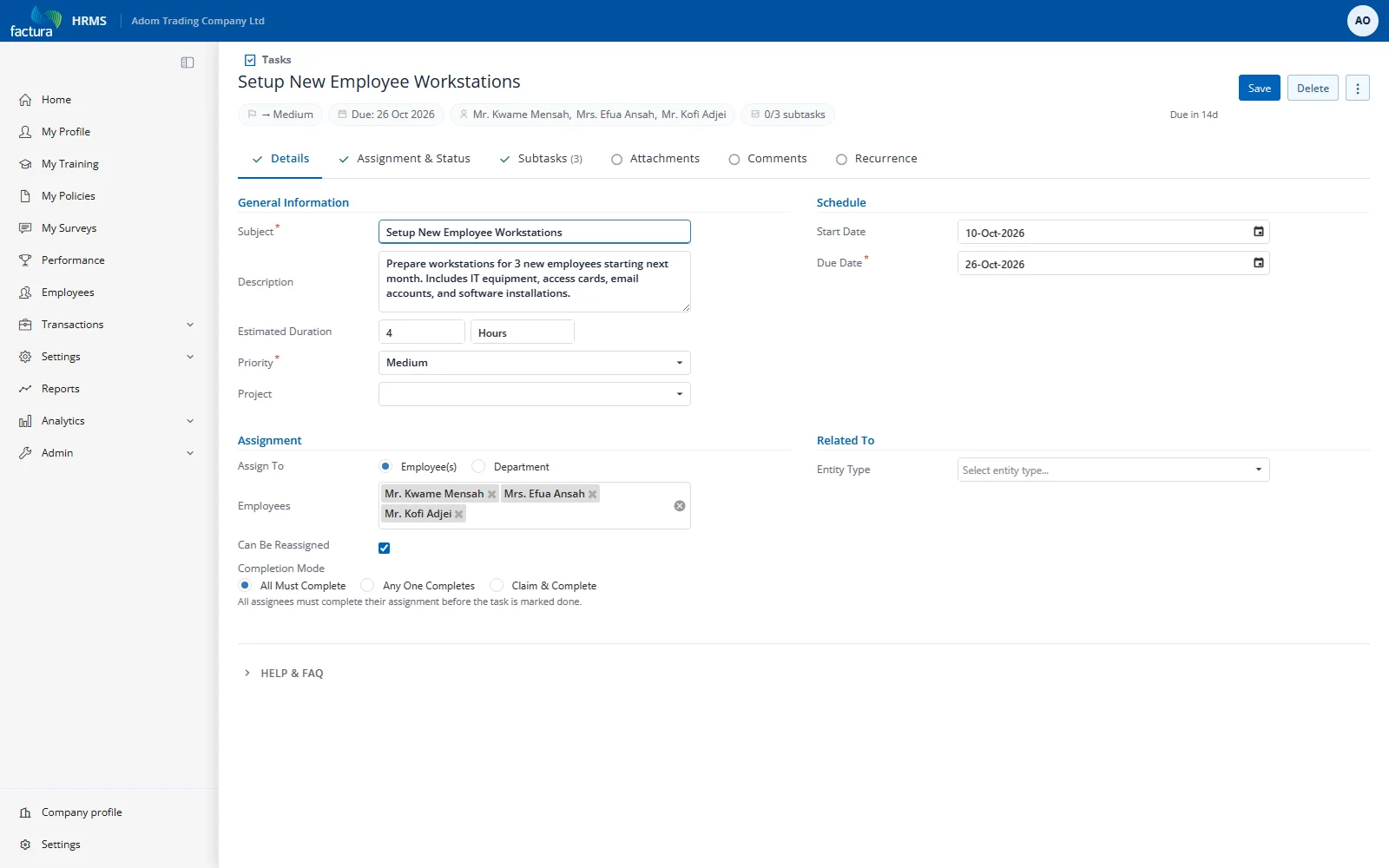
When viewing a saved task, the header shows:
- Task subject (title)
- Priority badge (color-coded chip)
- Due date
- Assignee names (up to 3 shown, count for more)
- Subtask progress (e.g., "3/7 subtasks")
- Recurring badge (if applicable)
Below the header:
- Context strip — "Created N days ago · Due in N days · Last updated N days ago"
- Overdue banner (red) — Appears when the task is past due: "OVERDUE — This task was due N day(s) ago"
Assignment & Status Tab
The ASSIGNMENT & STATUS tab combines assignment management and status tracking in one view.
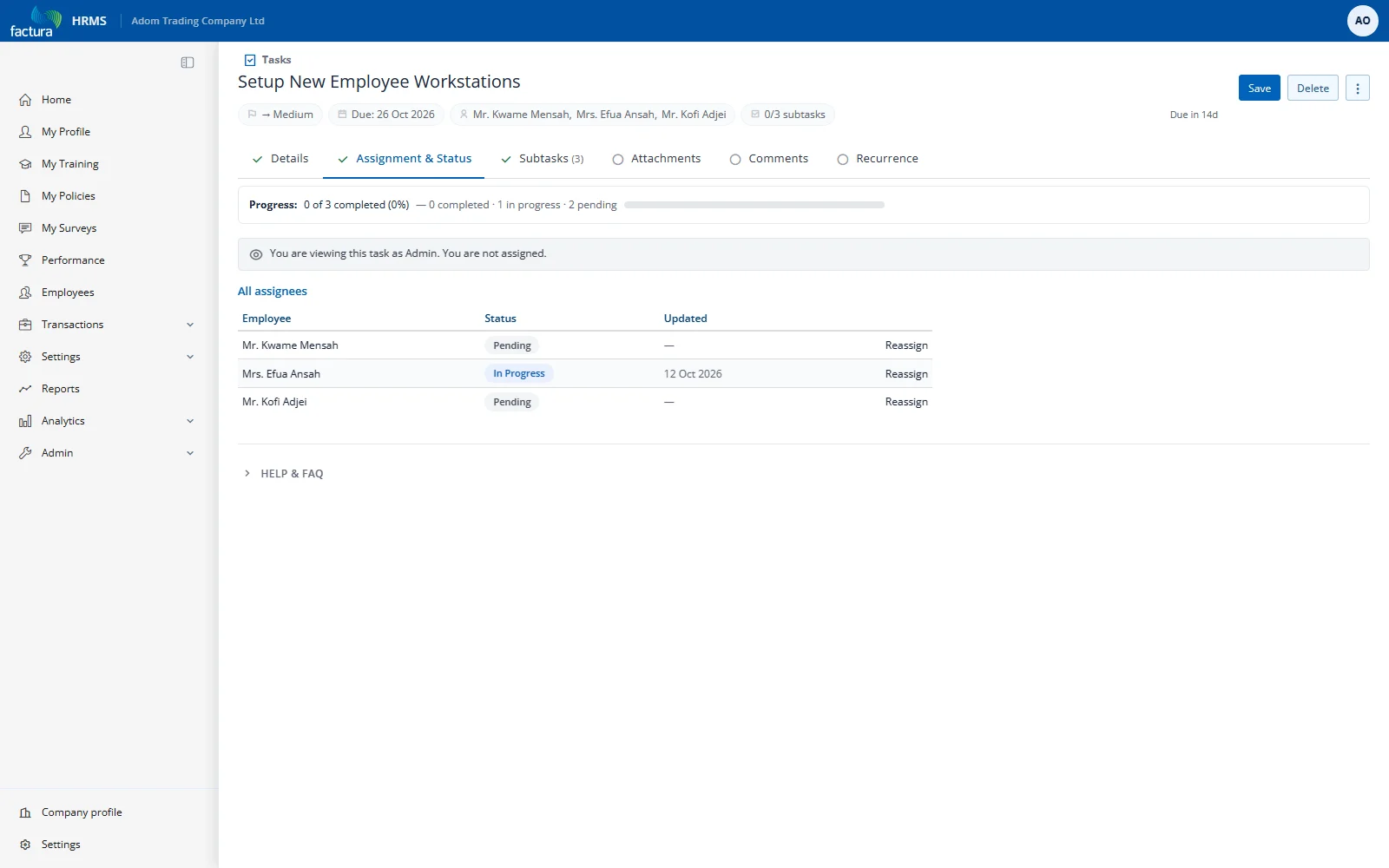
Progress Strip (shown for tasks with 2+ assignees): Displays completion progress with a breakdown — e.g., "3 of 5 completed (60%) — 3 completed · 1 in progress · 1 pending"
Your Assignment Card (if you are assigned): Shows your current status with an Update My Status button.
All Assignees List: Shows every assignee with their status badge, last updated date, and a Reassign link (if enabled).
Updating Your Status
- On the Assignment & Status tab, click Update My Status
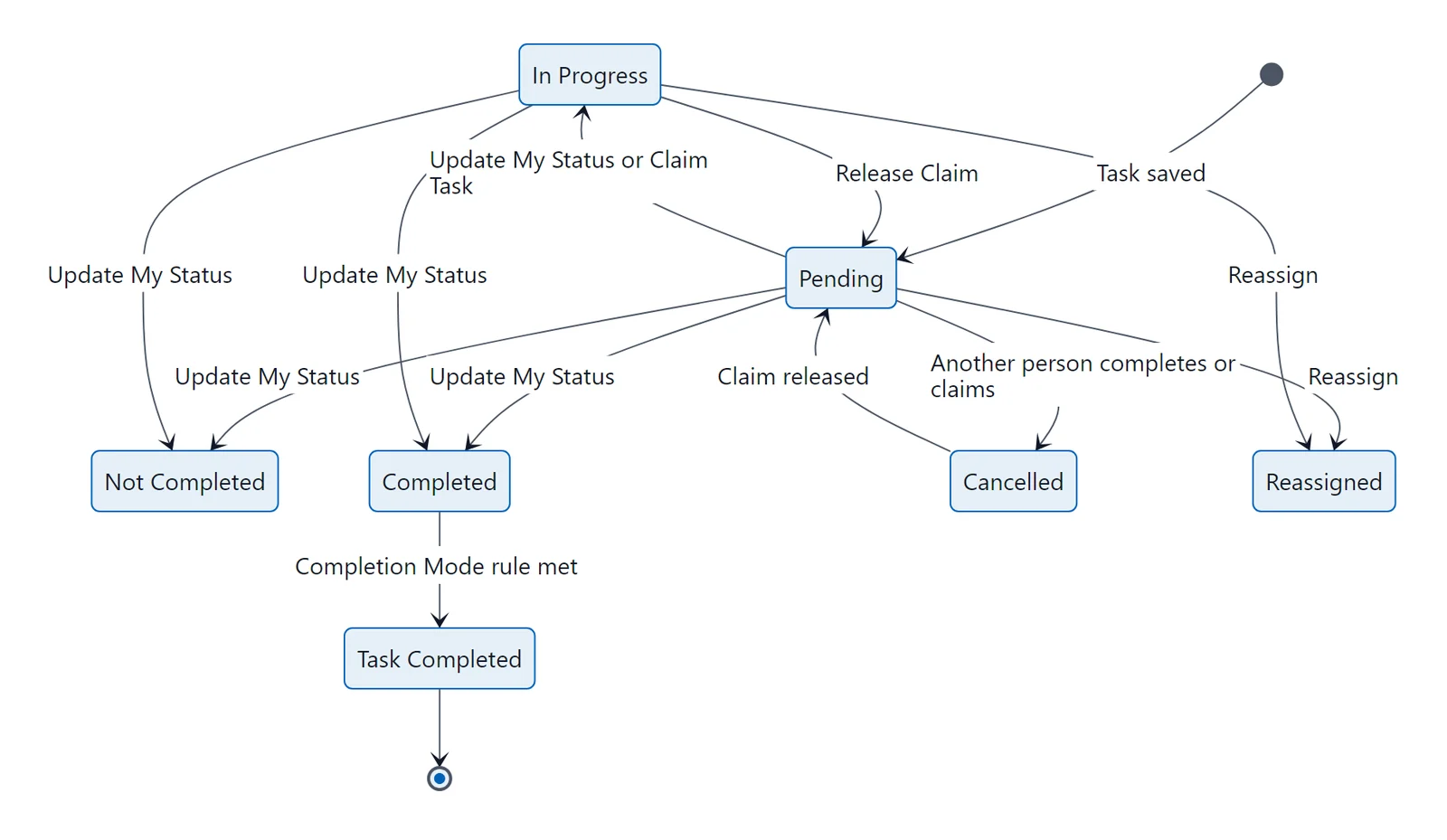
- In the popup, choose a status:
| Status | Meaning |
|---|---|
| Pending | Not yet started (default) |
| In Progress | Currently working on it |
| Completed | Finished |
| Not Completed | Cannot be done — requires selecting a reason |
- Optionally add Notes
- Click Update
Auto-Complete Behavior
When the last active assignee marks their assignment as Completed, the task itself is automatically marked as complete.