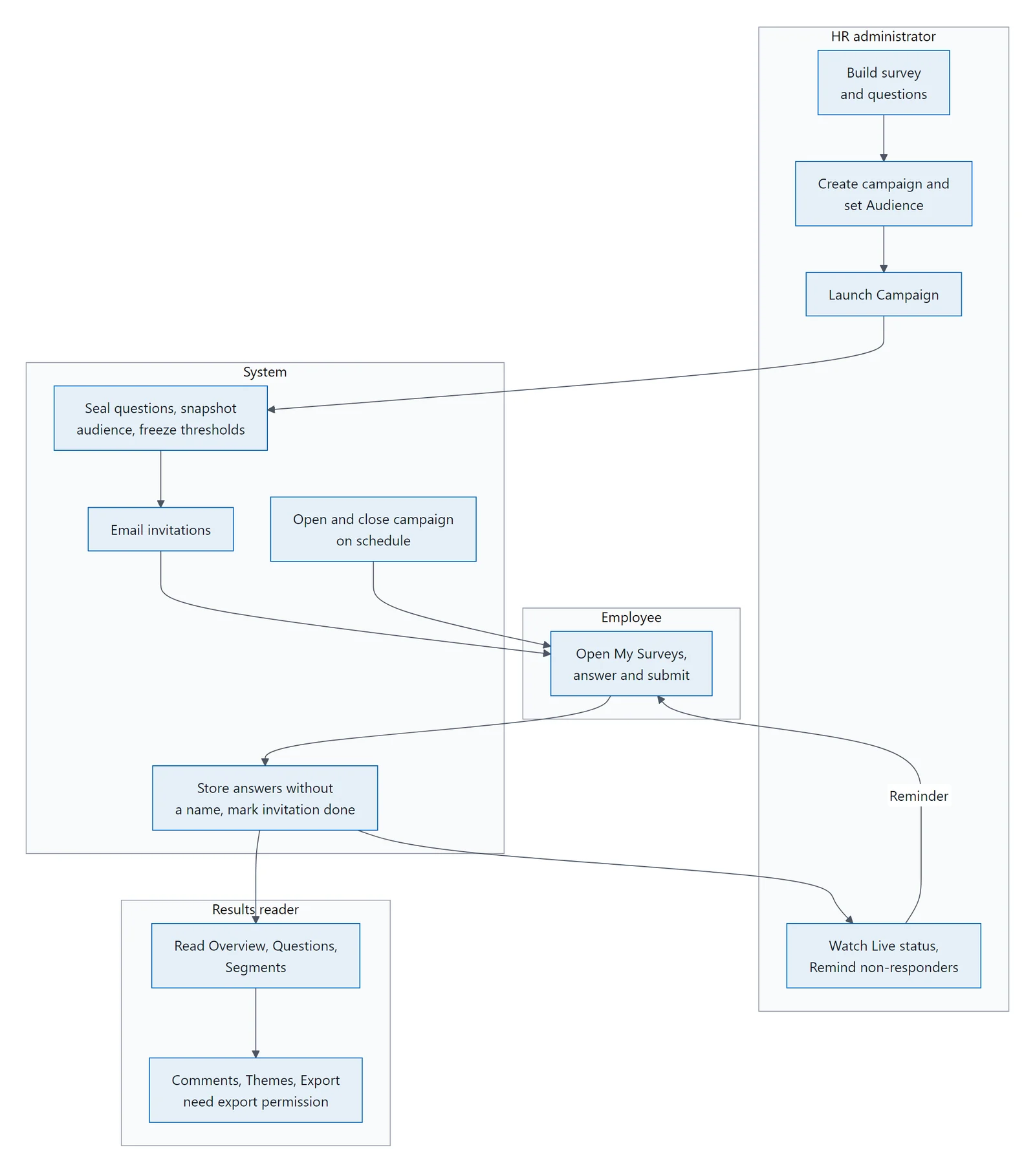
How do I get started with surveys?
Enabling the module
Survey is switched on per company. An administrator turns it on under Settings ▸ Automation ▸ Module Toggles (the Surveys & Employee Listening switch). It also requires the Survey module licence; without it the module is hidden and access is refused, on both the HR and the employee side.
Once it's on:
- Surveys appears in the left sidebar for HR administrators (under Transactions).
- My Surveys appears in the left sidebar for employees.
- Both are hidden entirely when the flag is off or the module is unlicensed.
Two further settings sit alongside it:
| Setting | Default | What it does |
|---|---|---|
| AI themes | Off | Sends comment text to an AI provider to group it into themes. A deliberate, disclosed exception to the platform's "no personal data to AI providers" rule — see §12. |
| Retention months | 36 | Months after a campaign closes before comment text and demographic attributes are stripped. 0 means keep indefinitely — see §15. |
Confirm the retention period matches your retention policy before your first campaign closes. The module's setup script sets it to 36 months, but
0means retain indefinitely — so if the value ever reads0, that is "keep forever", not "delete immediately".
The two-level model
A Survey is a reusable template — a title, a category, and a set of questions. A Campaign is one run of that survey: its own dates, its own audience, its own results. One survey can be run every quarter as four campaigns, and because the questions carry a stable key, the scores line up into a trend.