
How do I run the hearing stage?
The hearing stage introduces the 8+4 split layout with a sidebar. Hearings are displayed as an accordion stack.
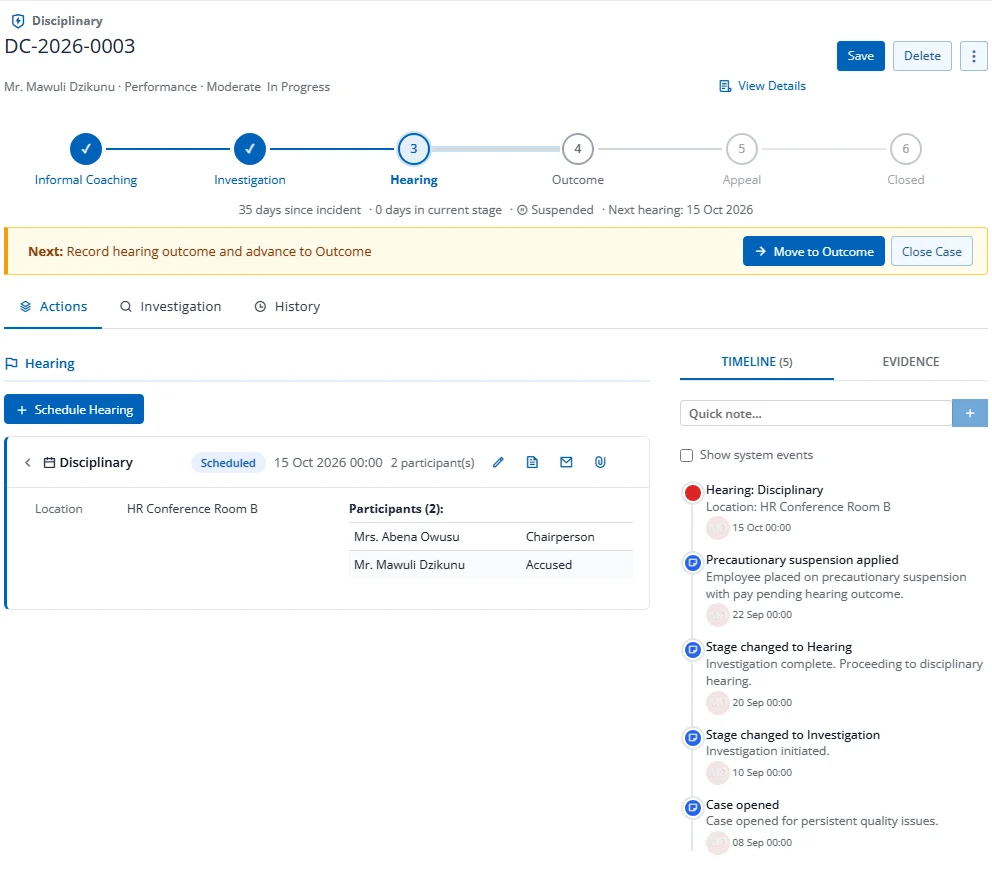
Layout
- Left (8 columns): Hearing accordion + hearing form
- Right (4 columns): Timeline sidebar + evidence tab
- Mode Tabs: Actions | Investigation | History (see Section 14)
Hearing Accordion
Each hearing appears as a compact summary row that expands to show full details:
Collapsed row: Hearing type, status badge, date/time, participant count, quick-action buttons Expanded detail: Location, minutes, outcome, participants table
Scheduling a Hearing
- Click Schedule Hearing
- Fill in: Date/time, Location, Hearing Type
- Add participants (employee, role) from the Participants section
- Click Save Hearing
Hearing Actions (in accordion summary)
- Edit (pencil icon): Re-open the hearing form for editing
- Letter (document icon): Generate hearing invitation letter
- Email (mail icon): Email the hearing invitation
- Evidence (attachment icon): Attach evidence to this hearing
Actions
- Move to Outcome (via CTA strip): Advances to Stage 3