
How do I record the outcome of a case?
The outcome stage is where formal disciplinary actions are issued. It uses the 8+4 split layout with the action accordion as the primary workspace.
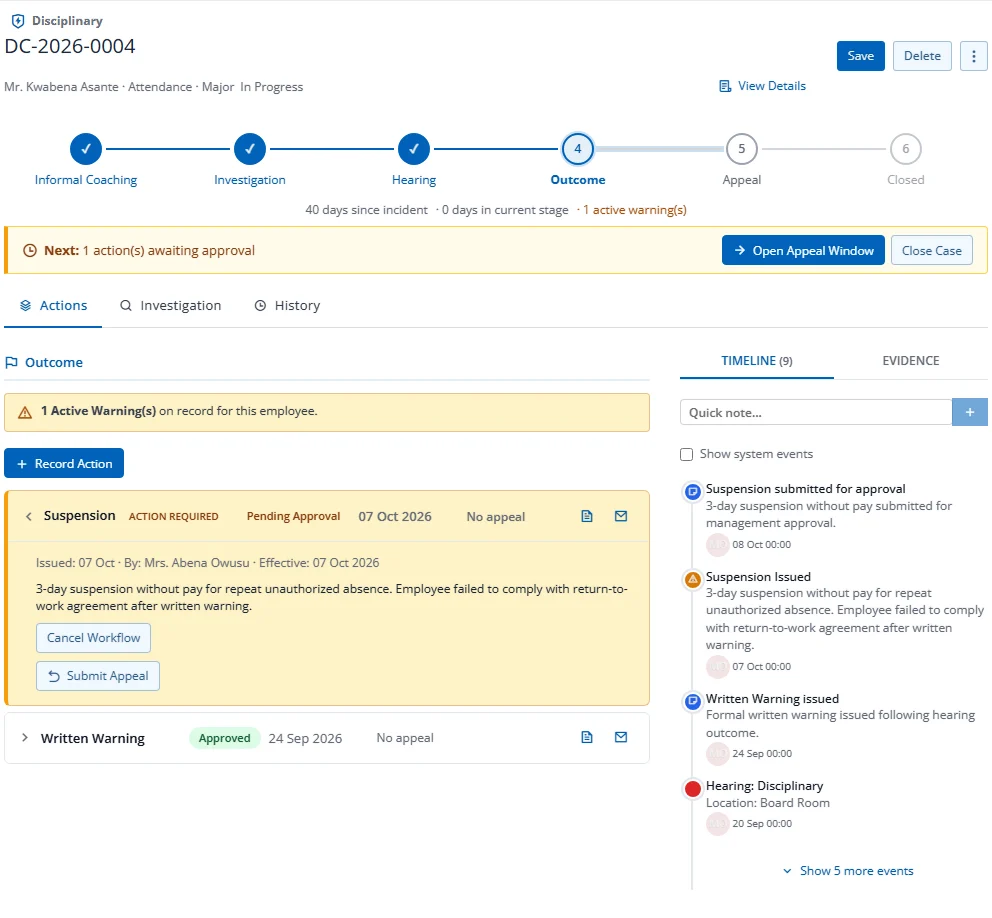
Layout
- Active Warnings Banner: Shows if the employee has existing warnings on record
- Action Stack: Accordion cards for each issued action (see Section 15)
- Sidebar: Timeline (limited to 5 most relevant events) + evidence
Recording an Action
- Click Record Action
- Select the Action Type:
- Verbal Warning
- Written Warning
- Final Written Warning
- Performance Improvement Plan (PIP)
- Suspension
- Demotion
- Dismissal
- No Action
- Counseling
- Set Action Date, Effective Date
- Add Description
- For PIP: set duration and objectives
- For Suspension: set start/end dates
- Click Save Action
Action Workflow (if approval is required)
- Submit for Approval: Sends the action for manager approval
- Approve / Reject: Available to approvers
- Cancel Workflow: Withdraws the approval request
Actions
- Open Appeal Window (via CTA strip): Advances to Stage 4