
How do I create a recurring task?
Recurring tasks automatically generate new task instances on a schedule.
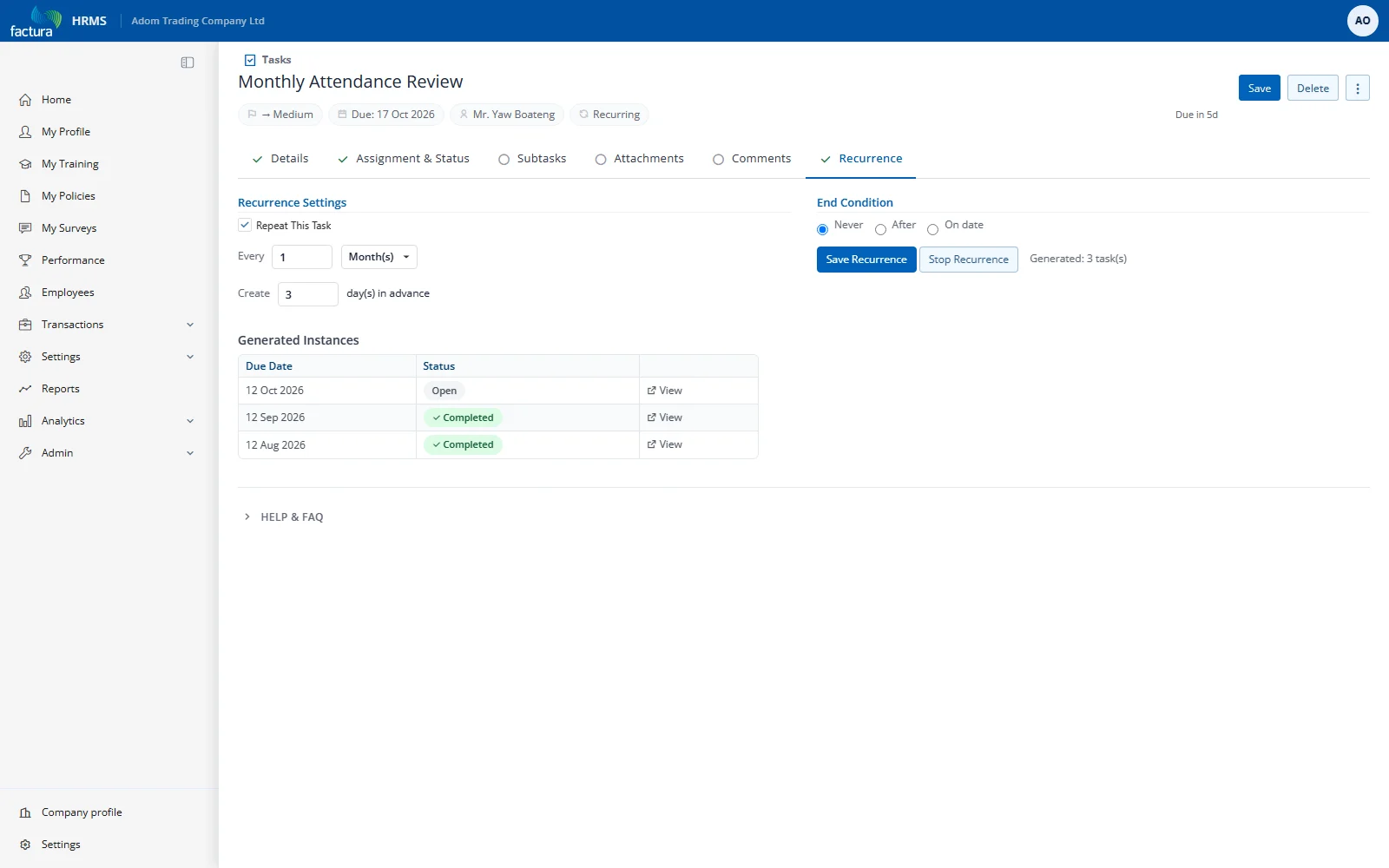
Setting Up Recurrence
- Create and save a task first
- Go to the RECURRENCE tab (visible to the task creator when recurring tasks are enabled)
- Check Repeat This Task
- Configure the schedule:
| Setting | Description |
|---|---|
| Every N | Interval — e.g., every 2 weeks |
| Frequency | Day(s), Week(s), Month(s), or Year(s) |
| Days of Week | For weekly: select specific days |
| Create N days in advance | Generate the next task this many days before due |
| End condition | Never, After N occurrences, or On a specific date |
- Click Save Recurrence
Generated Instances
A table below the settings shows all generated child tasks with their due date, completion status, and a link to view each instance.
Each new occurrence copies the subject, description, priority, category, assignment type, department, estimated duration, Can Be Reassigned setting, project and assignees. It does not copy the completion mode, start date, due time, subtasks or Related To record.
Stopping Recurrence
Click Stop Recurrence to disable future generation. Existing generated tasks are not deleted.