
What happens after a loan is approved?
Approved View
After all approval levels are completed, the request is marked as Approved.
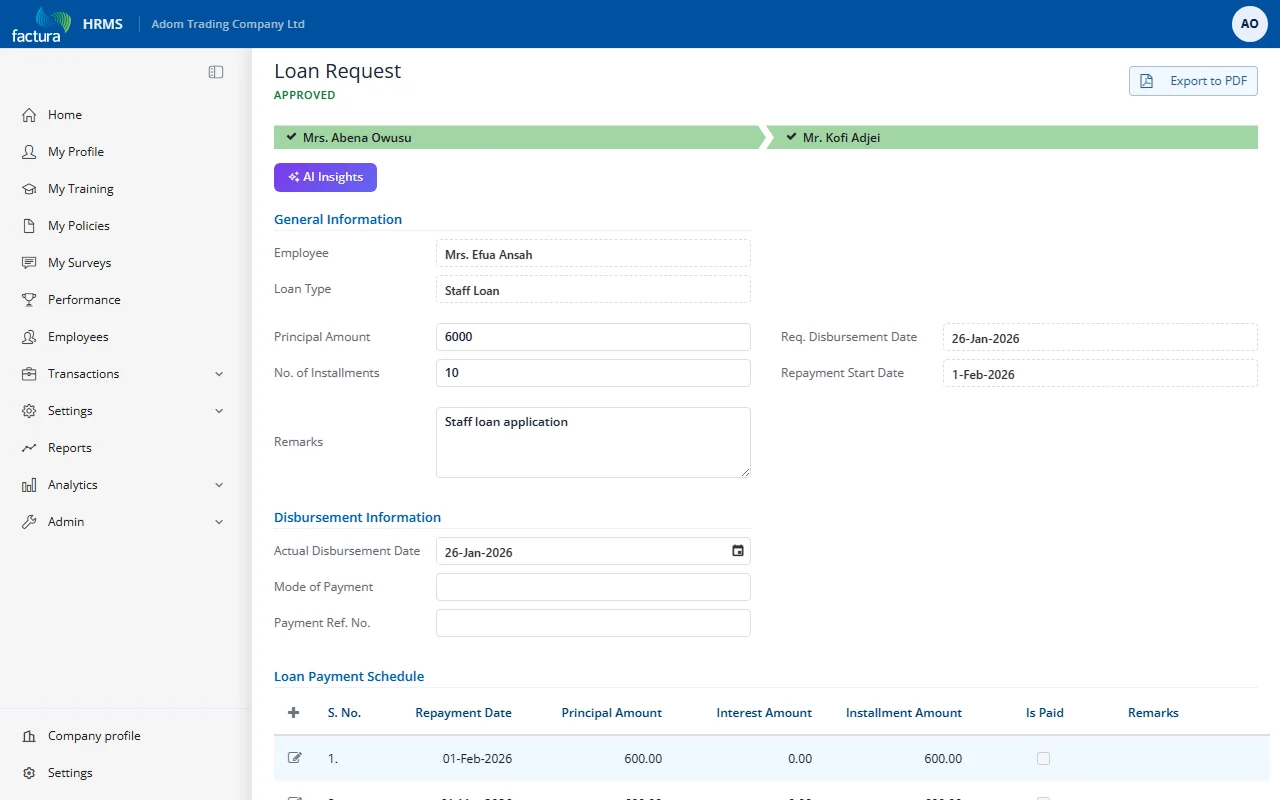
Key elements:
- Status Header: Displays APPROVED in green text
- Workflow Progress Bar: All approvers shown as completed (green checkmark)
- Disbursement Information: Actual Disbursement Date, Mode of Payment and Payment Ref. No., completed when the loan is paid out
- Loan Payment Schedule: The repayment schedule, including an Is Paid column and a remarks column for each installment
Post-Approval Actions
Once a loan is approved, additional actions become available:
| Button | Description |
|---|---|
| Loan Disbursed | Click to mark the loan as disbursed (funds have been released to the employee). This updates the "Is Disbursed" flag on the loan request list. |
| Save | Save any changes to dates or details |
| Export to PDF | Download the approved loan as a PDF |
| Show Loan Payment Schedule | View the repayment schedule |
Disbursement
After the loan is approved:
- The finance team reviews the approved loan on the Approved tab.
- Once funds are released to the employee, click Loan Disbursed to mark it as disbursed.
- The Is Disbursed checkbox on the list will show as checked.
- Loan repayment deductions begin automatically from the Repayment Start Date based on the configured Deduction Component in the loan type settings.
Rejected Requests
If any approver rejects the request:
- The workflow terminates immediately
- The status changes to Rejected
- The employee receives a notification with the approver's rejection remarks
- The request appears in the Rejected tab
- No loan is disbursed