
How do I follow my loan request after I submit it?
Once you submit a loan request to workflow, you can track its progress.
In Progress Tab
Navigate to Transactions > Loan Request > In Progress tab:
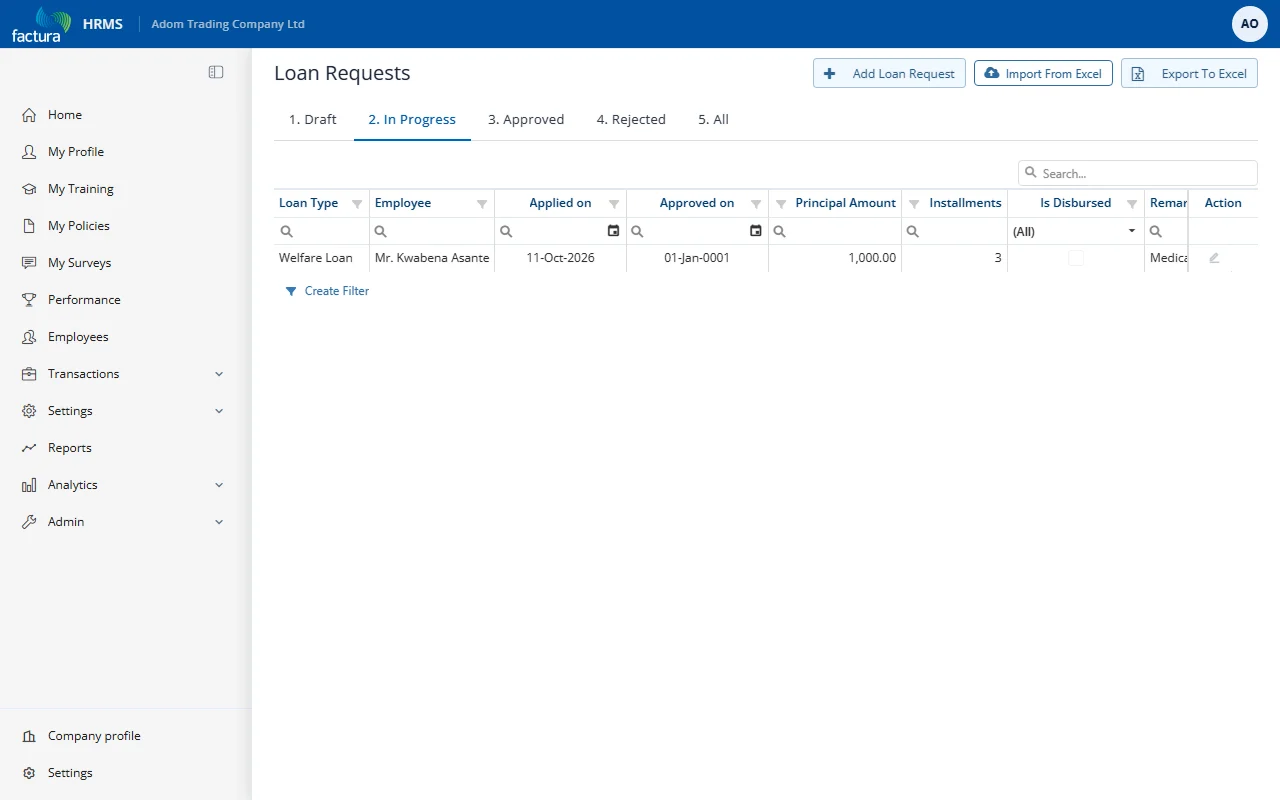
The list shows all submitted requests with their current status.
Request Detail View
Click the pencil icon on a request to open it in read-only mode and see the full detail:
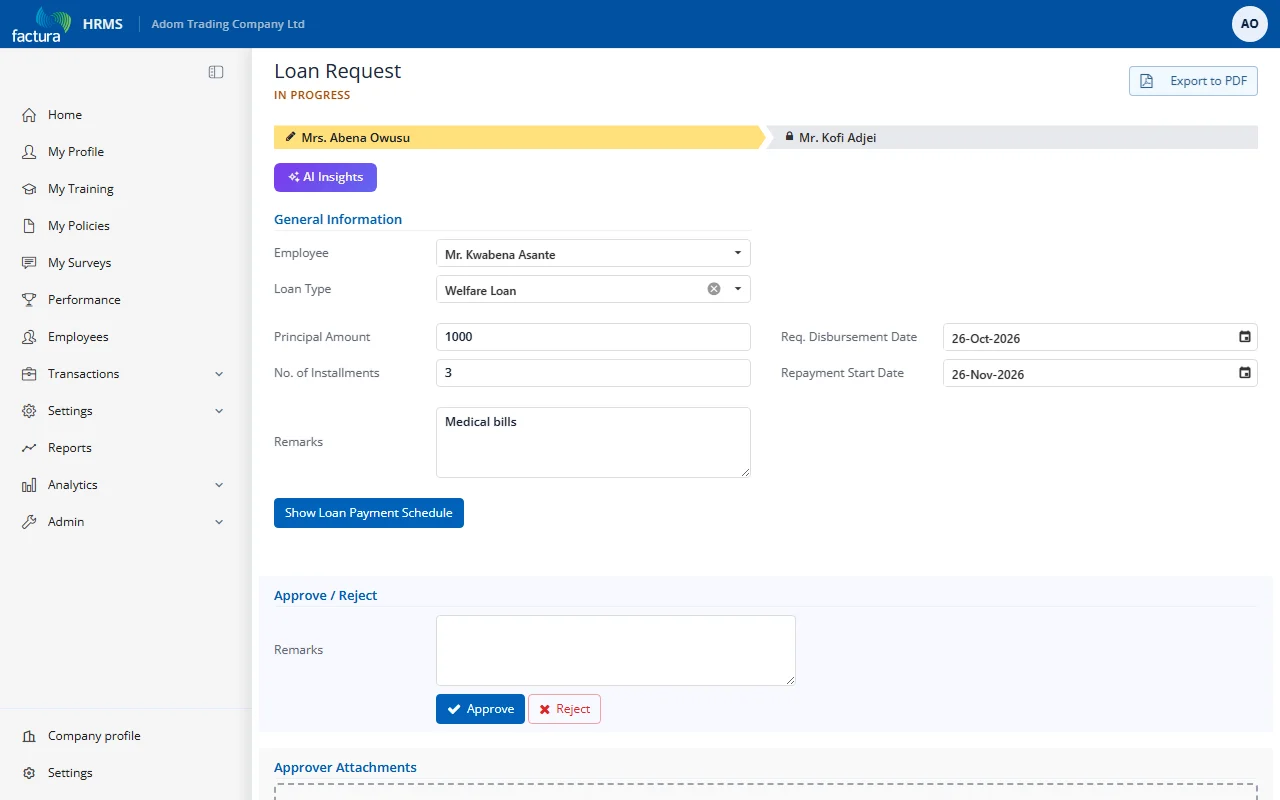
Key elements:
- Status Header: Displays "Loan Request" with IN PROGRESS in orange text
- Workflow Progress Bar: A visual step indicator showing all approvers in the chain:
- Current approver: Highlighted in yellow/gold with a pencil icon -- the request is waiting on this person
- Future approvers: Shown with a lock icon -- will receive the request after the current level approves
What the Initiator Can Do
| Action | Description |
|---|---|
| Open (pencil icon in the list) | Open the request in read-only mode to check its status and see the workflow progress bar |
| Cancel | Cancel the request while it is still in progress |
| Export to PDF | Download the request details as a PDF |
| Show Loan Payment Schedule | View the repayment schedule |
Cancelling a Loan Request
If you need to withdraw a submitted request:
- Open the request from the In Progress tab.
- Click the Delete button.
- The workflow is immediately terminated -- no further approvals occur.
- The request status changes to Cancelled.
- Approvers are notified of the cancellation.
Important: Once cancelled, a request cannot be resubmitted. You would need to create a new request.