How do I configure workflow approval settings?
Last reviewed · Part of Workflow approvals
Before using workflow approvals, an administrator must enable workflow for the desired transaction types.
Steps
- Open Settings in the left sidebar and choose Workflow Approvals in the settings hub.
- Locate the workflow toggles in the Automation section of the hub (Settings ▸ Automation ▸ Workflow Approvals), shown below.
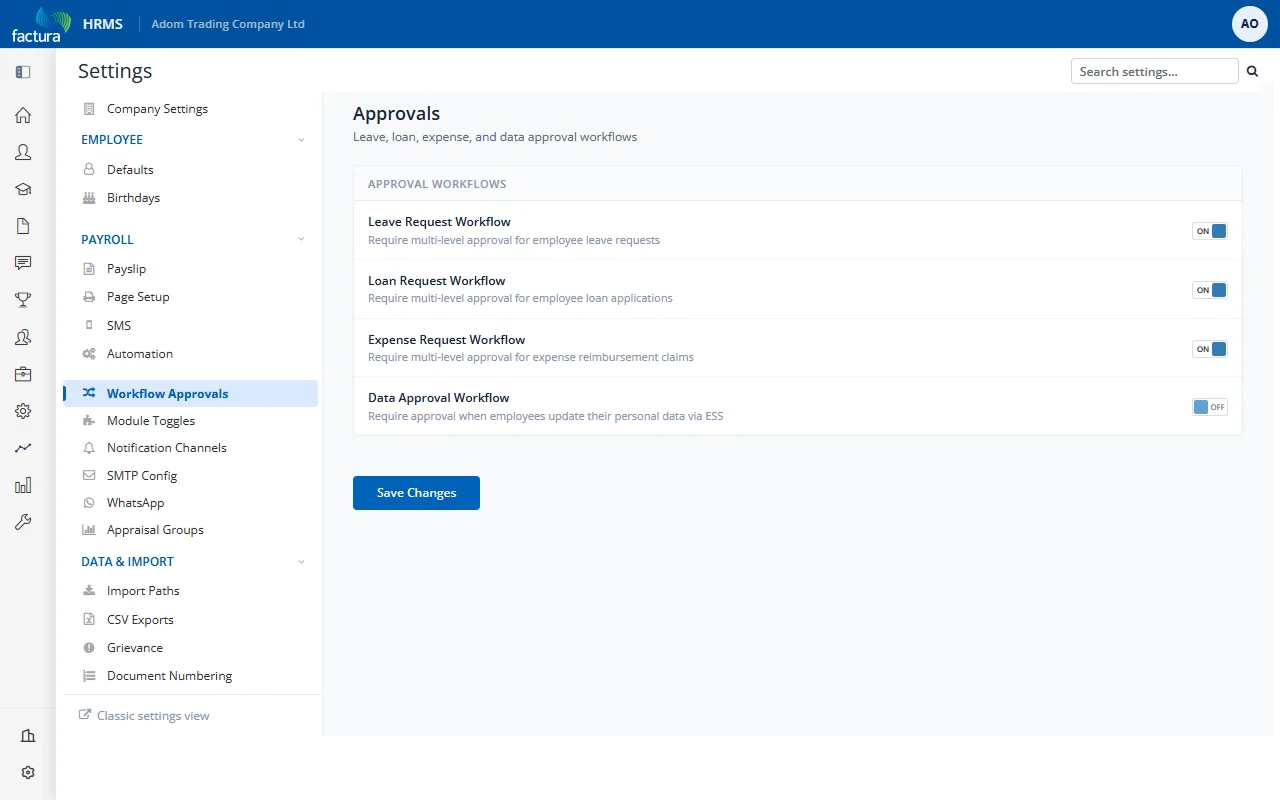
- Enable the workflow toggles as needed:
| Setting |
Description |
| Use Workflow for Leave Requests |
When checked, all leave requests require approval before processing |
| Use Workflow for Loan Requests |
When checked, all loan requests require approval before processing |
| Use Workflow for Expense Requests |
When checked, all expense requests require approval before processing |
| Leave Workflow - Auto Process After Approval |
When checked, approved leave requests are automatically deducted from the employee's leave balance without manual intervention |
| Enable Data Approval Workflow |
When checked, changes to employee data require approval (e.g., bank account updates, personal information changes) |
- Configure the NOTIFICATION PREFERENCES section (below the Workflow section):
| Setting |
Description |
| Notification Email Preference |
Choose which email address to use for workflow notifications: Office Email or Personal Email |
| Notification Mobile Preference |
Choose which mobile number to use for SMS notifications: Office Mobile or Personal Mobile |
- Click Save at the bottom of the page.
