
How do I use the Kanban board?
The Board tab provides a Kanban-style view of all tasks organized by status, with drag-and-drop, inline filters, and rich cards.
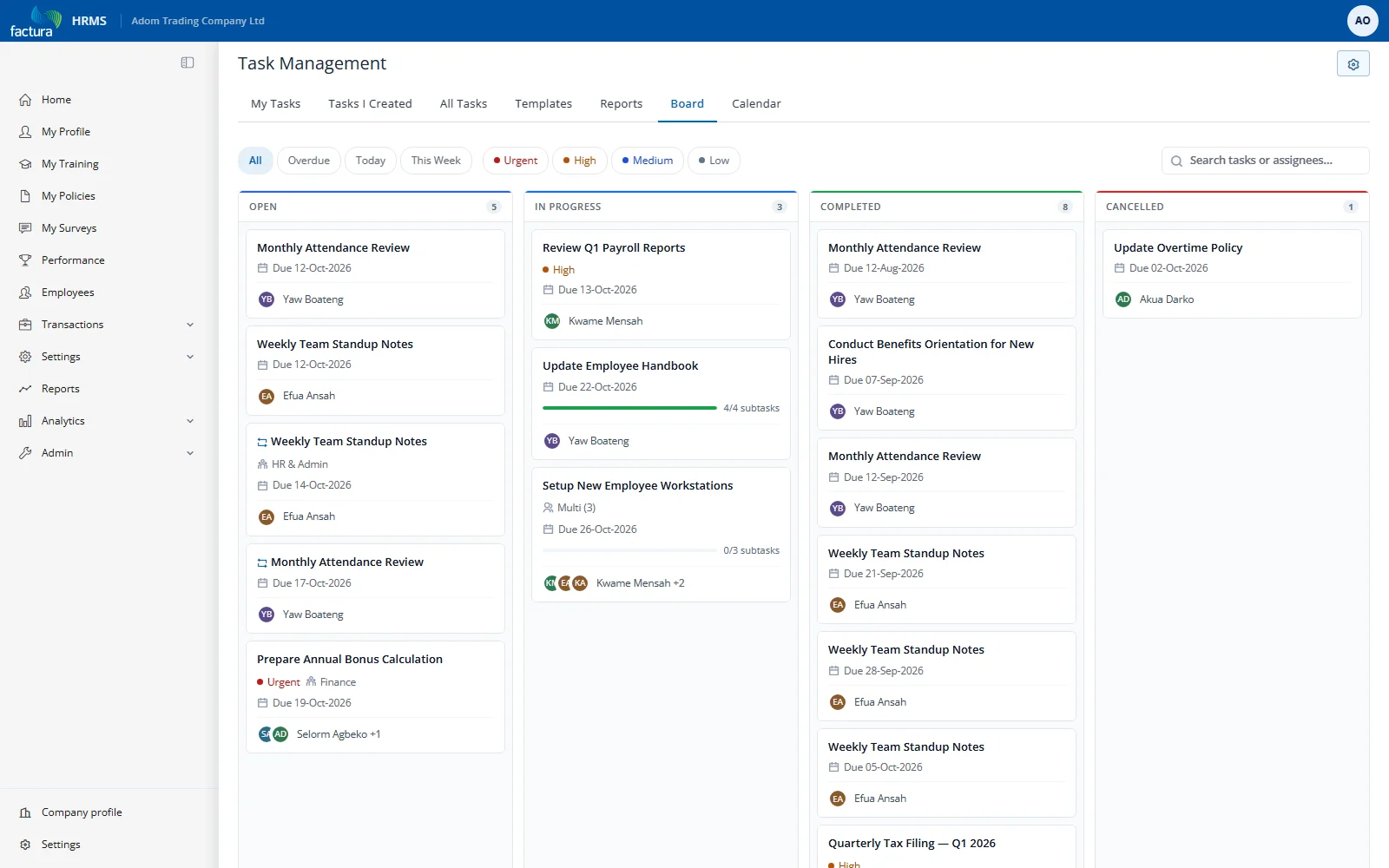
Board Toolbar
A toolbar above the columns lets you slice the board without leaving the page:
| Control | Options |
|---|---|
| Due preset chips | All · Overdue · Today · This Week |
| Priority chips | Urgent · High · Medium · Low (each with a colored dot — multi-select) |
| Search | Free-text search across task subjects and assignee names |
Filters combine — e.g. Today + Urgent + High shows only urgent/high tasks due today.
Board Columns
| Column | Contains |
|---|---|
| Open | Tasks not yet started |
| In Progress | Tasks being worked on |
| Completed | Finished tasks |
| Cancelled | Cancelled tasks |
Each column header shows the live count of cards currently visible (after filtering).
Task Cards
Each card displays:
- Subject (bold)
- Recurring icon (if the task is recurring) and Priority chip (Urgent/High shown explicitly; Medium/Low implicit)
- Department badge (if assigned to a department)
- Multi badge with assignee count (if assigned to multiple people)
- Due date with relative phrase, turning red when overdue
- Subtask progress bar (e.g.,
4/4 subtasks) - Assignee avatar chips — initials, color-coded; up to 3 with
+Noverflow
Drag-and-Drop to Change Status
To move a task to another column, drag the card and drop it on the target column. The destination column highlights while you hover, and the card animates into place on drop. The system updates your assignment status accordingly.
Note: Drag-to-change-status only works if you are assigned to the task. If not, the drop is rejected and an error message appears. You can drop a card on Open, In Progress or Completed; the Cancelled column is not a drop target.
Card Action Menu
Each card has a "⋮" button (top-right corner). The menu is purely navigational:
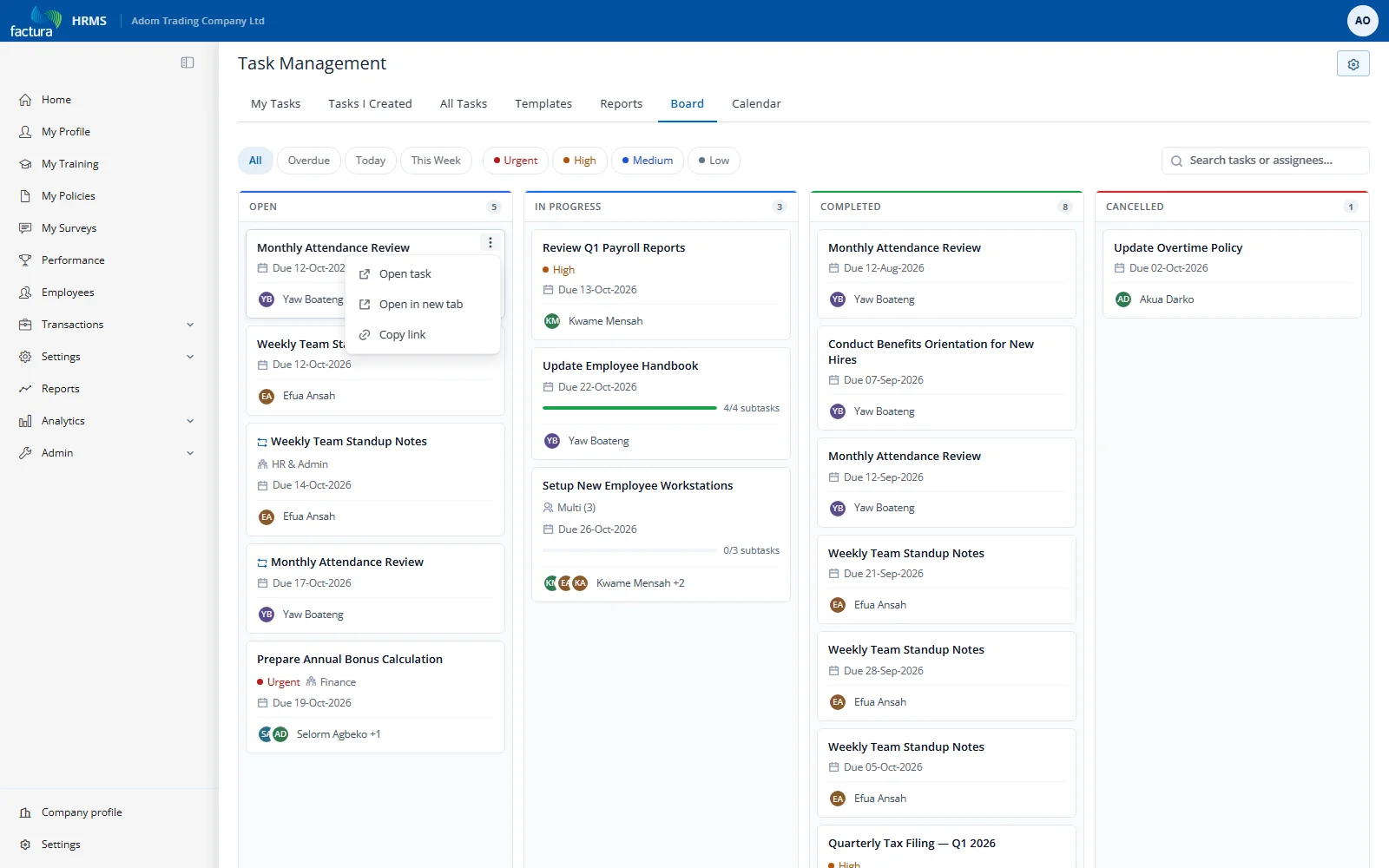
| Action | What It Does |
|---|---|
| Open task | Navigates to the full task edit form |
| Open in new tab | Opens the task edit form in a new browser tab |
| Copy link | Copies a deep-link URL to the task to your clipboard |