
How do I follow my expense request after I submit it?
Once you submit an expense request to workflow, you can track its progress.
In Progress Tab
Navigate to Transactions > Expense Request > In Progress tab:
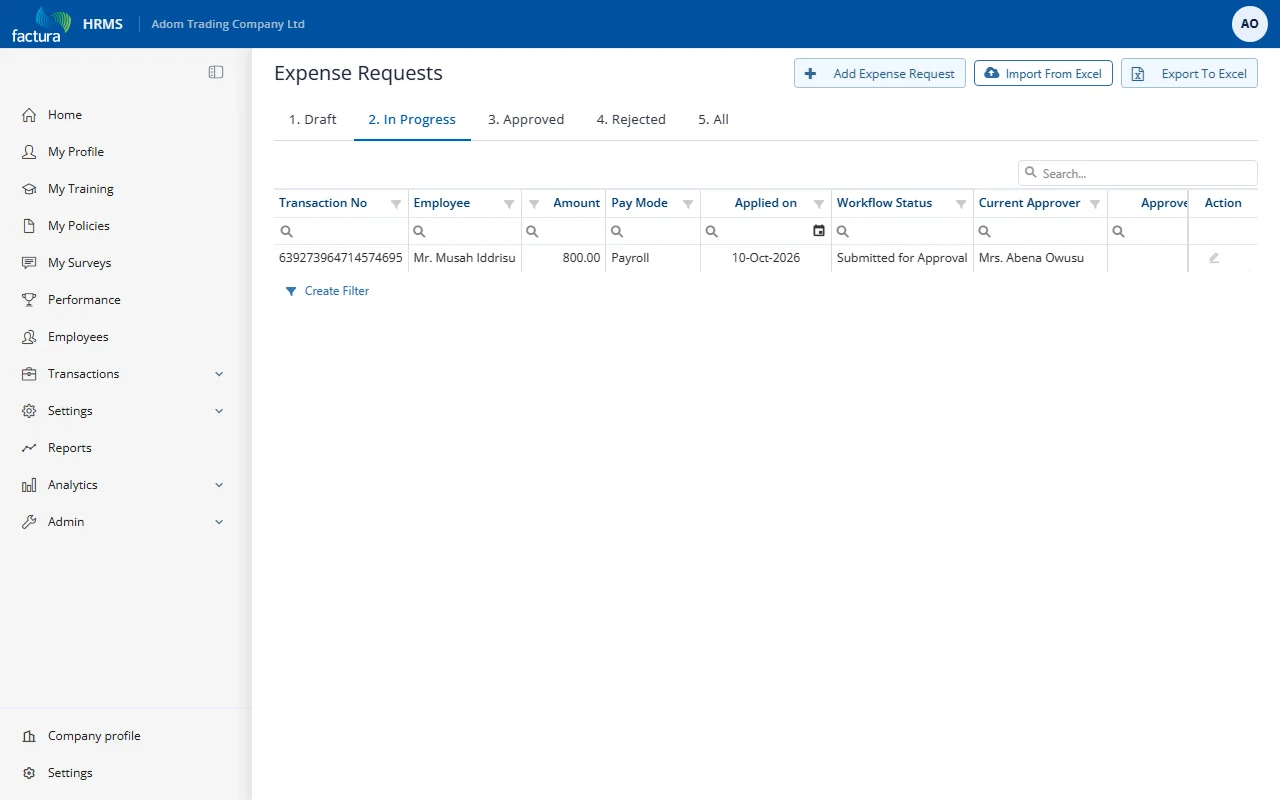
The list shows all submitted requests with their current Workflow Status ("Submitted for Approval") and the Current Approver who the request is waiting on.
Request Detail View
Click the pencil icon on a request to open it in read-only mode and see the full detail:
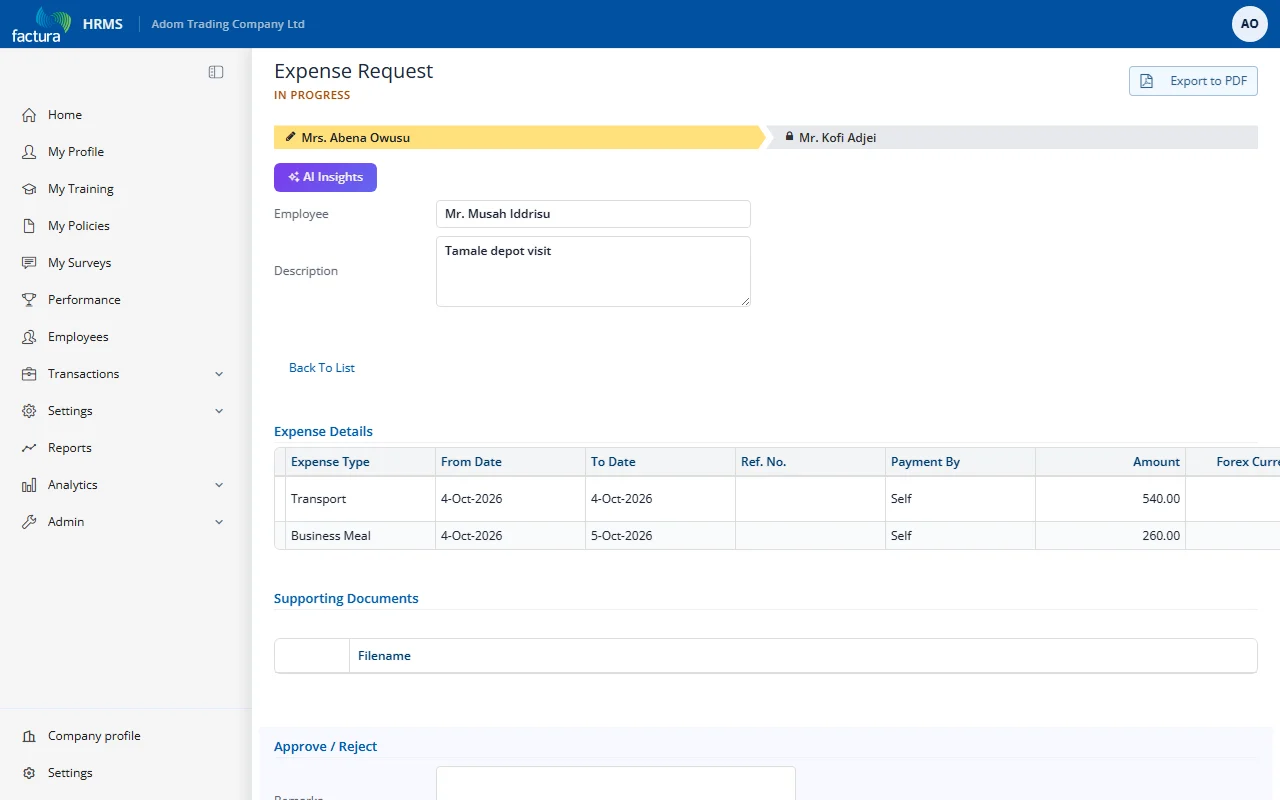
Key elements:
- Status Header: Displays "Expense Request" with IN PROGRESS in orange text
- Workflow Progress Bar: A visual step indicator showing all approvers in the chain:
- Current approver: Highlighted in yellow/gold with a pencil icon -- the request is waiting on this person
- Future approvers: Shown with a lock icon -- will receive the request after the current level approves
- Expense Details: Read-only grid showing all line items with amounts
- Supporting Documents: Any uploaded files
What the Initiator Can Do
| Action | Description |
|---|---|
| Open (pencil icon in the list) | Open the request in read-only mode to check its status |
| Cancel | Cancel the request while it is still in progress |
| Export to PDF | Download the request details as a PDF |
Cancelling an Expense Request
If you need to withdraw a submitted request:
- Open the request from the In Progress tab.
- Click the Delete button.
- The workflow is immediately terminated -- no further approvals occur.
- The request status changes to Cancelled.
- Approvers are notified of the cancellation.
Important: Once cancelled, a request cannot be resubmitted. You would need to create a new request.