
How do I set up workflow approvers?
After enabling workflow in Settings, you must define who approves each type of request and in what order.
Navigating to Workflow Approvers Setup
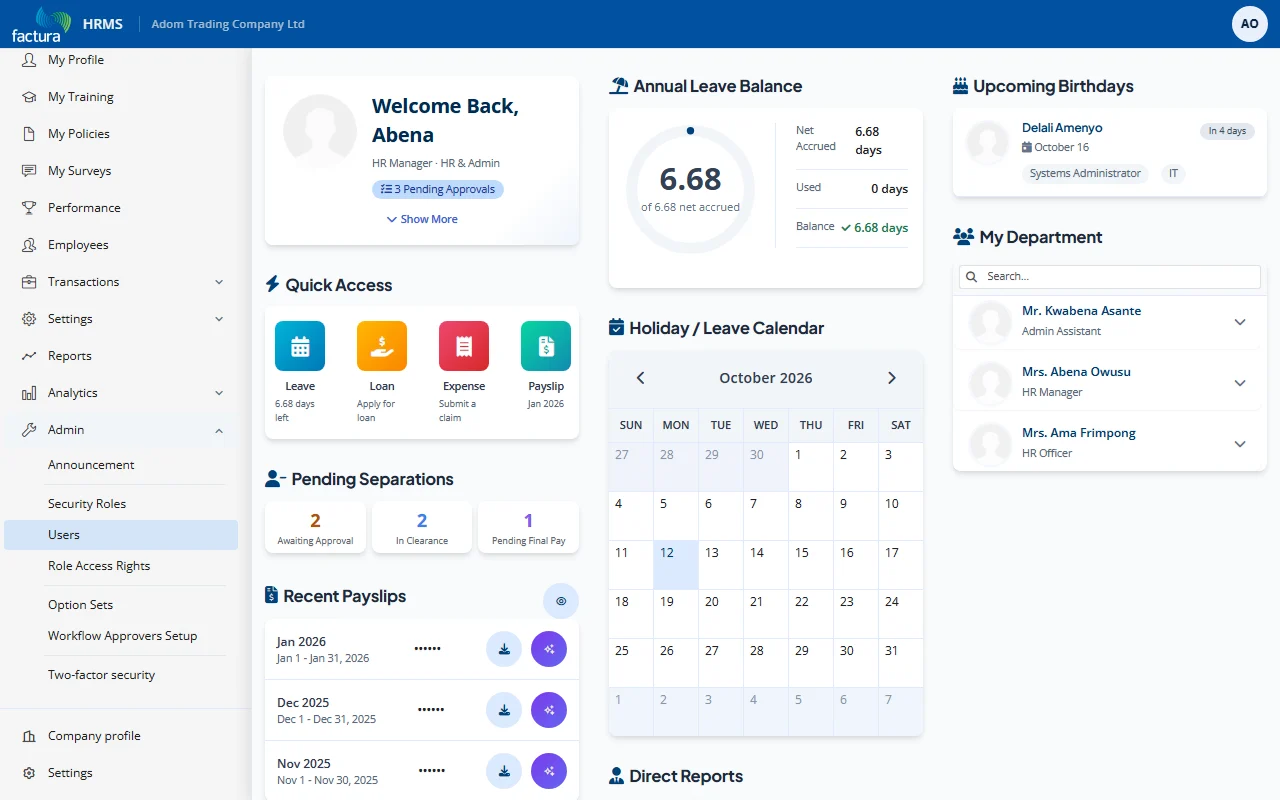
- Click Admin in the left sidebar.
- Select Workflow Approvers Setup from the submenu.
Understanding the Setup Screen
The Workflow Approvers Setup page has two sections:
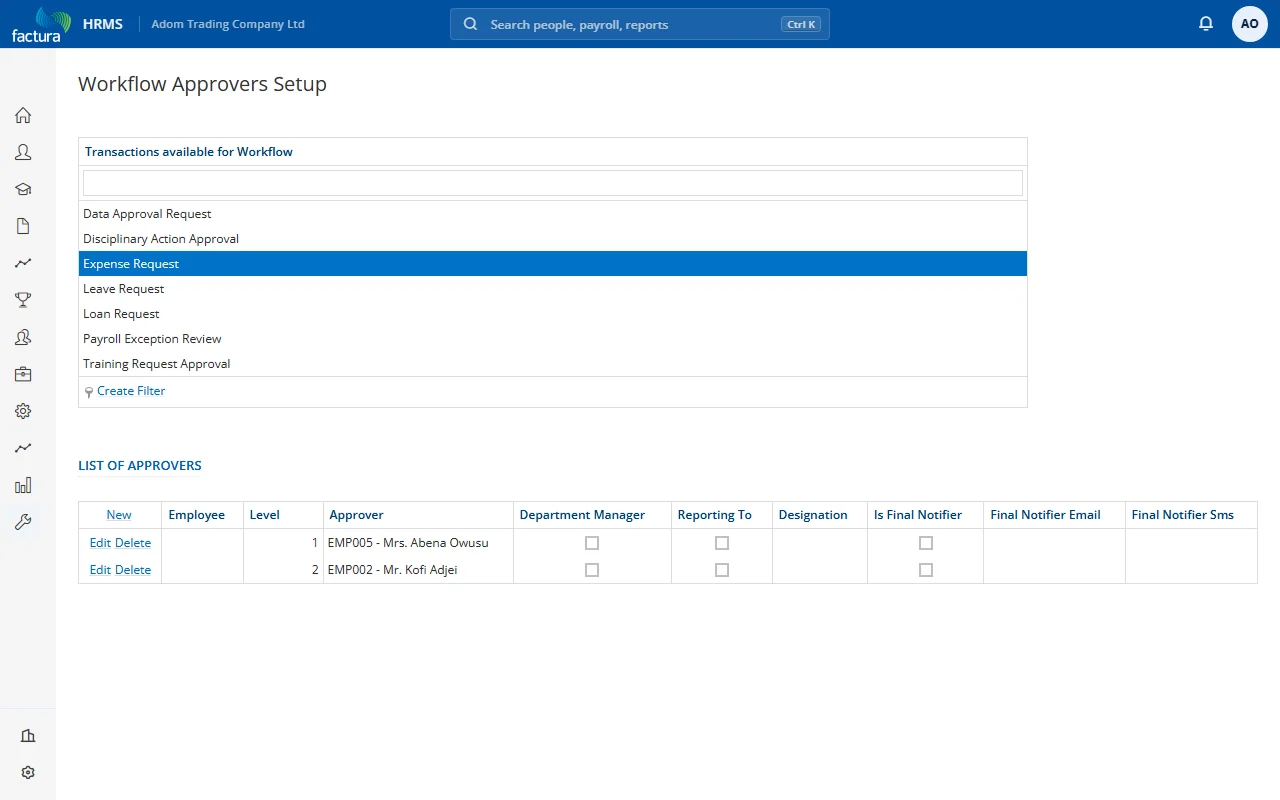
Top Section - Transaction Types: A list of all transaction types that support workflow:
- Data Approval Request
- Disciplinary Action Approval
- Expense Request
- Leave Request
- Loan Request
- Payroll Exception Review
- Training Request Approval
Click a transaction type to view and manage its approvers.
Bottom Section - List of Approvers: Shows the configured approval chain for the selected transaction type.
Adding an Approver
- Select a transaction type from the list (e.g., "Expense Request").
- Click New in the List of Approvers section.
- Fill in the approver details:
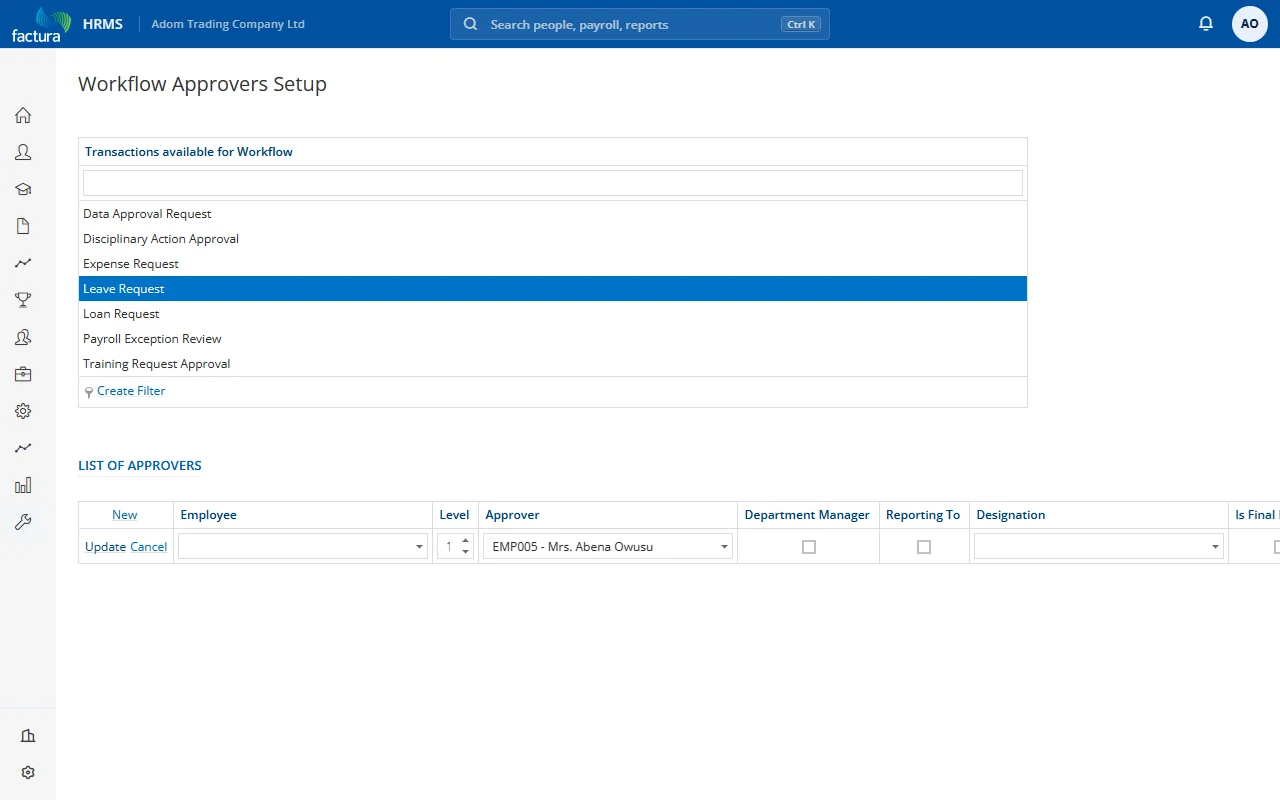
| Field | Description |
|---|---|
| Employee | (Optional) Select a specific employee if this approver rule applies only to requests from that employee. Leave blank for a company-wide rule. |
| Level | The approval order (1 = first approver, 2 = second, etc.). Requests are routed to Level 1 first, then Level 2, and so on. |
| Approver | Select the employee who will act as the approver at this level. |
| Department Manager | Check this to automatically route to the requestor's department manager instead of a specific person. |
| Reporting To | Check this to automatically route to the requestor's direct supervisor (Reporting To) instead of a specific person. |
| Designation | Select a designation to route to anyone holding that role (e.g., "Finance Manager"). |
| Is Final Notifier | Check this if this person should receive a notification when the request is fully approved (e.g., HR or Finance staff who need to process the approved request). Final notifiers do not approve -- they are only informed. |
| Final Notifier Email | Email address for final notification delivery. |
| Final Notifier SMS | Phone number for final notification SMS delivery. |
- Click Update to save the approver.
Example: Two-Level Expense Approval
Scenario: All expense requests should first be approved by the employee's department manager, then by the Finance Director.
| Level | Approver | Department Manager | Is Final Notifier |
|---|---|---|---|
| 1 | (blank) | Checked | No |
| 2 | The Finance Director | Unchecked | No |
Result: When an employee submits an expense request:
- Their department manager receives the request first (Level 1)
- After the department manager approves, the Finance Director receives it (Level 2)
- After the Finance Director approves, the request is fully approved
Managing Approvers
| Action | Description |
|---|---|
| Edit | Modify an existing approver's settings |
| Delete | Remove an approver from the chain |
| Create Filter | Create employee-specific or department-specific approval rules |