
How do I set up absence types?
Before employees can request leave, an administrator must configure the Absence Types (leave categories) available in the system.
Navigating to Absence Types
- Open Settings in the left sidebar.
- Select Absence Type from the settings hub.
Understanding the Absence Type List
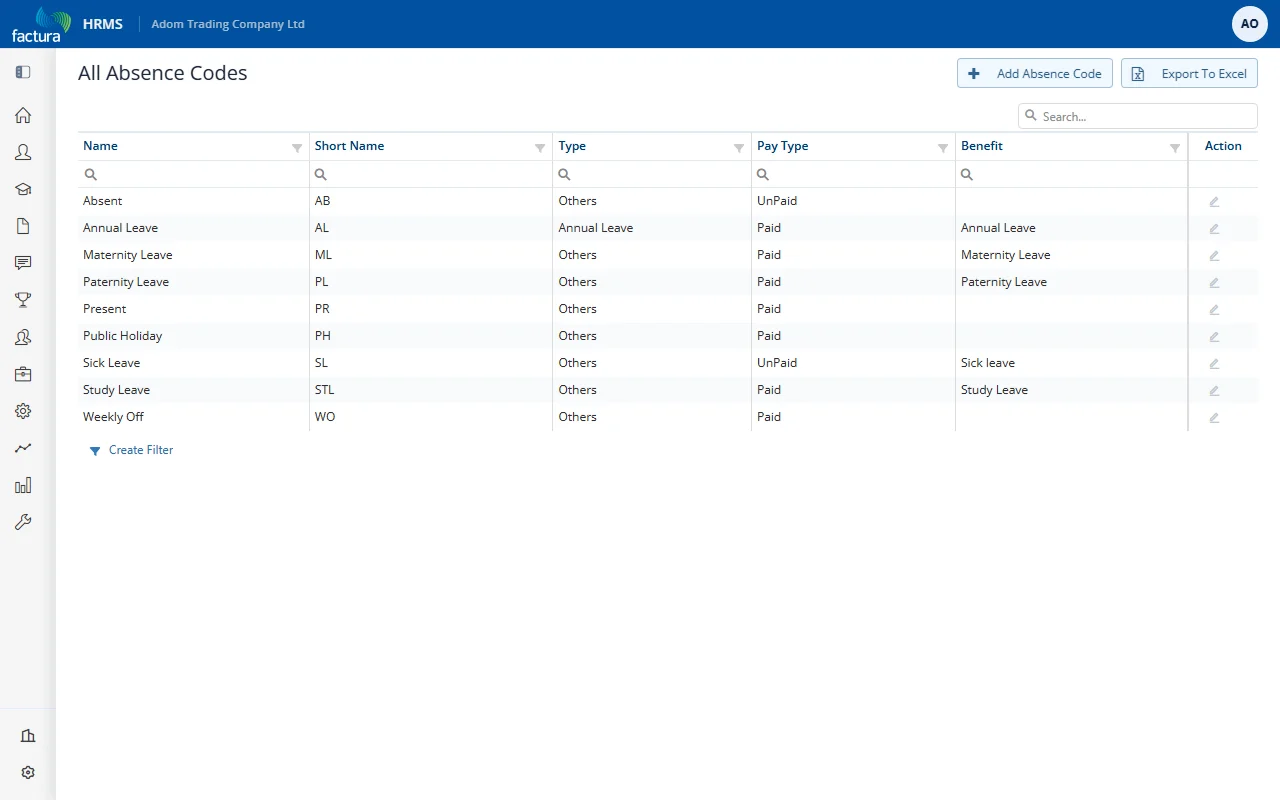
The list (titled All Absence Codes) shows all configured leave types with their key properties. Click the pencil icon in the Action column to edit one, or + Add Absence Code to create a new one:
| Column | Description |
|---|---|
| Name | Display name (e.g., Annual Leave, Sick Leave, Study Leave, Maternity Leave) |
| Short Name | Short code for the leave type (e.g., AL, SL, STL, ML) |
| Type | The category of absence (e.g., Annual Leave, Others) |
| Pay Type | Whether the leave is Paid or Unpaid |
| Benefit | The leave benefit the absence code draws its entitlement from, where applicable |
Common Absence Types
| Code | Name | Pay Type |
|---|---|---|
| AL | Annual Leave | Paid |
| SL | Sick Leave | Set by your organisation (Paid or Unpaid) |
| STL | Study Leave | Paid |
| ML | Maternity Leave | Paid |
Note: Your organization may have additional or different absence types. Administrators can add, edit, or remove absence types as needed.