
Disciplinary cases
How to manage disciplinary cases in Factura HRMS, from informal coaching through investigation, hearing, outcome, appeal and closure.
Overview
The Disciplinary Case Management module allows HR administrators to manage the full lifecycle of employee disciplinary cases, from initial coaching through investigation, hearing, outcome, appeal, and case closure.
Key Concepts
- Case: A disciplinary matter involving an employee, tracked through 6 stages
- Stage: A phase in the disciplinary process (0-5), progressing forward only
- Action: A formal disciplinary measure (verbal warning, written warning, suspension, etc.)
- Appeal: An employee's formal objection to a disciplinary action
- Hearing: A formal meeting to review the case with participants
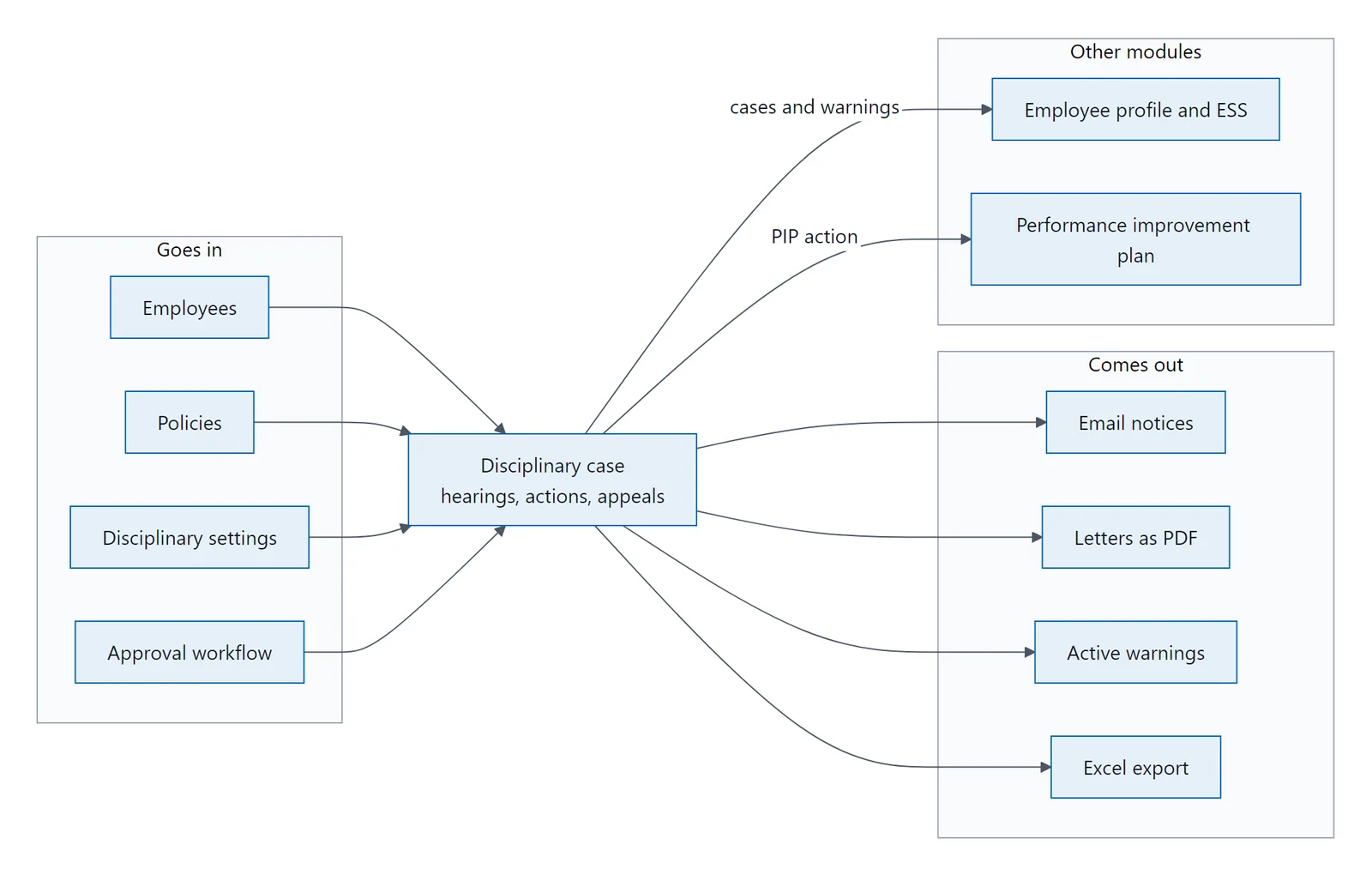
How data flows: employees, policies and settings go in; emails, letters, warnings and exports come out.
Design Philosophy
The interface uses progressive disclosure - you see a summary first, with details available on demand. Early stages (Coaching, Investigation) show simple full-width forms. Later stages (Hearing, Outcome, Appeal) show compact action cards with an 8+4 sidebar layout. This prevents information overload as cases grow in complexity.
Articles in this guide
- How do I find and filter disciplinary cases?The case list is the entry point to the module.
- How do I create a disciplinary case?Who does what: HR runs the case, an approver signs off formal actions, and the employee is notified.
- How do I move around a disciplinary case?The header bar appears at the top of every case and provides at-a-glance identity: Case Number : Large, bold…
- What does the stage stepper show?The clickable stage tracker sits below the header, showing the case's progression through all 6 stages.
- What does the next action banner tell me?The amber CTA strip appears below the stepper when the case requires attention: Shows stage-specific guidance…
- How do I record informal coaching?The first stage is designed for informal coaching conversations.
- How do I run the investigation stage?The investigation stage is also full width with case details inline.
- How do I run the hearing stage?The hearing stage introduces the 8+4 split layout with a sidebar.
- How do I record the outcome of a case?The outcome stage is where formal disciplinary actions are issued.
- How do I handle an appeal?The appeal stage shares the same layout as Outcome (stages 3 and 4 display the same action stack).
- How is a disciplinary case closed?When a case is closed, it displays a full-width summary grid with key case details at a glance.
- What is in the case details drawer?For stages 2-4, the case details form moves into a right-side drawer to free vertical space for the…
- How do I switch between viewing and editing a case?For stages 2-4, a tab bar below the CTA strip lets you switch between three workspace modes: The primary…
- How does the action stack work?The action stack is the core UI pattern for managing disciplinary actions.
- Where is the case activity feed?The sidebar shows a smart feed of the 5 most relevant events: 3 most recent events 2 most important events…
- How do I manage evidence for a case?Evidence is managed through the sidebar Evidence tab (stages 2-4) or the Investigation mode evidence section.
Keyboard Shortcuts
Action/Hearing Stack
| Key | Action |
|---|---|
| Up Arrow | Move focus to previous item |
| Down Arrow | Move focus to next item |
| Enter / Space | Expand or collapse focused item |
Details Drawer
| Key | Action |
|---|---|
| Esc | Close the drawer |
Stage Stepper
| Key | Action |
|---|---|
| Enter | Navigate to focused stage |
Note: Keyboard shortcuts are only active when the relevant element has focus, and are disabled when typing in form inputs.
Glossary
| Term | Definition |
|---|---|
| Active Responsibility | The action card auto-expanded and amber-highlighted because it requires attention (pending approval or open appeal) |
| CTA Strip | The amber "Next Required Action" banner below the stepper |
| Mode Switching | Tab bar (Actions/Investigation/History) for stages 2-4 |
| Progressive Disclosure | Design pattern where summary is shown first, details on demand |
| Smart Feed | Timeline algorithm showing 3 recent + 2 important events |
| Stage | A phase in the disciplinary process: Coaching (0), Investigation (1), Hearing (2), Outcome (3), Appeal (4), Closed (5) |
| Stack | The accordion card layout for actions and hearings |
Last updated: 29 April 2026 Module version: v3 (Phases 1-6) + list-tab KPI strips, action-bar retrofit, tab-count pills