
Performance reviews
How to run performance reviews in Factura HRMS: cycles for HR, reviewing your team as a manager, and taking part in your own review as an employee.
This guide explains how to run performance reviews in Factura HRMS: setting up and running review cycles (HR), reviewing your team (managers), and taking part in your own review (employees). Each task has a few short steps and a screenshot.
Screenshots use demo data. Your screens show your own company's names, cycles and wording.
Overview
What Performance does
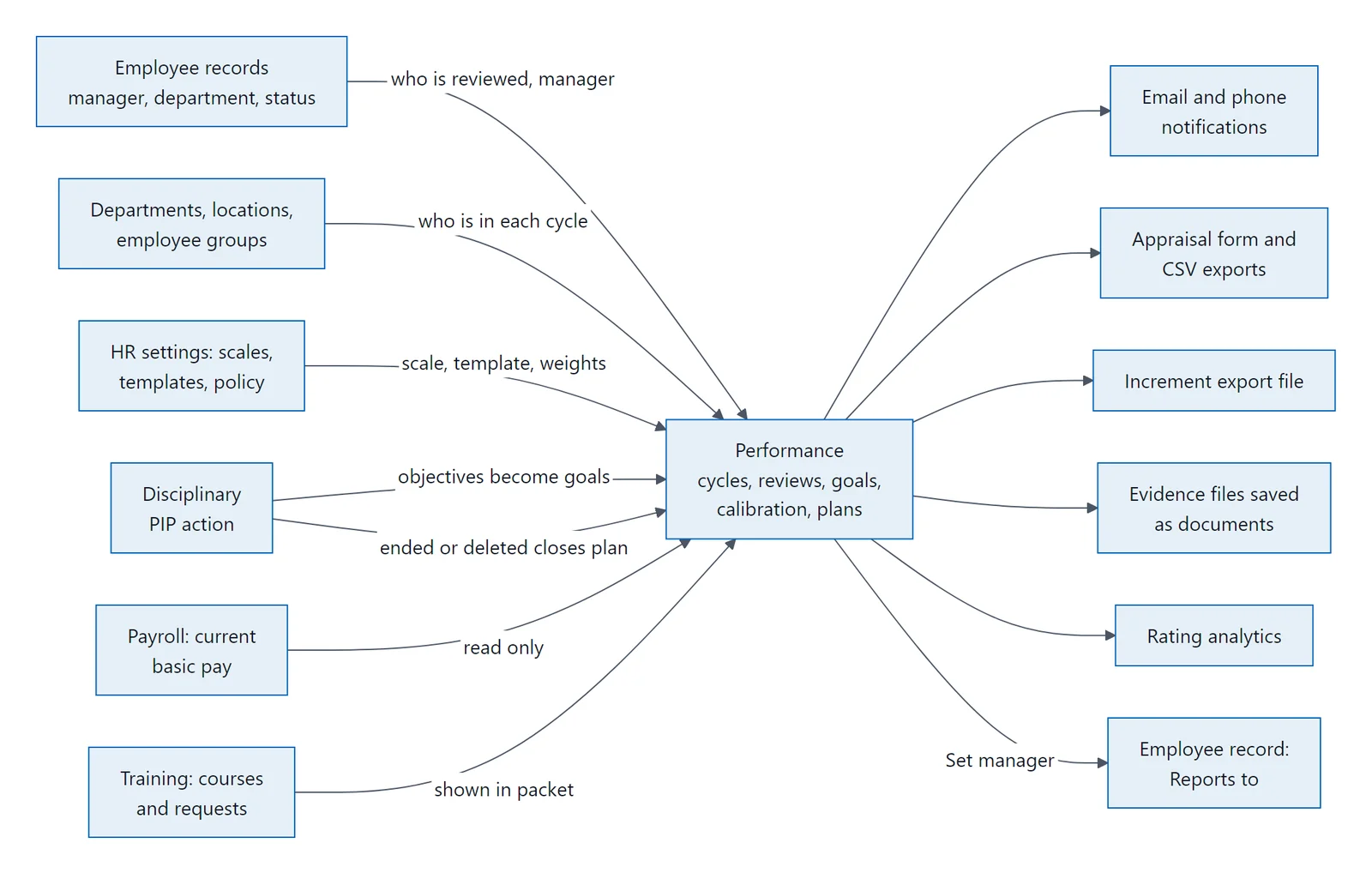
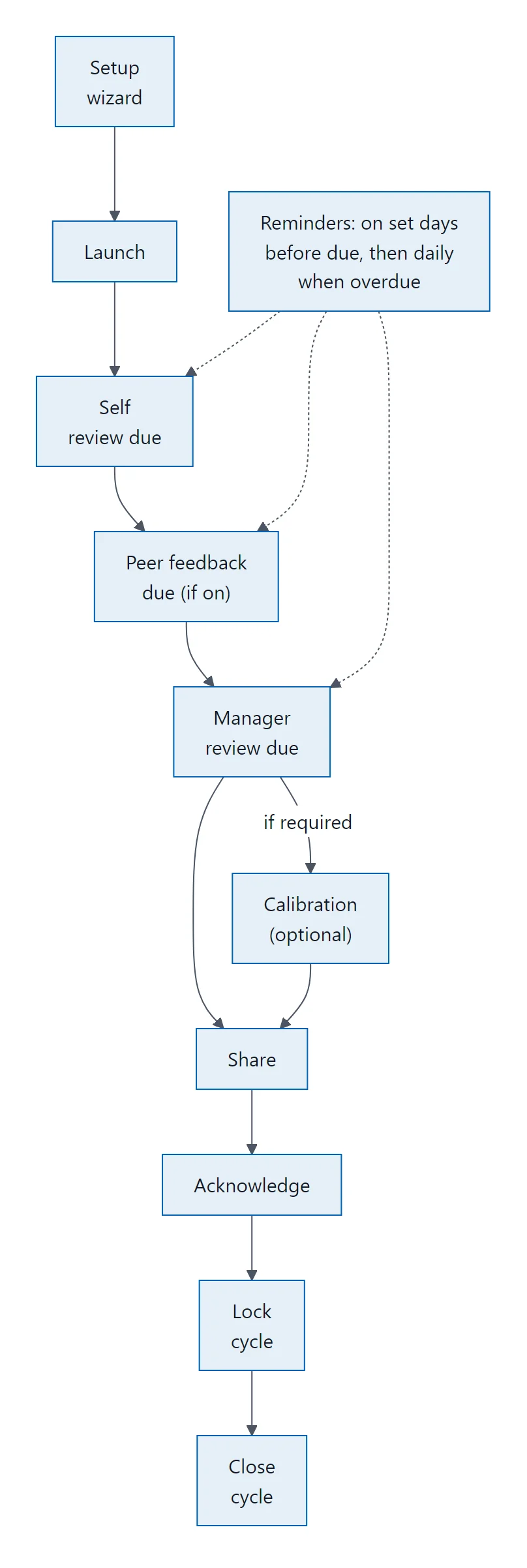
Performance runs your review cycles from start to finish. In each cycle, employees write a self review, their manager writes a manager review and gives a final rating, the manager shares the result, and the employee acknowledges it. HR watches progress from one console and locks the cycle when it is done. A fixed copy is always kept when the review is shared and when the cycle is locked. Copies at submit and acknowledgement depend on the cycle's policy options.
Around the review itself you can also use:
- Goals: simple goals, objectives with key results, or measured targets (KPIs), with regular check-ins.
- Peer reviews: written comments from colleagues, shown to the employee without names.
- Probation reviews: a cycle type where HR records whether to confirm, extend or not confirm, and prints a signed form.
- Calibration: HR and managers compare ratings across teams before anyone is told their result.
- Merit matrix: a proposed increase for each rating, exported as a file for payroll.
- Improvement plans: goals created from a performance improvement plan (PIP) recorded in Disciplinary.
The review lifecycle
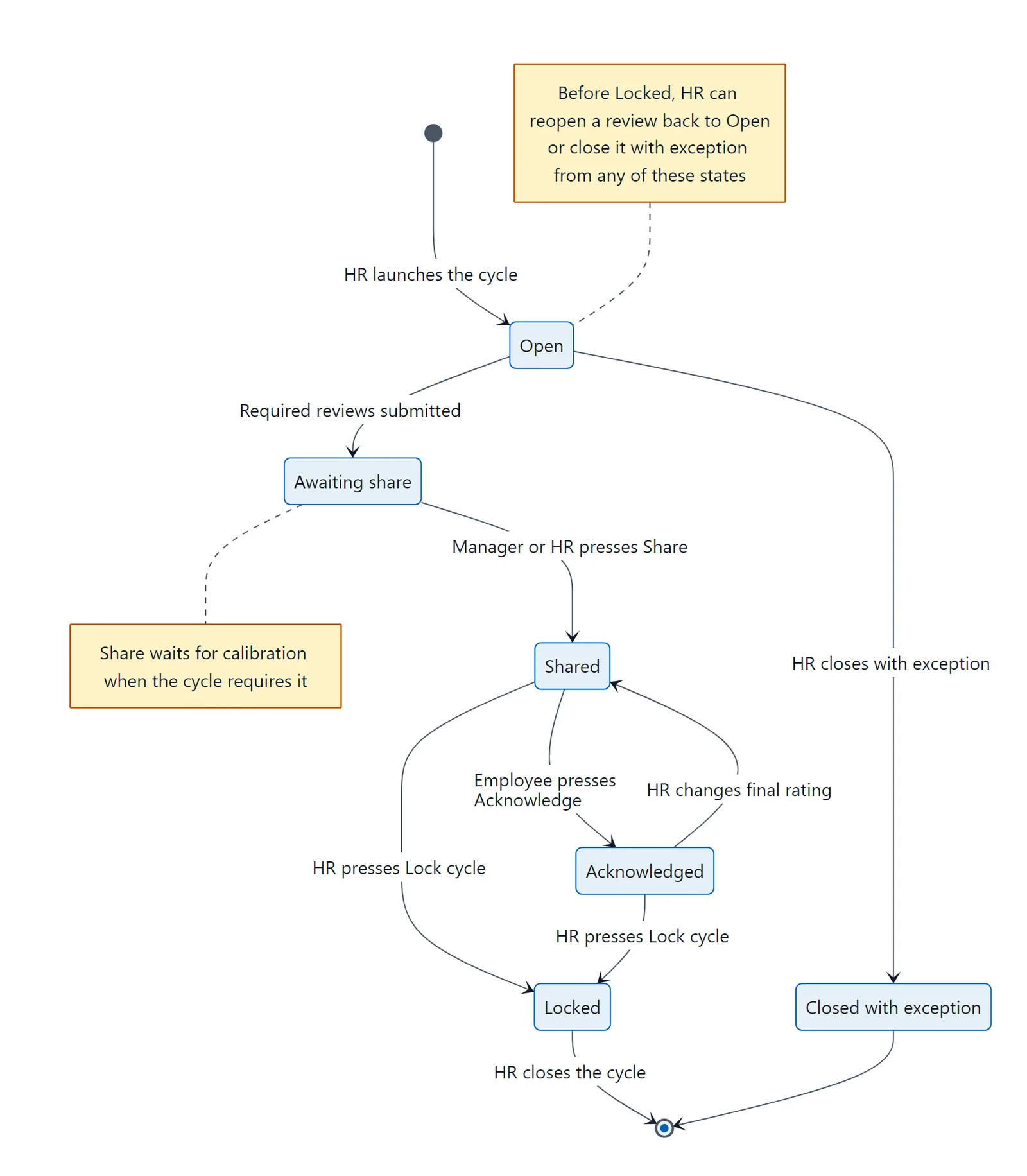
Each person's review moves through these statuses:
- Open (in progress): the review starts here when the cycle is launched. The employee writes the self review and the manager writes the manager review.
- Awaiting share: the manager review is submitted. If the cycle requires a self review, that review is also submitted. The manager checks the final rating and comment.
- Shared: the employee can now read the review and the final rating.
- Acknowledged: the employee confirms they have read it. This is not the same as agreeing with it.
- Locked / Closed: HR locks the cycle. Nothing can change after that. Closing a locked cycle is permanent.
A review that cannot finish (for example, because the person has left) can be closed with exception by HR.
Who does what
| Role | What you do |
|---|---|
| HR | Set up rating scales and templates, run cycles, follow up on overdue reviews, share or reopen reviews when needed, record probation outcomes, run calibration, set the merit matrix, create improvement plans, set notification defaults |
| Manager | Write the manager review for each person you manage, share it, approve peer choices, follow your team's goals, propose ratings in calibration when invited, support improvement plans |
| Employee | Write your self review, read and acknowledge your review, keep your goals up to date, choose peers, write peer feedback when asked, follow your improvement plan |
| Peer | Any colleague approved to give written feedback on someone's review. You see only your own feedback form |
| Calibrator | A manager invited to a calibration session to propose rating changes |
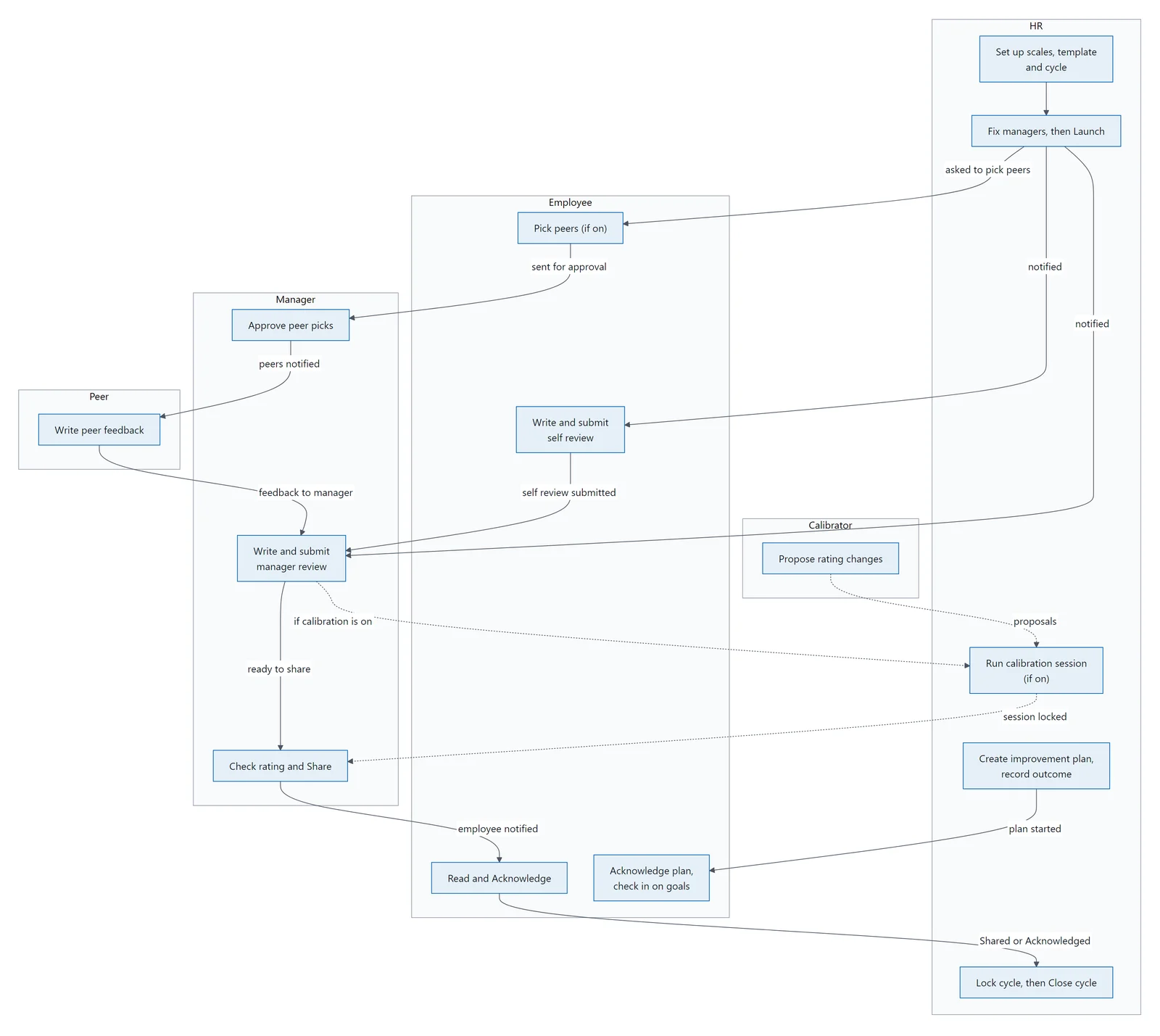
Your manager for a review is the person set as Reports to on your employee record on the day the cycle launches. That stays fixed for the whole cycle, even if your reporting line changes later. HR can hand a review to another manager if needed.
Who can see what
| What is seen | Employee | Manager | Peer | Calibration participant | HR |
|---|---|---|---|---|---|
| Self review | Yes | After submit | No | No | After submit |
| Manager review | After share | Yes | No | No | After submit |
| Peer feedback | After share | After submit | Own only | No | After submit |
| Calibration proposals | No | No | No | Yes | Yes |
| Final rating | After share | Yes | No | Yes | After submit |
| Improvement plan | Yes | Plan manager only | No | No | Yes |
"After submit" means once that review or comment has been submitted, even before sharing; drafts stay with their author. "After share" means once the manager has shared the review. HR means users with Performance Management rights, for people in their HR scope and never their own record.
What needs to be switched on
- Licence: your company needs the Performance licence. Improvement plans also need the Disciplinary licence.
- Company switches: Performance, and separately improvement plans, are switched on for your company by your Factura administrator or implementation partner. When Performance is off, the Performance item does not appear in the left sidebar.
- Rights (set on the user's role):
- Performance Participation: every employee and manager who takes part in reviews. Without it, the Performance item does not appear in the left sidebar.
- Performance Management: HR users who set up and run cycles. View lets you read, Create and Edit let you change things.
- Export (on Performance Management): needed to download probation outcomes and to export reports.
- Creating an improvement plan also needs Create rights in Disciplinary.
HR rights only cover the employees you can normally see in Factura HRMS. Nobody can share, reopen or close their own review, even with HR rights.
For HR
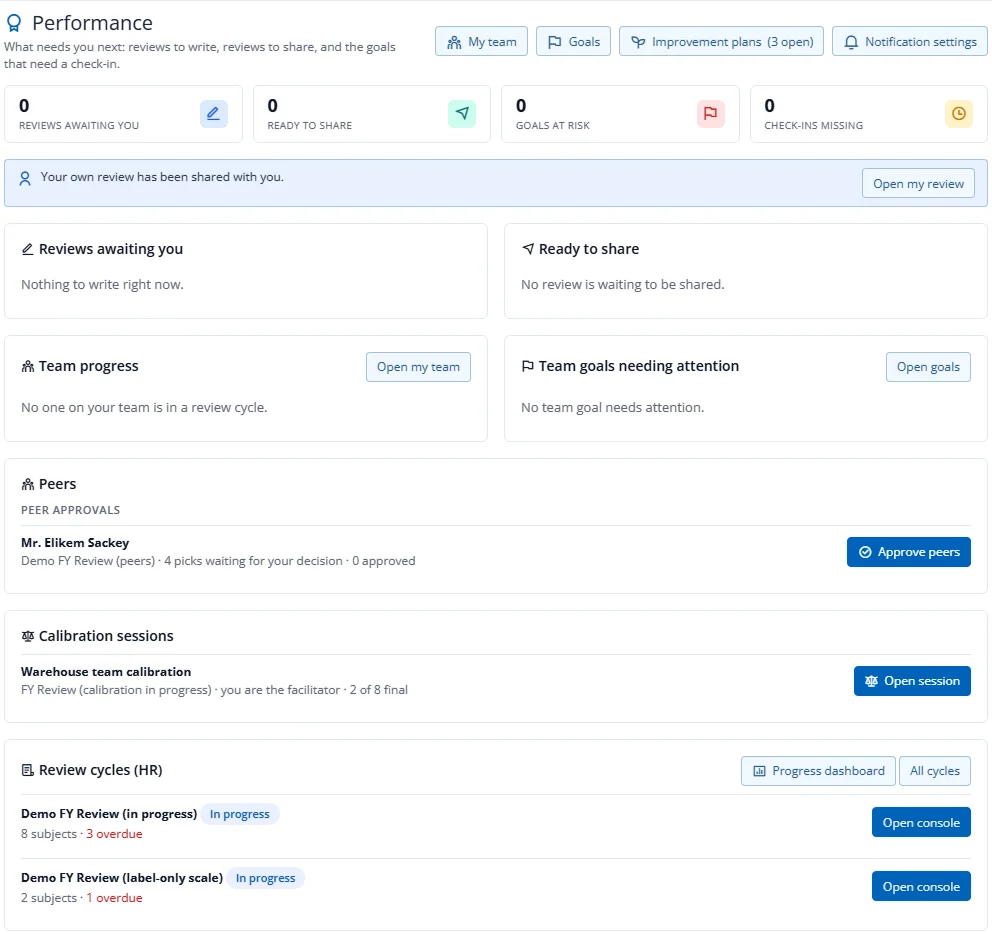
Open Performance from the left sidebar. Your home page lists what needs attention, with Review cycles (HR) at the bottom. Press All cycles to see every cycle.
- How do I set up rating scales?A rating scale is the list of levels a reviewer chooses from, for example 1 Unsatisfactory to 5 Outstanding.
- How do I set up review templates?A template holds the questions reviewers answer, such as "Strengths and contributions" and "Growth areas".
- How do I create and launch a cycle?On Review Cycles , press New cycle .
- How do I run a review cycle from the console?Open a cycle with View (or Open console on your home page).
- How do I run a probation review cycle?A cycle of type Probation works like any other cycle, plus an outcome that HR records for each person.
- How do I set up peer reviews?Peer reviews add written comments from colleagues.
- How do I run calibration?Calibration lets you compare ratings across teams before anyone is told their result.
- How do I use the merit matrix and export increments?Open the console of the cycle.
- Where are performance analytics?Performance Cycle Progress dashboard: how many people are at each stage of the running cycles.
- How do I manage improvement plans?An improvement plan turns the objectives of a performance improvement plan (PIP) action in Disciplinary into…
- How do I set the performance notification policy?Performance sends e-mail and phone (push) notifications.
- How do I view the performance audit trail?Changes to scales, templates, cycles, review assignments, overrides, probation outcomes, calibration sessions…
For managers
- Where do I start as a manager?Open Performance from the left sidebar.
- How do I write a manager review?On your home, press Write review next to the person.
- How do I share a review?When the manager review and any required self review are submitted, the review appears under Ready to share .
- How do I approve peer picks?Under Peers on your home, press Approve peers .
- How do I see my team and their goals?My team lists everyone you review in running cycles, with their status, due dates, Packet (the full review…
- How do I see reviews awaiting calibration?When your company calibrates a cycle, a submitted review shows Awaiting calibration and cannot be shared…
- How do I take part in calibration as a calibrator?When HR invites you to a session you get a notification.
- How do I support an improvement plan?If you are the employee's manager on an improvement plan, it appears under Improvement plans I support on…
For employees
- Where do I start as an employee?Open Performance from the left sidebar.
- How do I write my self review?On your home, press Write self review .
- How do I read and acknowledge my review?When your manager shares your review you are notified.
- How do I set goals and add check-ins?Open My goals . Press New goal and choose Simple , OKR (with key results) or KPI (with a target).
- How do I choose my peer reviewers?When your cycle uses peer reviews you are notified.
- How do I give peer feedback?When you are approved as someone's peer, Peer review to write appears on your home.
- How do I read my peer feedback?After your review is shared, press Read peer feedback .
- How do I read my improvement plan?If HR has created an improvement plan for you, your home shows Acknowledge your improvement plan .
- How do I change my performance notification settings?On your Performance home, press Notification settings .
- How do I use Performance on my phone?In the Factura mobile app, open More , then Performance .
Statuses, messages and FAQ
Review statuses
| Status | Meaning |
|---|---|
| Not started / In progress / Submitted | Progress of one self, manager or peer review |
| Open | The cycle is running; reviews are being written |
| Awaiting share | The manager review and any required self review are submitted; the manager can share |
| Awaiting calibration | Ready to share, but waiting for a locked calibration session |
| Shared | The employee can read the review |
| Acknowledged | The employee has confirmed they read it |
| Locked | The cycle is locked; nothing can change |
| Closed with exception | HR closed this review without finishing it |
Cycle statuses
| Status | Meaning |
|---|---|
| Draft | Being set up; only HR sees it |
| In progress | Launched and running |
| Locked | Finished and frozen |
| Closed | Archived permanently |
Improvement plan statuses
| Status | Meaning |
|---|---|
| Open | The plan is running |
| Awaiting outcome | The end date has passed; HR records Met or Not met |
| Needs review | No outcome 30 days after the end date |
| Closed | Finished, with Met, Not met, or no outcome if the PIP was withdrawn |
Messages you may see
| Message | What it means |
|---|---|
| Launch is blocked | Someone in scope has no usable manager. Set a manager or exclude them |
| Rating confirmed at calibration | Calibration confirmed or changed this rating |
| Adjusted after HR review | HR changed the rating after the review was shared |
| Calibrated rating — ask HR | The rating was set in calibration, so you cannot submit a different one. Ask HR to reopen your manager review, then change the rating and submit again |
| Not enough responses to show peer feedback | Too few peers answered; your manager will summarise |
| Would stay hidden at next Share | (Manager view) This question has too few peer answers to show the employee |
| No usable email | No e-mail address on the employee record, so no Performance e-mail is sent |
FAQ
I can't see Performance in the left sidebar. Performance must be licensed and switched on for your company, and your role needs the Performance Participation right (HR needs Performance Management). Ask your administrator.
HR: I can't see a person's review or improvement plan. HR rights cover only the employees you can normally see in Factura HRMS. You never see your own review or plan as HR, only as the employee.
Why is Share blocked? One of these: the manager review or a required self review is not submitted yet; the cycle requires calibration and the review is not yet in a locked session (Awaiting calibration); or you are trying to share your own review.
Why can't I lock the cycle? A review is still Open or Awaiting share, a calibration session is still open (lock or cancel it), or this is a probation cycle and a shared review has no outcome.
Why can't I edit my review after the due date? Forms become read-only after the due date. Ask HR to extend the date or reopen the review.
Why does an improvement goal say "not found"? Only the employee, the plan's manager and HR who can see the employee may open a plan or its goals. Anyone else, including a manager who only manages the employee's review, gets "not found" so that the plan's existence is not revealed. The same happens if improvement plans have been switched off for your company.
Why can't I see who wrote a peer comment? Peer comments are anonymous to the person reviewed, and to the manager unless HR switched names on. HR always sees who wrote each comment.
Why don't I get e-mails? Check your notification settings, and ask HR whether your employee record has an e-mail address.
Does a rating change pay automatically? No. The increment export is a file; payroll is changed by hand.