
How do I switch between viewing and editing a case?
For stages 2-4, a tab bar below the CTA strip lets you switch between three workspace modes:
Actions Mode (Default)
The primary workflow view. Shows the action/hearing accordion stack with the timeline sidebar.
Investigation Mode
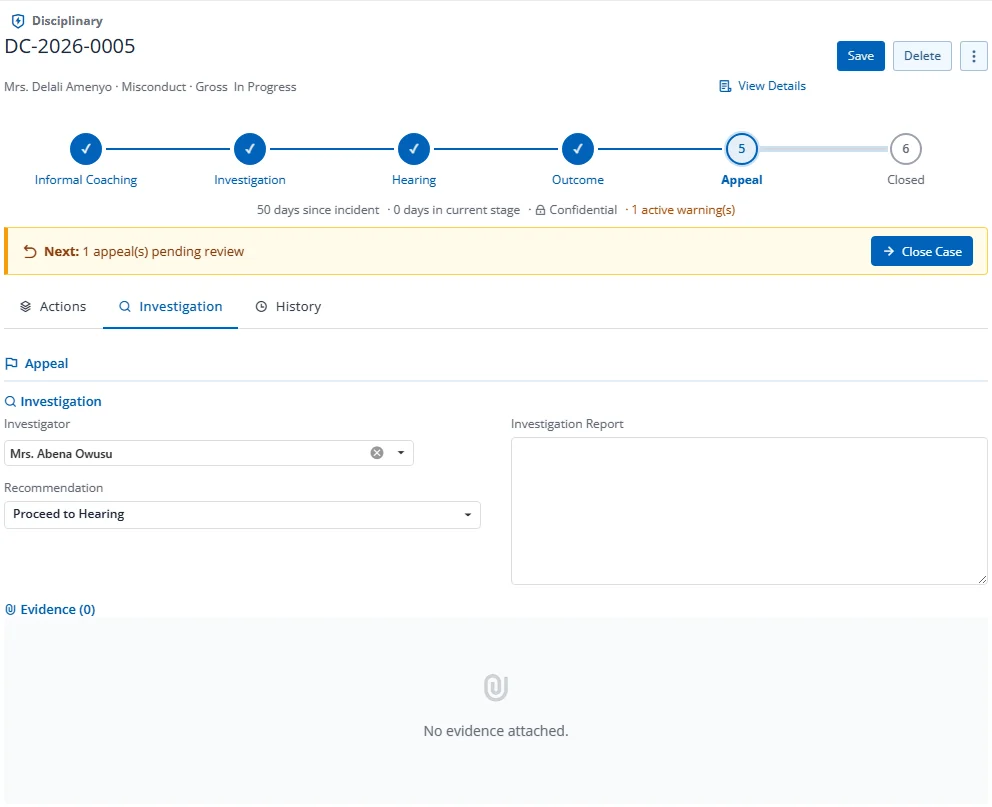
Full-width view focused on the investigation:
- Investigator assignment and recommendation
- Investigation report (larger text area)
- Evidence list with all attached documents
Use this mode to review or update investigation findings at any point during the case.
History Mode
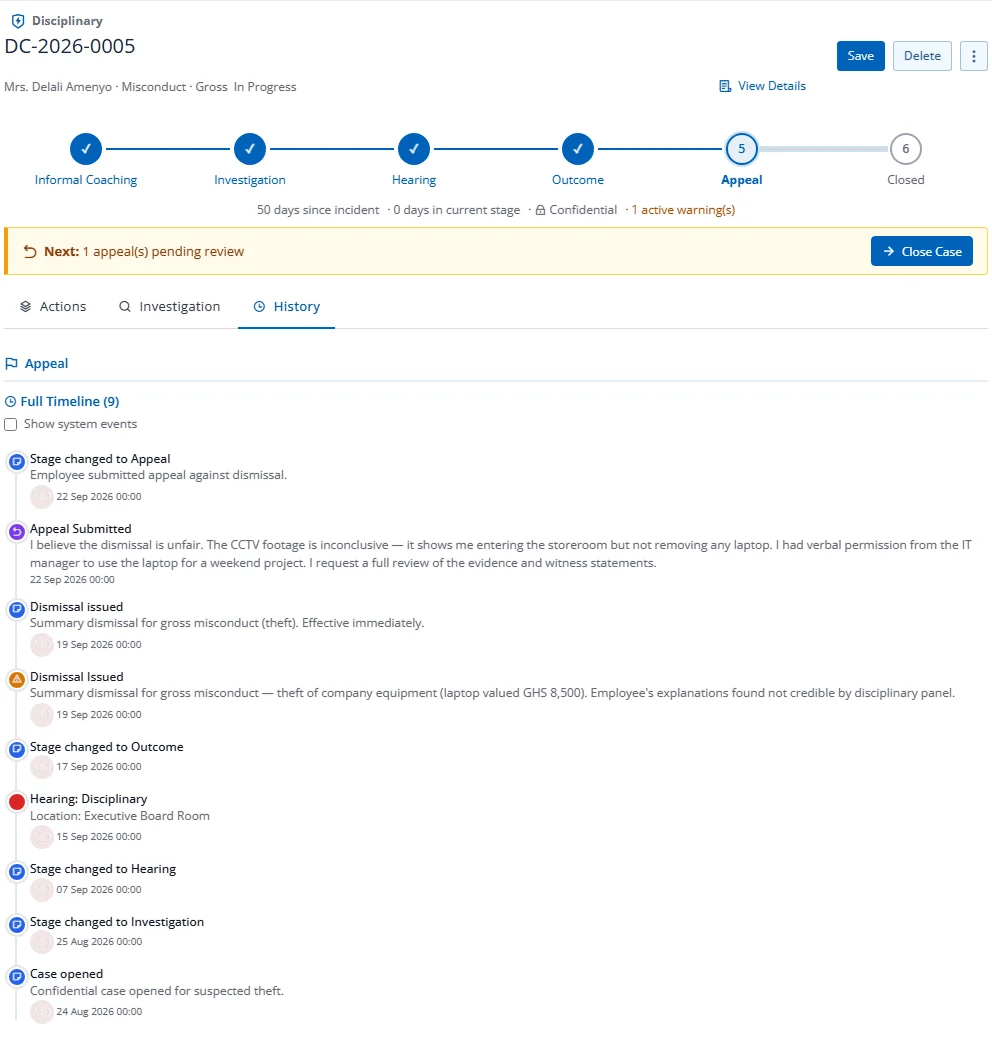
Full-width scrollable timeline showing every event in the case history:
- Stage changes
- Notes and coaching sessions
- Hearings scheduled/completed
- Actions issued
- Appeals filed/resolved
- System events (toggle on/off)
Each event shows: icon by type, title, description, performer avatar with initials, and timestamp.
Mode Persistence
Your selected mode is remembered across page loads (stored in browser localStorage).