
From a published job to a new employee record, in one place.
New, available now. Jobs, a public careers page, a pipeline board, interview evaluations, offers the candidate accepts online, and a handoff that creates the employee through the normal employee path in Factura HRMS. It is switched on per company, with its own access rights.
How a hire runs
Six steps, the same every time. The module never ranks, scores, filters or rejects a candidate on its own: each move is made by a person, or by the system when a fact is recorded, such as an offer accepted or an employee created.
- Publish the jobWrite it as a draft, choose the hiring manager, publish it, and share its public link. It appears on your careers page.
- Candidates applyOn the public form, from a phone or a desktop, or you add them by hand for walk-ins, paper CVs and calls. Each application starts in New.
- Move each application alongNew, Screening, Interview, Offer, by hand and one stage at a time. Moving to Offer needs at least one submitted interview evaluation.
- Hiring managers evaluateThumbs up or down with a note, on the jobs where they are the hiring manager.
- Send an offerFrom a template, as a letter and a private link. The candidate accepts or declines online, and the answer updates the application straight away.
- HR creates the employeeAn accepted application moves to Onboarding. HR creates the employee through the normal employee path, and the application becomes Hired.
Jobs, and the pages candidates see
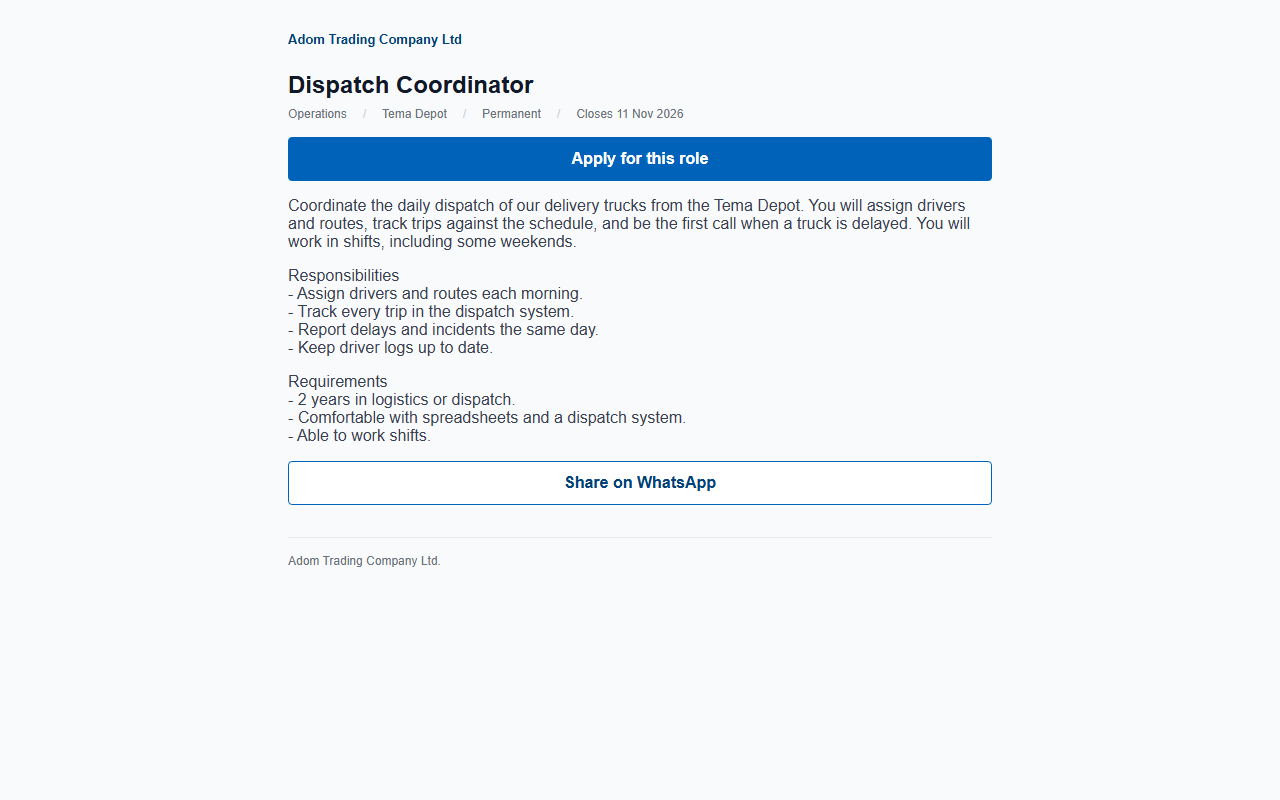
A draft job is private. Publishing it gives it a public link; closing it, or letting its closing date pass, takes it off the careers page.
- A job.
- Title, department, location, requested headcount, an optional employment type and closing date, a plain-text description and a hiring manager. The Jobs list shows each job’s status, how many are hired against how many were requested, and its open applications.
- Sharing.
- Copy the link, share it on WhatsApp, or copy it for a job board or LinkedIn. Each option adds a source tag, so you can see later where each application came from.
- Filled is a reminder.
- When the hired count reaches the requested headcount the job shows Filled. It tells you to close the job; it does not close it for you.
- Rotating the link.
- If a job’s link has been shared where it should not be, an HR administrator rotates it. The old link stops working at once and shows “This role is no longer open”.
- The application form.
- Full name, an email address or a phone number, an optional question on how they heard of the job, a required consent box, and an optional box to keep their details for other roles. It never asks for ID numbers, date of birth, gender or a photo, and it says so. A candidate who applies twice for the same role is told the application was already received.
A fixed pipeline, and who can move what
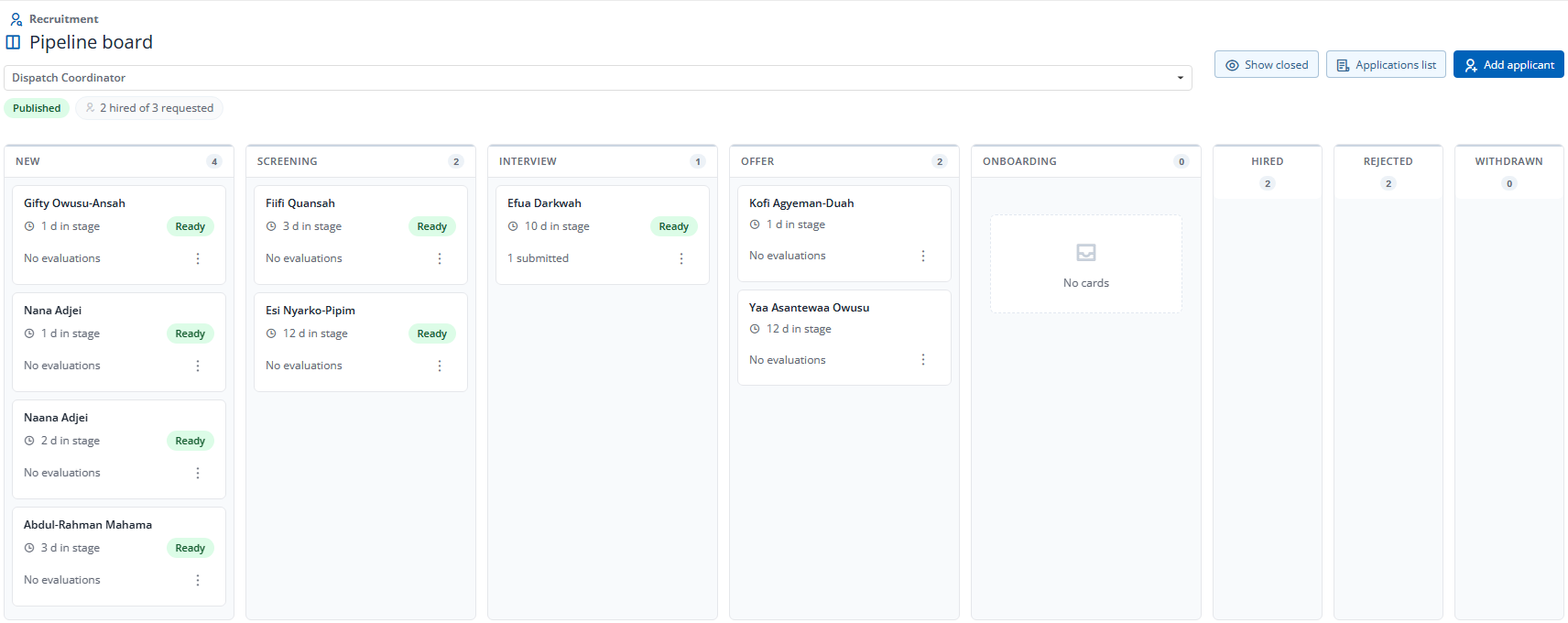
Every job uses the same eight stages: New, Screening, Interview, Offer, Onboarding, Hired, Rejected and Withdrawn. The stages cannot be changed per job, so a board always reads the same way.
- Forward by hand.
- Drag a card, or use the menu on it. Stages you cannot move to are greyed out with the reason under them. Backward moves are allowed only among New, Screening and Interview.
- Set by the system.
- Onboarding is entered only when the candidate accepts the offer, or when an HR administrator records an offline acceptance. Hired is entered only when the employee record is created. Nobody can drag a card into either.
- Reject, with a reason.
- From New, Screening, Interview or Offer. The reason comes from your list and is required. The candidate is emailed only if you tick the box, and the note never gives the reason.
- In bulk.
- Tick up to fifty applications on a page and reject them together. Each one is handled on its own, and the result lists every application with its outcome, so one that someone else changed at the same moment does not stop the others.
- Reopen.
- A rejected application returns to the stage it was rejected from. A reason is required, and every reopen is kept. It is refused when the same candidate already has another open application for that job.
- Where the candidate withdraws.
- From Offer or Onboarding, staff record what the candidate said and when. An application in Onboarding cannot be rejected; a withdrawal is recorded instead.
One profile per candidate
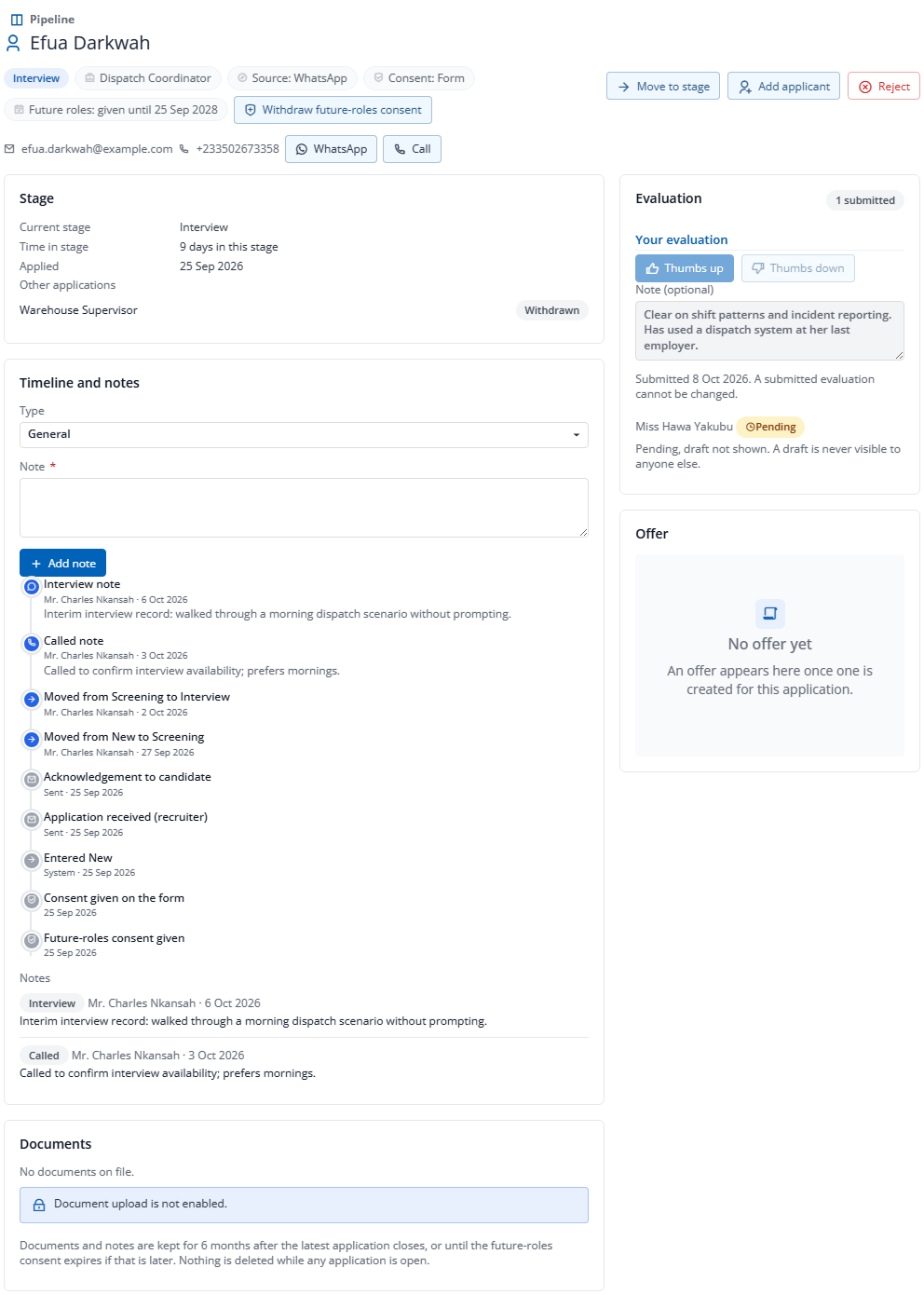
The same layout every time: who they are and where they stand, what has happened, and what the hiring team thinks.
- Timeline and notes.
- Everything that happened, newest first, with notes typed as General, Called, WhatsApp, In person or Interview. Interview notes stay hidden from a hiring manager until they have submitted their own evaluation.
- Consent, shown.
- Whether the candidate agreed on the form or a recruiter recorded it, and by which channel. Whether they agreed to be kept for other roles, until when, or that they withdrew. A recruiter withdraws that consent from the profile, and it takes effect at once.
- The same person twice.
- If the email or phone on a new application is already on file, you are asked whether to add it to that candidate, and their contact details are left alone. Other applications by the same person are listed on the profile.
- Documents.
- Offer letters are kept on the candidate. CV upload is not switched on yet; the screen says so.
Hiring managers see their own jobs, and evaluate blind
A manager can read the jobs they are hiring for without being handed the whole recruitment list, and gives an opinion before they see anyone else’s.
- Their jobs only.
- A hiring manager sees only the jobs where they are the hiring manager, with a read-only board. Opening anyone else’s shows “You do not have access to this”, with no names or counts.
- Evaluate first.
- Thumbs up or down and an optional note, saved as a draft or submitted. A draft is never shown to anyone else, and a submitted evaluation cannot be changed.
- Others stay hidden.
- Until you submit your own, you see only how many evaluations are in and who is still pending. After you submit, the other evaluations and the interview notes appear.
- Who evaluates.
- The hiring manager, and everyone with recruitment management rights. Nobody else is added to a single job.
Offers the candidate answers online
An offer is a letter built from your template and a private link, and every version sent is kept exactly as it was sent.
- From a template.
- Your wording as plain text, with merge fields such as the candidate’s name, the job title, the start date and the salary. The terms table and the signature block are added for you. Changing a template changes new drafts only; an offer already sent keeps its letter.
- Who can send.
- Preparing an offer needs recruitment management rights. Sending, editing and re-sending, issuing a new link and withdrawing need a separate Offer Send right as well, which only administrator roles hold until you add it to your recruiters’ role.
- A private, single-use link.
- Shown to you once, right after you send. You pass it on by WhatsApp, text or your own email. If it is lost, issue a new link and the old one stops working at once.
- The candidate’s side.
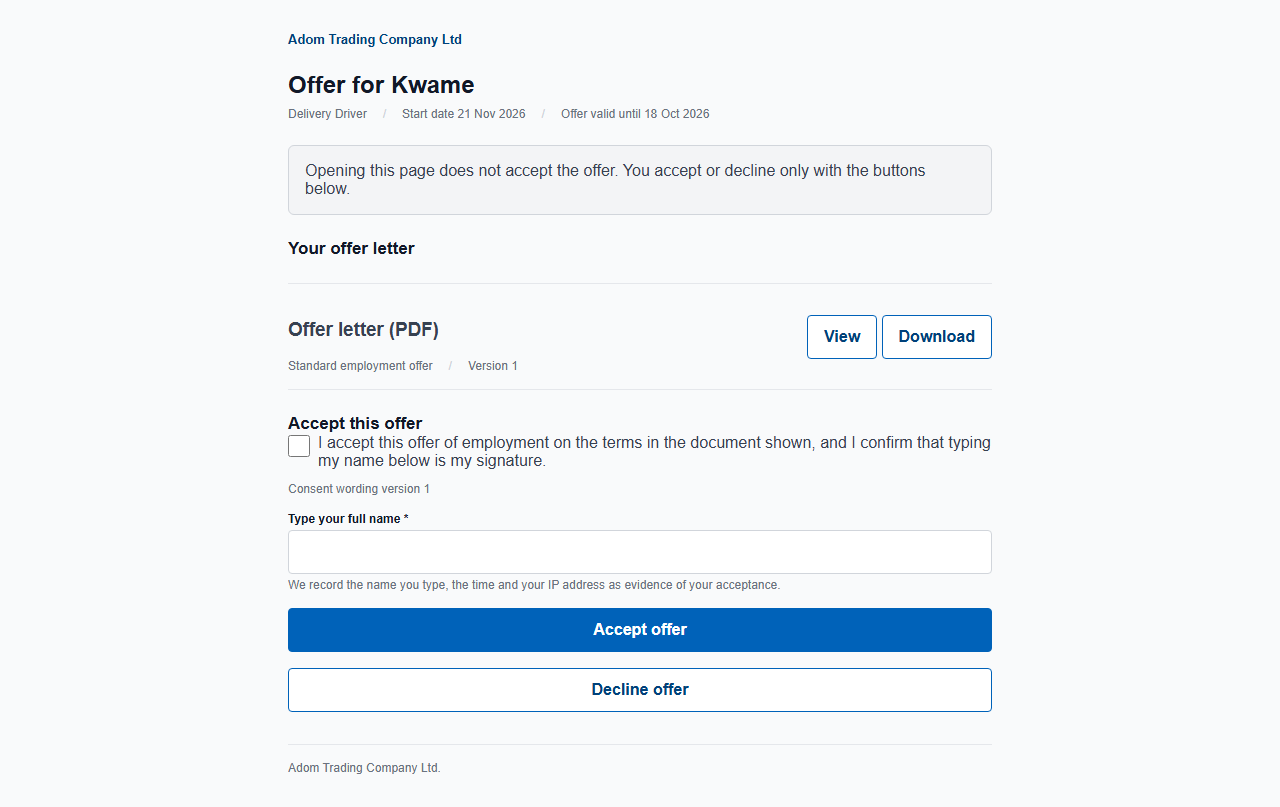
- The page shows the job, the start date, the date the offer is valid until and the letter to view or download. Opening it accepts nothing. To accept, the candidate ticks the consent box, types their full name and presses Accept. To decline, they can give a reason.
- Expiry.
- An offer and its link stop working at the end of the expiry date, Ghana time. An expired offer shows as Expired without anyone touching it, and you can re-offer with a new date.
- Withdraw, or change.
- Withdrawing needs a reason and kills the link at once. Editing a sent offer fixes a new version, keeps the offer number and issues a new link.
- Accepted in person.
- If the candidate signs a paper copy, an HR administrator records an offline acceptance with a note on how and when, and where the signed copy is kept. It works on a sent offer even after it has expired, because a signed copy can arrive late.
- The evidence, for HR.
- For an online acceptance, HR administrators see the name the candidate typed, the time, the IP address, the consent sentence and the exact version of the letter they saw. Recruiters see only that the offer was accepted, and when.
An accepted offer becomes an employee through the normal path
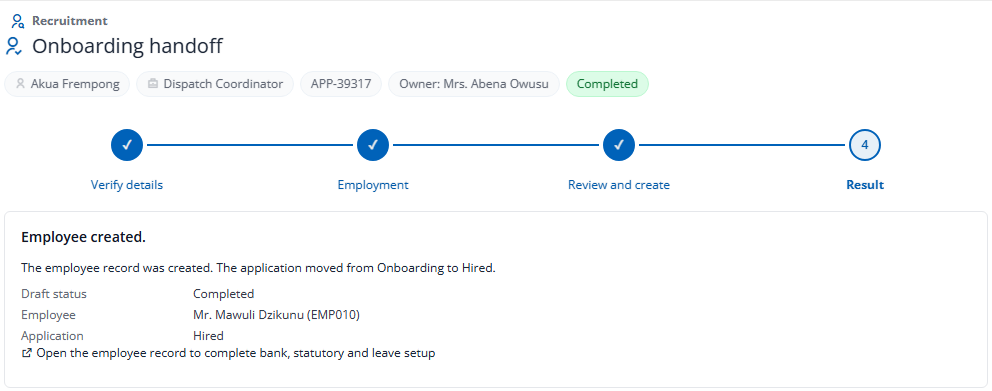
The handoff is a four-step wizard that HR completes, pre-filled from the candidate and the accepted offer. It does not make a second way of creating employees.
- The steps.
- Verify details, Employment, Review and create, then the result. Save a draft at any point and the wizard resumes where you left it.
- A rehire check.
- Before anything is created, it looks for an existing employee with the same email, SSNIT number, TIN, phone or Ghana Card. For a former employee you can reactivate them or create a new employee with a reason; for a current employee you can link the application to them.
- Data Approval applies.
- If your company approves new employees, the request waits for approval, no employee exists until it is approved, and the application stays in Onboarding until then. Retrying never creates a second employee.
- The onboarding owner.
- Chosen when the offer is accepted: the default owner if one is set, otherwise the job’s hiring manager, otherwise the recruiter. The owner follows the handoff read-only, without salary or identity numbers.
- What is left for later.
- Bank details, the Ghana Card employee field, pay grade and leave setup are completed on the employee record, which the result links to.
Your lists, and how long candidate data is kept
Candidates trust a form more when it says what happens to their details. The rules are set in the product rather than left to whoever remembers.
- Source and rejection reason.
- Two lists come filled, with eight sources and seven rejection reasons. An administrator adds values of your own, and the built-in values are locked.
- Six months, or until consent ends.
- A candidate’s data is kept for six months after their latest application closes. If they agreed to be kept for other roles, it is kept until that consent ends, twenty-four months after they gave it, unless they withdraw it sooner.
- Nothing removed while it matters.
- Not while any application is open, not while an offer to them is valid, and not while a legal hold runs. Hired candidates stay with their employment record.
- What removal does.
- The name becomes “Deleted candidate”, contact details, notes, documents, offer letters and acceptance evidence are removed, and the applications, stage history and offer numbers stay for audit.
Where it stops
Recruitment is new, and some things are not built yet. This is the list as the guide states it.
- Email.
- Nothing is emailed to candidates or staff yet. The emails are written and ready, and they are delivered once your company’s email setup is completed. Until then, you contact candidates and give them their offer link yourself, and you check the board for new applications.
- CV upload and reading.
- The public form has no CV upload, and nothing reads a CV.
- No ranking or scoring.
- There is no automatic ranking of candidates, by design.
- Merging, exports, legal holds and early deletion.
- There is no screen for merging two candidate records, exporting one candidate’s data, placing a legal hold or deleting early. Factura support does these with you.
- Careers page link and onboarding owner.
- The link to your company careers page, and the default onboarding owner, are set by Factura support rather than on a screen. A job’s own link is on the job.
- Reports.
- There are no funnel or time-in-stage reports. You work from the Jobs list, the board and the applications list.
Before you ask us
Is Recruitment part of Factura HRMS or a separate product?
It is a module of Factura HRMS, on the same employee records and permissions. It is new and available now, and it is switched on per company, with its own access rights for recruiters, hiring managers and onboarding owners.
Will it rank or reject candidates for us?
No. It never ranks, scores, filters or rejects a candidate on its own. Every stage move is made by a person, or recorded by the system as a fact, such as an offer accepted.
Does a candidate have to log in to apply or to accept an offer?
No. The careers page, the job page and the application form are public and built for phones first. An offer is answered through a private link that you give the candidate.
What stops a hiring manager seeing other jobs?
A hiring manager sees only the jobs where they are the hiring manager. Opening another job or board shows that they do not have access, with no names or counts.
Does an accepted offer create the employee by itself?
No. It moves the application to Onboarding. HR then creates the employee through a wizard, with a check for a former or current employee first, and through Data Approval where your company uses it.
The rest of Factura HRMS
The same records, the same approvals, the same audit.
- Payroll.
- The monthly cycle, the bank file and the statutory schedules. See Payroll →
- Self-service.
- What an employee does on the phone once they are on the payroll. See Self-service →
- People operations.
- Tasks, disciplinary, separation, training, policy and surveys. See People operations →
- Performance.
- Review cycles, goals, peer feedback, probation and calibration. See Performance →
- Leave and attendance.
- Entitlement, accrual, balances, liability, work schedules and overtime. See Leave & attendance →
- Workflows and audit.
- Approval chains, permissions, two-factor sign-in and what is kept. See Workflows & audit →
- Analytics.
- Executive summary, cost, variance, liability, workforce and statutory. See Analytics →
- All of it together.
- Back to Factura HRMS →
See a real pay run, end to end
Thirty minutes. We walk a full month — prepare, review, close, and produce the statutory files — and you can stop us anywhere.