
Task management
How to create, assign and track tasks in Factura HRMS, with subtasks, recurring tasks, templates, a Kanban board and a calendar view.
Overview
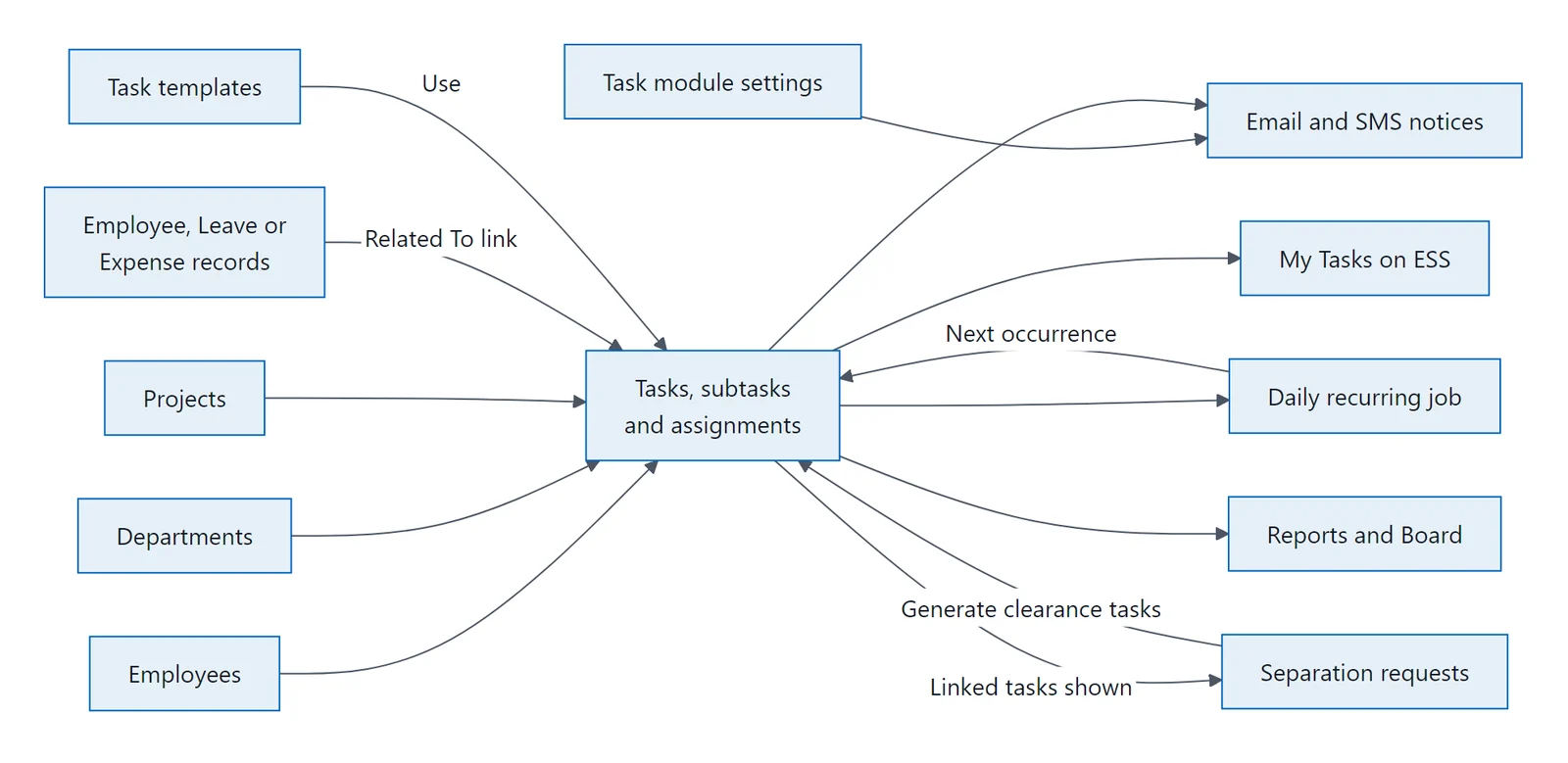
The Task Management module lets you create, assign, track, and manage tasks across your organization. It supports:
- Employee and department-wide assignments — assign to one person, multiple people, or an entire department
- Subtask checklists with completion tracking and drag-to-reorder
- Recurring tasks (daily, weekly, monthly, yearly) with automatic generation
- Reusable templates with variable substitution
- Kanban board and calendar views
- Activity timeline with user comments and system-generated events
- Reports dashboard with KPI cards, charts, and recurring task adherence
- Quick status updates directly from the board without opening the task
- Overdue tracking with visual banners and indicators
- File attachments on every task
- Related entity linking to employees, leave requests, or expense requests
Articles in this guide
- How do I get started with tasks?Open Tasks under Transactions in the left sidebar.
- How do I find my way around the task list?The Task List page has up to 7 tabs , each showing a different view: The action bar at the top right of the…
- What do the task list tabs show?Shows tasks assigned to you.
- How do I create a task?Navigate to the task edit form by clicking + Add Task .
- How do I assign a task and update its status?Open a saved task to see the full edit form with header information and multiple tabs.
- How do I add subtasks and checklists to a task?Subtasks let you break a task into a checklist of smaller steps.
- How do I comment on a task?The COMMENTS tab provides an activity timeline combining user comments and system-generated events.
- How do I attach files to a task?The ATTACHMENTS tab allows uploading and managing files related to the task.
- How do I reassign a task?If the task creator enabled Can Be Reassigned , the task creator or an administrator sees Reassign and can…
- How do I create a recurring task?Recurring tasks automatically generate new task instances on a schedule.
- How do I create and use task templates?Templates let you define reusable task blueprints with placeholder variables and pre-built subtask checklists.
- How do I use the Kanban board?The Board tab provides a Kanban-style view of all tasks organized by status, with drag-and-drop, inline…
- How do I use the task calendar?The Calendar tab displays tasks as events on a calendar, color-coded by priority.
- How do I see task reports?The Reports tab provides a dashboard of task analytics.
- How do I link a task to a record?Tasks can be linked to existing records for context and traceability.
- How do I see my tasks on the employee dashboard?Employees see a My Pending Tasks widget on their ESS Dashboard showing active task assignments.
- Which task notifications will I get?The system sends email notifications automatically at key points: Event Who Gets Notified Task assigned All…
Permissions & Visibility
Role-Based Access
| Action | Creator / Admin | Assignee | Other Users |
|---|---|---|---|
| View task details | Yes | Yes | Yes (if visible) |
| Edit task fields | Yes | No (view-only) | No |
| Delete task | Yes | No | No |
| Add/remove subtasks | Yes | No | No |
| Set recurrence | Yes | No | No |
| Upload attachments | Yes | No | No |
| Update assignment status | N/A | Yes (own only) | No |
| Post comments | Yes | Yes | No |
View-Only Mode
When a non-creator/non-admin opens a task, they see:
- A View Only alert banner at the top
- All fields are disabled/read-only
- They can only update their own assignment status
Data Visibility
- All data is company-isolated — you only see tasks within your own company
- My Tasks — Only tasks assigned to you
- Tasks I Created — Only tasks you created
- All Tasks — All tasks (subject to role permissions)
FAQ / Troubleshooting
Q: I can't edit a task — all fields are disabled.
A: You are not the task creator or an admin. Only the person who created the task (or system administrators) can edit task details. As an assignee, you can only update your own status.
Q: How do I know if my task was assigned successfully?
A: After saving, open the task and check the ASSIGNMENT & STATUS tab. Each assignee is listed with their current status. The assignee also receives an email notification.
Q: My recurring task isn't generating new instances.
A: Check:
- The parent task has Save Recurrence clicked (not just the checkbox)
- The Due Date is set on the parent task
- The recurrence hasn't reached its end condition
- The advance days setting — a task with "0 days in advance" only generates on the due date itself
Q: Can I create a subtask under another subtask?
A: No. Only one level of subtask nesting is allowed. Subtasks are meant to be a flat checklist.
Q: What happens when I delete a task?
A: Deleting a task removes all subtasks and assignments permanently. Only the task creator or admin can delete.
Q: What's the difference between Templates and Recurring Tasks?
| Feature | Templates | Recurring Tasks |
|---|---|---|
| When created | On demand (manual) | Automatically on schedule |
| Variable content | Yes — {placeholders} |
No — same content |
| Assignees | Chosen each time | Same assignees from parent |
| Best for | Standardized but unique tasks (onboarding) | Repetitive identical tasks (reports, inspections) |
Q: How does the Estimated Duration work?
A: Enter a number and select the unit (Minutes, Hours, or Days). One Day = 8 working hours. The duration is stored internally in minutes but displayed in the most readable unit.
Last updated: 29 Apr 2026 Screenshots taken from live v2 application