
How do I create and submit a request for approval?
This section walks through the full process of creating an expense request and submitting it for approval.
Step 1: Create a New Expense Request
- Click Transactions in the left sidebar.
- Select Expense Request from the submenu.
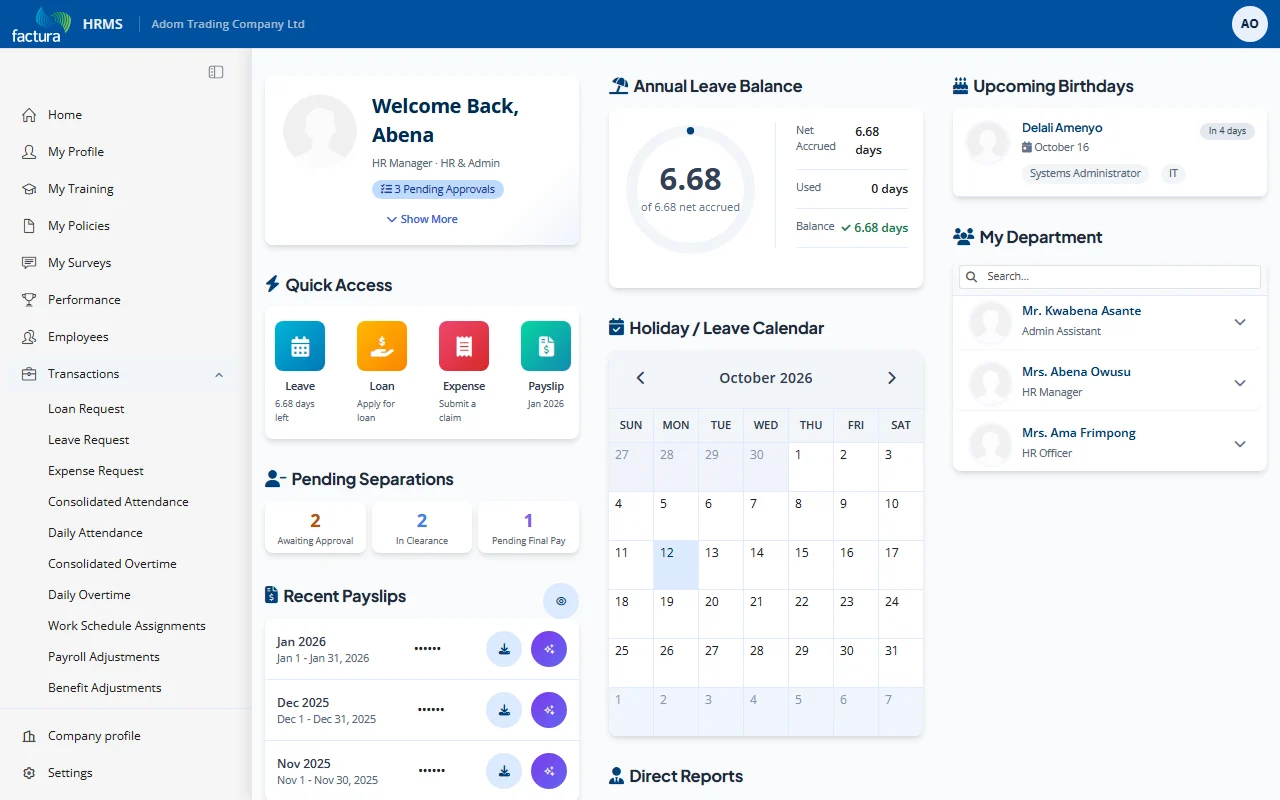
- You are taken to the Expense Requests list page. Click + Add Expense Request at the top right of the page.
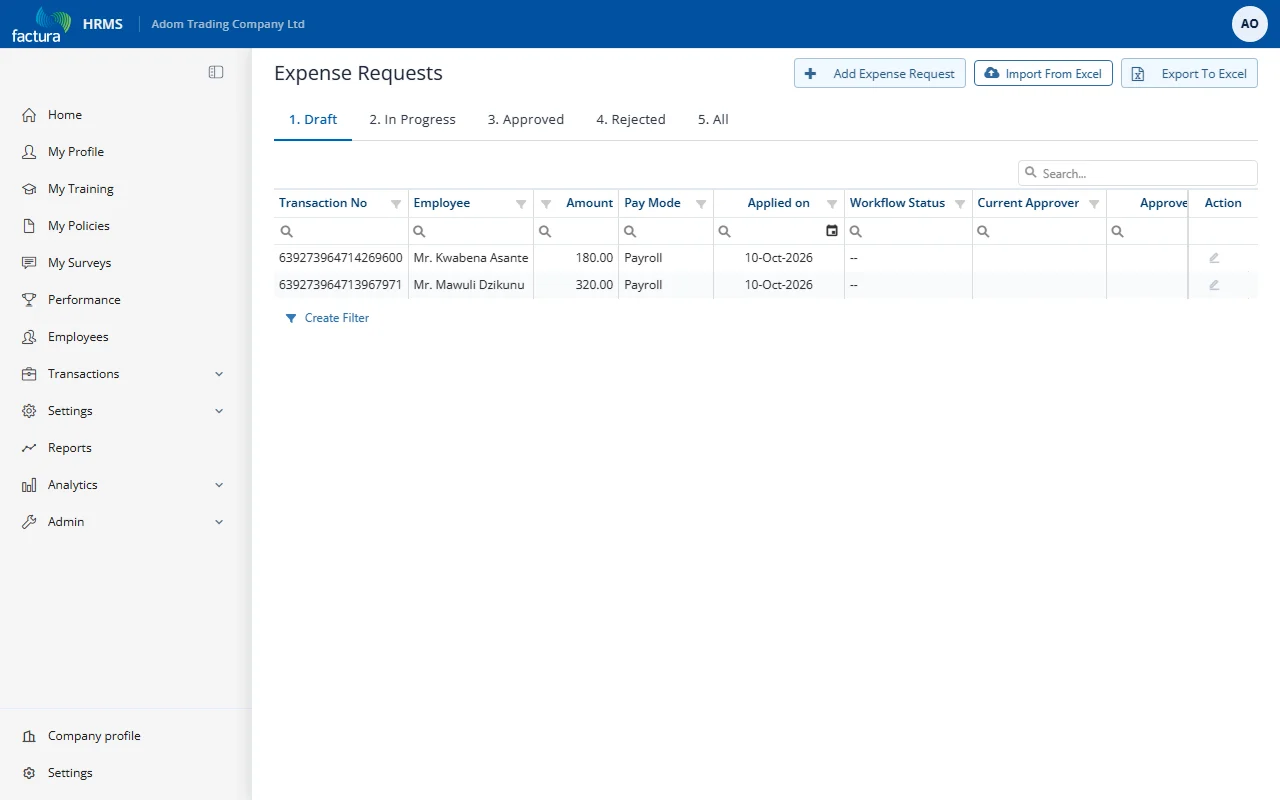
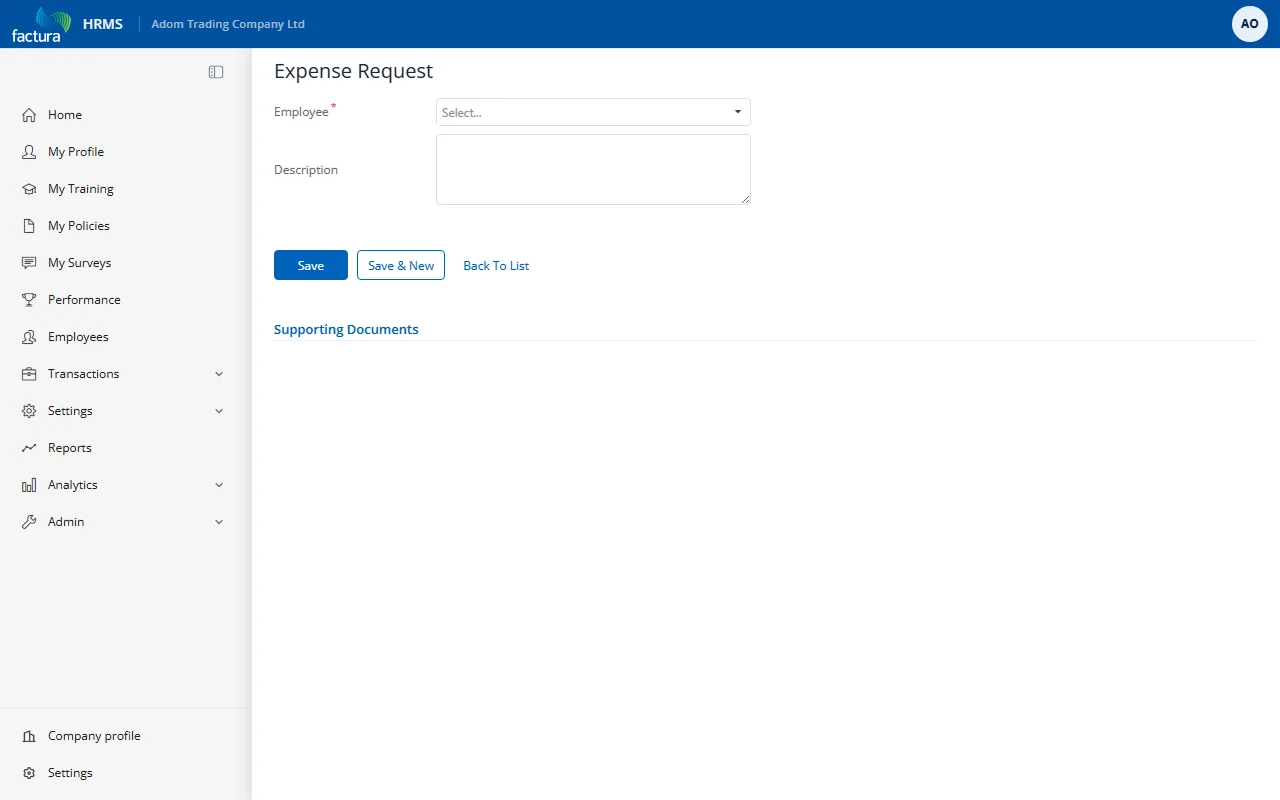
- Fill in the header information:
| Field | Required | Description |
|---|---|---|
| Employee | Yes | Select the employee submitting the expense |
| Description | No | Brief description of the overall expense claim |
- Click Save to create the request. It is saved as a Draft and you are returned to the expense request list. Open the new request from the 1. Draft tab (pencil icon) to continue.
Step 2: Add Expense Line Items
The saved draft opens in the full edit view:
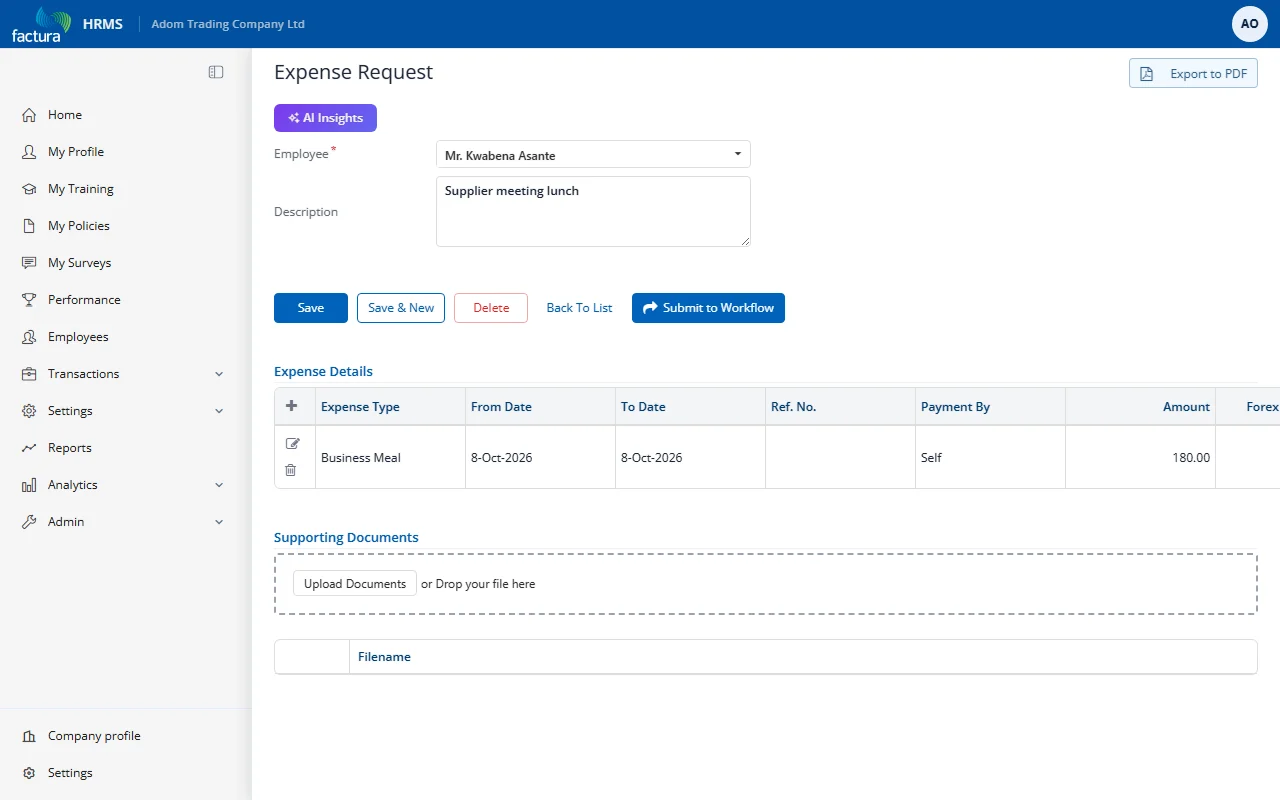
- In the Expense Details section, click the + button to add a line item.
- Fill in the line item details:
| Field | Description |
|---|---|
| Expense Type | Select the category (e.g., Business Meal, Airfare, Transport, Accommodation) |
| From Date | Start date of the expense |
| To Date | End date of the expense |
| Ref. No. | Reference number (e.g., receipt number) |
| Payment By | Who paid (e.g., Self, Company) |
| Amount | Expense amount in local currency |
| Forex Currency | Foreign currency if applicable |
| Forex Amount | Amount in foreign currency if applicable |
| Remarks | Additional notes about the line item |
- (Optional) Upload supporting documents by clicking "Upload Documents" or dragging files into the upload area.
- Click Save to save the line items.
Step 3: Submit to Workflow
Once all expense details and documents are added:
- Click the Submit to Workflow button (blue button with arrow icon).
- The request is sent to the Level 1 approver(s) in the configured approval chain.
- The request status changes from Draft to Submitted for Approval and moves from the Draft tab to the In Progress tab.
- An email and/or SMS notification is sent to the first approver(s).
Available Actions on a Draft Request
| Button | Description |
|---|---|
| Save | Save changes without submitting |
| Save & New | Save and immediately create another expense request |
| Delete | Delete the draft request entirely |
| Back To List | Return to the expense request list |
| Submit to Workflow | Send the request into the approval chain |
| Export to PDF | Download the request as a PDF document |