
How do I create an expense request?
Step 1: Navigate to Expense Requests
- Click Transactions in the left sidebar.
- Select Expense Request from the submenu.
- You are taken to the Expense Requests list page.
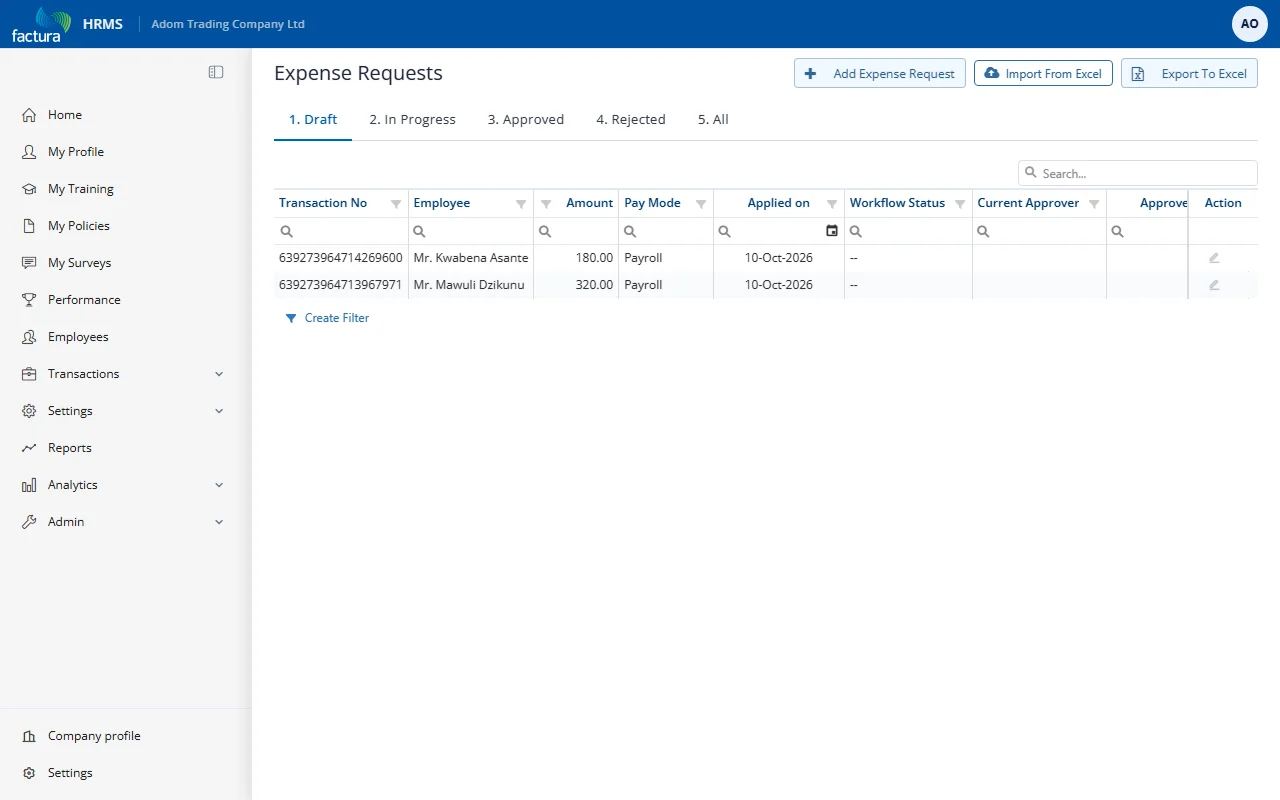
The list page has tabs to filter requests by status:
- 1. Draft -- Requests saved but not yet submitted
- 2. In Progress -- Requests submitted and awaiting approval
- 3. Approved -- Requests that have been fully approved
- 4. Rejected -- Requests that were rejected or cancelled
- 5. All -- All requests regardless of status
Each row shows the transaction number, employee, amount, pay mode, applied on date, workflow status, current approver and approved on date. Click the pencil icon in the Action column to open a request. The page header also offers Import From Excel and Export To Excel.
Step 2: Create a New Expense Request
- Click + Add Expense Request at the top right of the page.
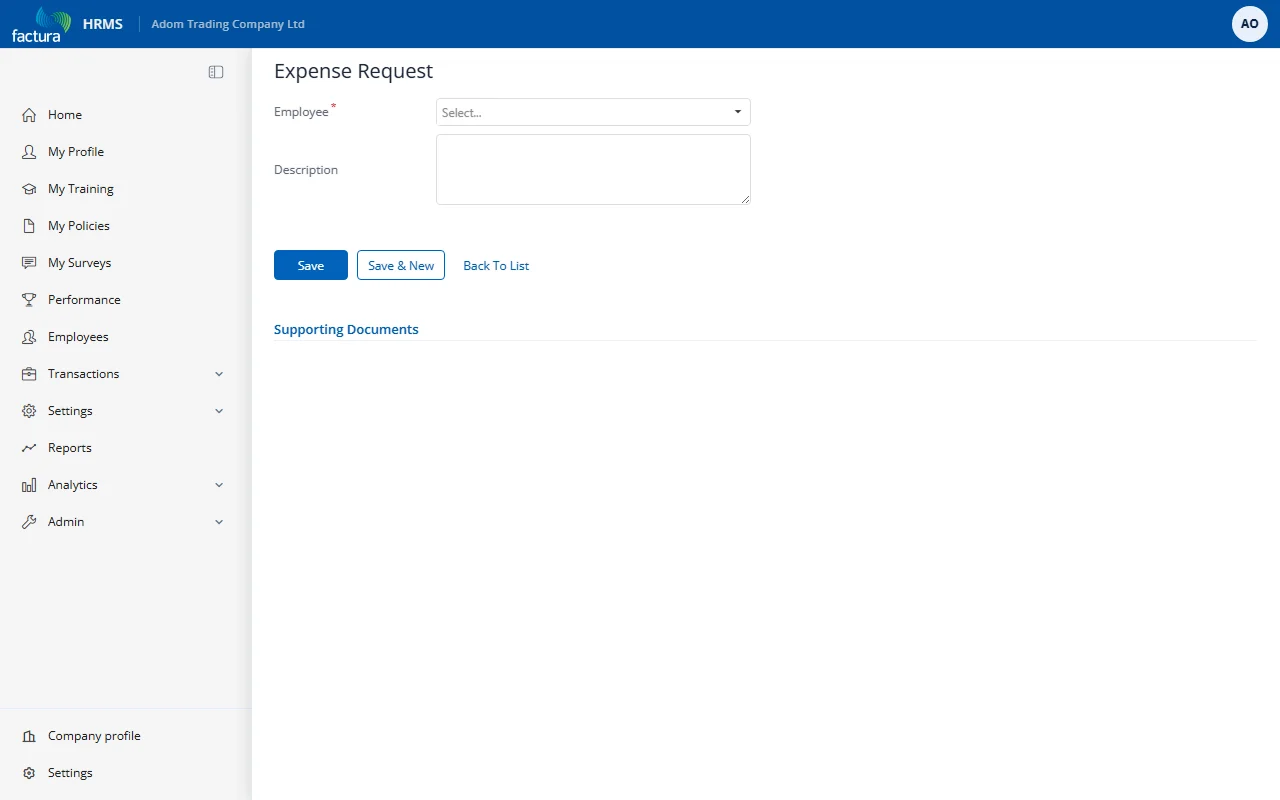
- Fill in the header information:
| Field | Required | Description |
|---|---|---|
| Employee | Yes | Select the employee submitting the expense claim |
| Description | No | Brief description of the overall expense claim (e.g., "Business trip to Kumasi - client meetings") |
- Click Save to create the request. It is saved as a Draft and you are returned to the expense request list. Find the new request on the 1. Draft tab and click its pencil icon to continue.