
What happens after an expense decision?
Approved Requests
After all approval levels are completed, the request is marked as Approved.
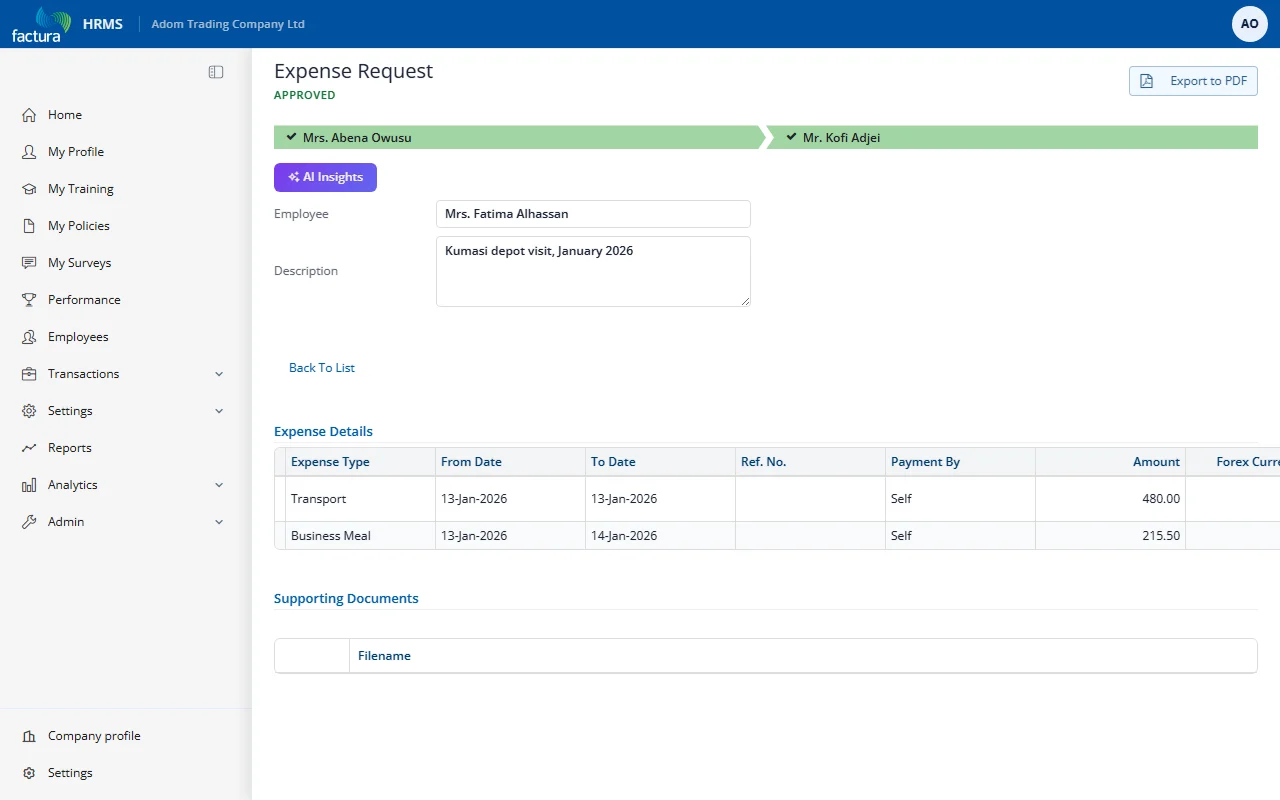
Key elements:
- Status Header: Displays APPROVED in green text
- Expense Details: All line items with their amounts
- The approved expense can be exported to PDF for records
Once approved, the finance team can process the reimbursement to the employee.
Rejected Requests
If any approver rejects the request:
- The workflow terminates immediately
- The status changes to Rejected
- The employee receives a notification with the approver's rejection remarks
- The request appears in the Rejected tab
- No reimbursement is processed
Re-submitting After Rejection
A rejected request cannot be edited or resubmitted. To claim the same expenses again:
- Create a new expense request
- Address any concerns raised in the rejection remarks (e.g., add missing receipts, correct amounts)
- Submit the new request to workflow