How do I manage improvement plans?
An improvement plan turns the objectives of a performance improvement plan (PIP) action in Disciplinary into goals in Performance, so the employee and their manager can check in on them. The Disciplinary case stays the record of the case; the plan never shows case details.
Create a plan
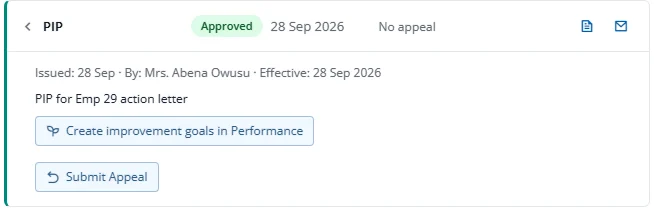
- Open the case in Disciplinary, go to the actions, and open the approved, active PIP action. It needs a start and end date, and the end date cannot be in the past.
- Press Create improvement goals in Performance.
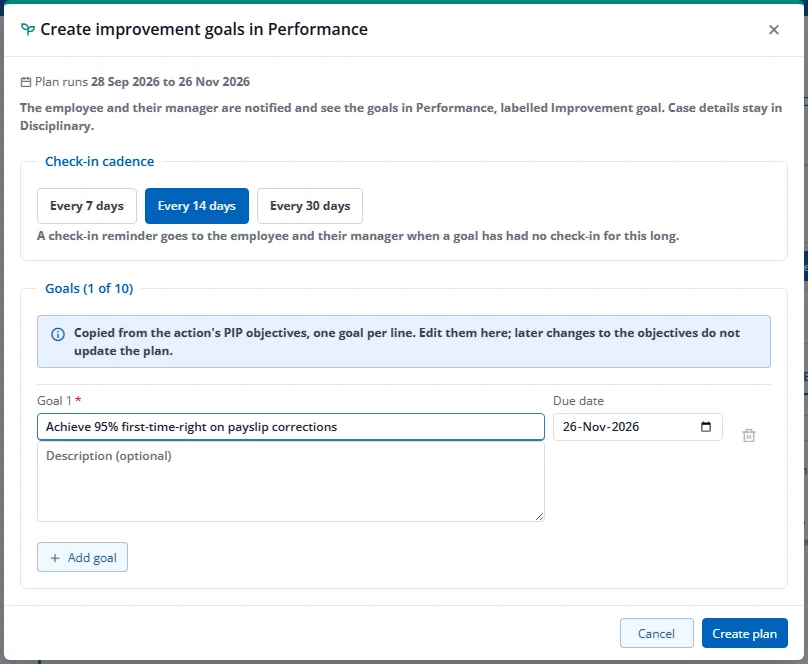
- Choose the check-in cadence (every 7, 14 or 30 days). The goals are copied from the action's objectives, one per line (up to 10). Edit the text and due dates, or add and remove goals.
- Press Create plan. The employee and their manager are notified, and the action then shows that a plan is open.
An employee can have only one open plan at a time, and you cannot create a plan for yourself. Later changes to the objectives in Disciplinary do not update the plan.
Follow plans
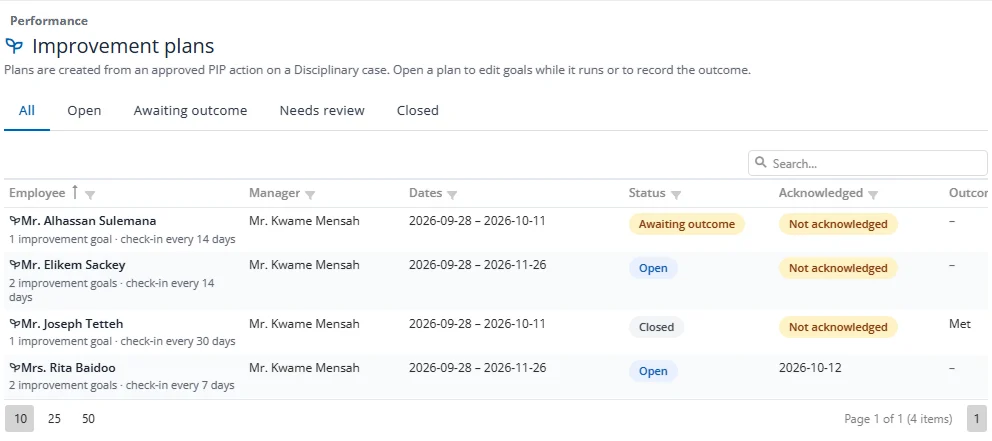
On your Performance home, press Improvement plans to list the plans of everyone you can see (never your own), filtered by Open, Awaiting outcome, Needs review or Closed. The list shows who has acknowledged.
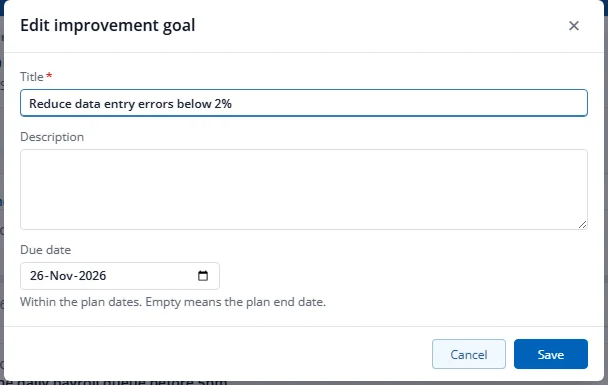
Edit a goal
- Open the plan and press Edit on a goal.
- Change the title, description or due date and press Save.
You can edit goals only while the plan is Open. You can also record check-ins.
Record the outcome
When the end date passes, the plan moves to Awaiting outcome overnight and HR is notified.
- Open the plan and press Record outcome.
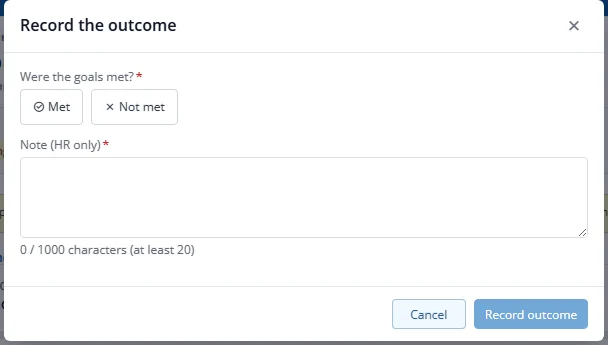
- Choose Met or Not met and write a note of 20 to 1000 characters (HR only).
- Press Record outcome.
The plan closes, its goals become read-only, and the employee and manager are told it has closed. They see only "Met" or "Not met", never the note. If nobody records an outcome within 30 days of the end date, the plan shows Needs review; you can still record it.
If the PIP action is deactivated or expires, or its case is deleted, an open plan closes with no outcome. To extend a PIP, create a new PIP action and a new plan.