
How do I post mid-month entries?
Go to Transactions → Payroll Adjustments.
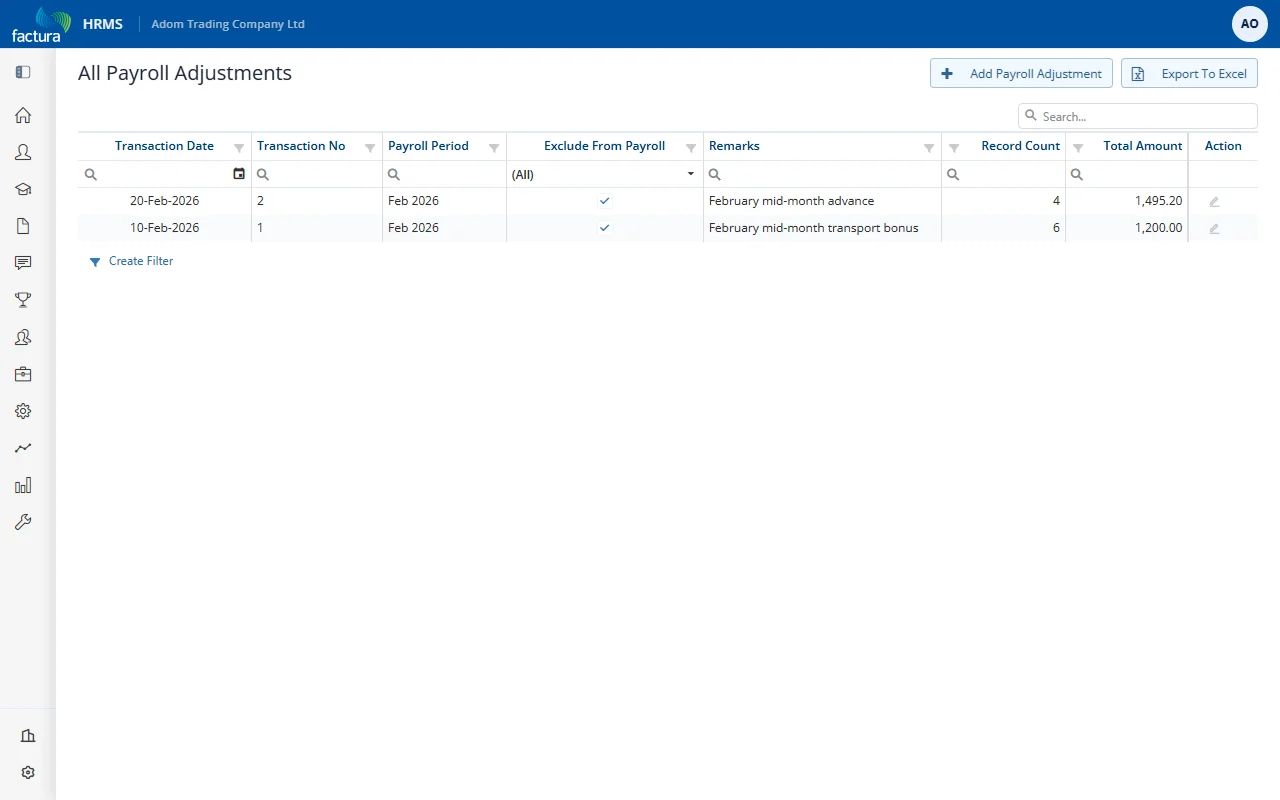
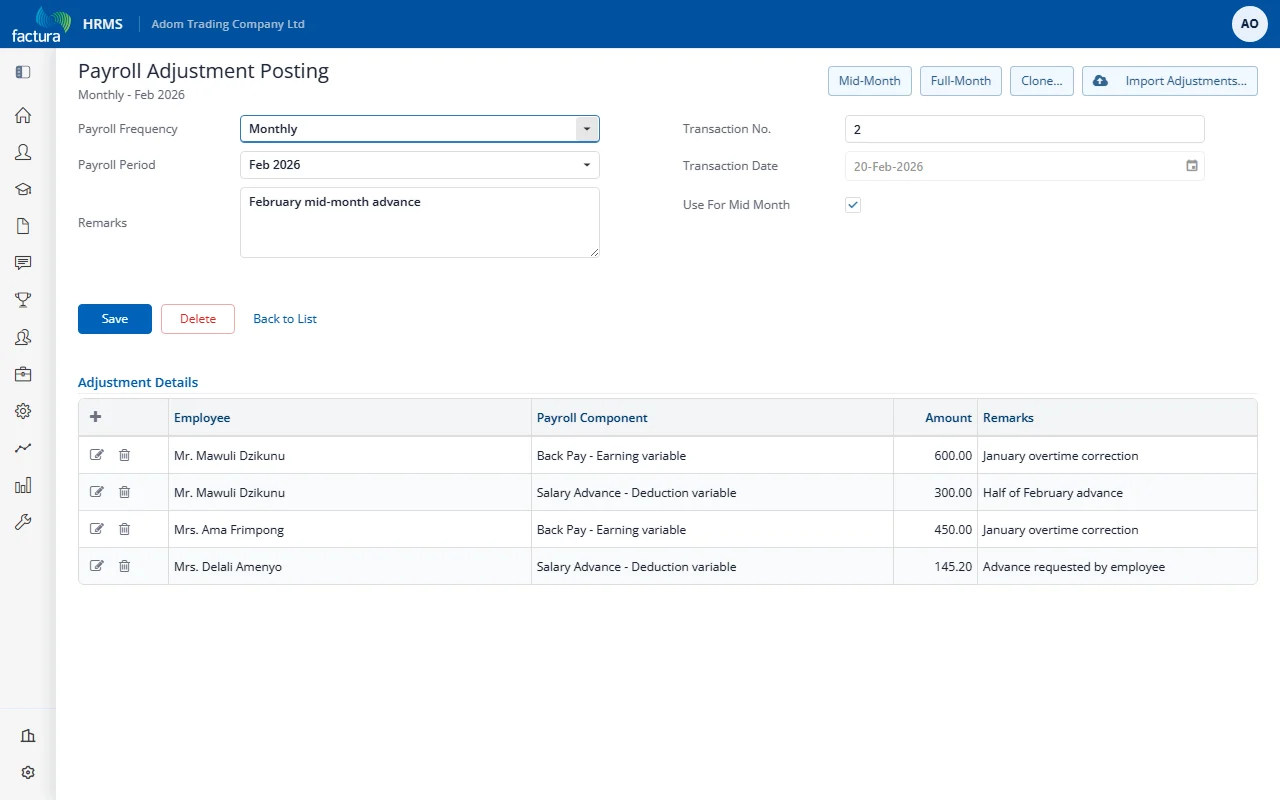
- New - Transaction No. and Transaction Date are filled in for you.
- Choose Payroll Frequency, then the Payroll Period the payment belongs to.
- Tick Use For Mid Month. This is what makes the batch a mid-month batch. Leave it unticked and the entries go into the normal month-end payroll instead.
- Put something useful in Remarks - it is shown against the batch on the Mid-Month Payroll Run screen, so "August bonus" beats a blank field when you have three batches in one period.
- Add a line per employee in the grid below: Employee, Pay Component, Amount, and an optional per-line Remarks.
- Save.
There is no separate "post" step
Saving a batch posts it immediately - the system sets it as posted on create, and there is no button to unpost it. So:
- a saved batch is live as far as the payroll engine and the reports are concerned, and
- there is no draft state to park a half-finished batch in.
Build the batch fully before you save it. If a saved batch turns out to be wrong, correct or delete it rather than expecting it to sit harmlessly unposted.
Several batches in one period
You can post more than one mid-month batch per pay period - for example a first run on the 10th and a second on the 20th. Each batch keeps its own Transaction No., date, remarks, employee count and total, and every report can be filtered to a single batch or run across all of them combined.