
What do the task list tabs show?
My Tasks
Shows tasks assigned to you. The grid includes:
- Task — Task title with a subtitle line showing subtask progress (
4/4 subtasks), department (Finance), or a recurring icon when applicable - Status — Open, In Progress, Completed, Not Completed, or Cancelled (colored chip)
- Priority — Low, Medium, High, or Urgent (colored chip)
- Due — Relative phrase (
Today,In 6 days,Overdue 2 days) above the absolute date - Created By — Who created the task
- Action — Pencil (edit) icon
Above the grid, a KPI pill row gives one-click filtering:
| Pill | Meaning | Click to filter |
|---|---|---|
| Overdue | Past-due, incomplete tasks | Show only overdue |
| Active | Open / In Progress | Show only active |
| Completed MTD | Completed this calendar month | Show only completed |
| Completion Rate | % completed (read-only) | n/a |
When a pill is active, a Clear filter affordance appears next to the row. The same pill row is shared by My Tasks, Tasks I Created, and All Tasks.
Tasks I Created
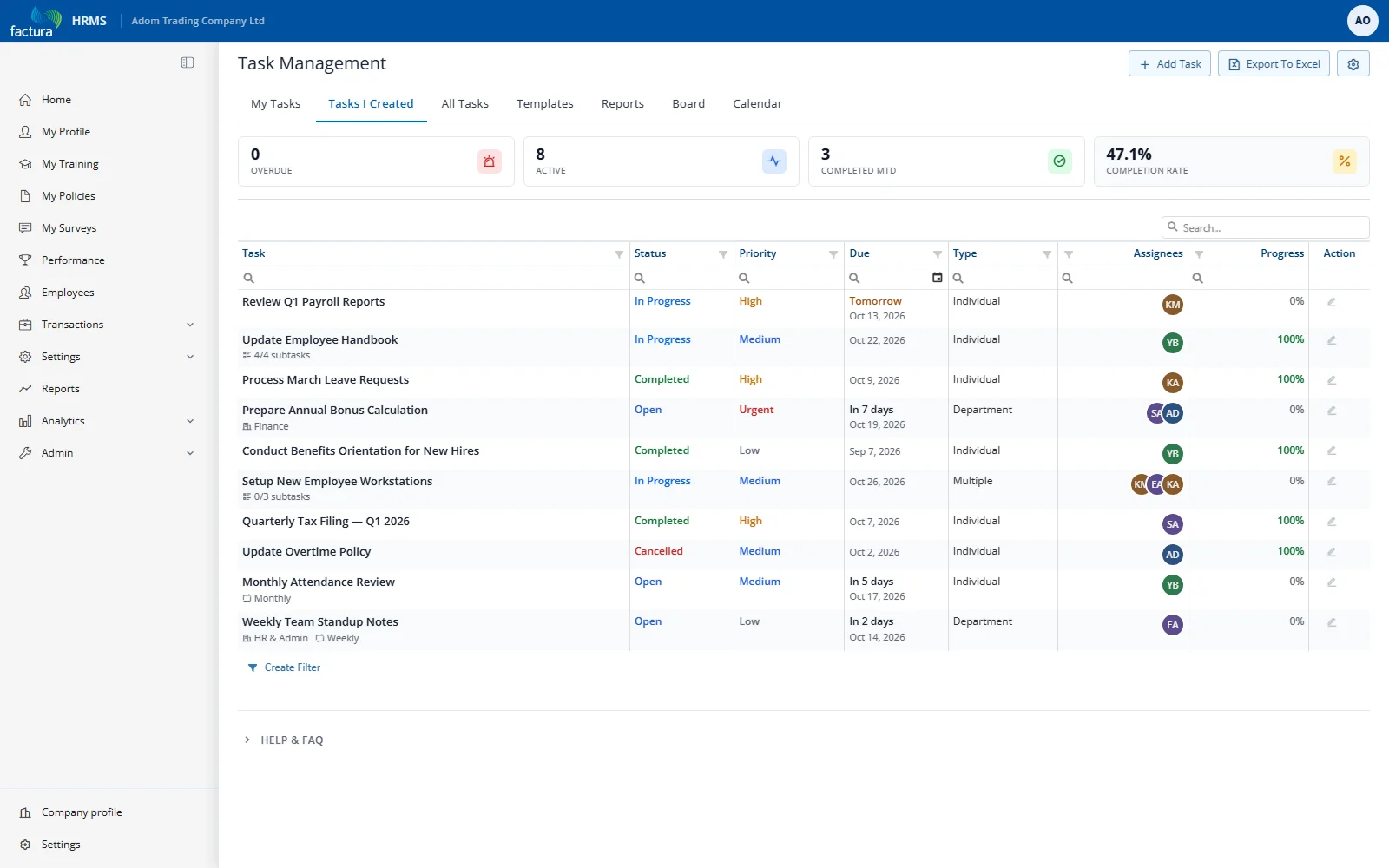
Shows tasks you created. Includes an Assignees column showing how many people are assigned to each task.
All Tasks
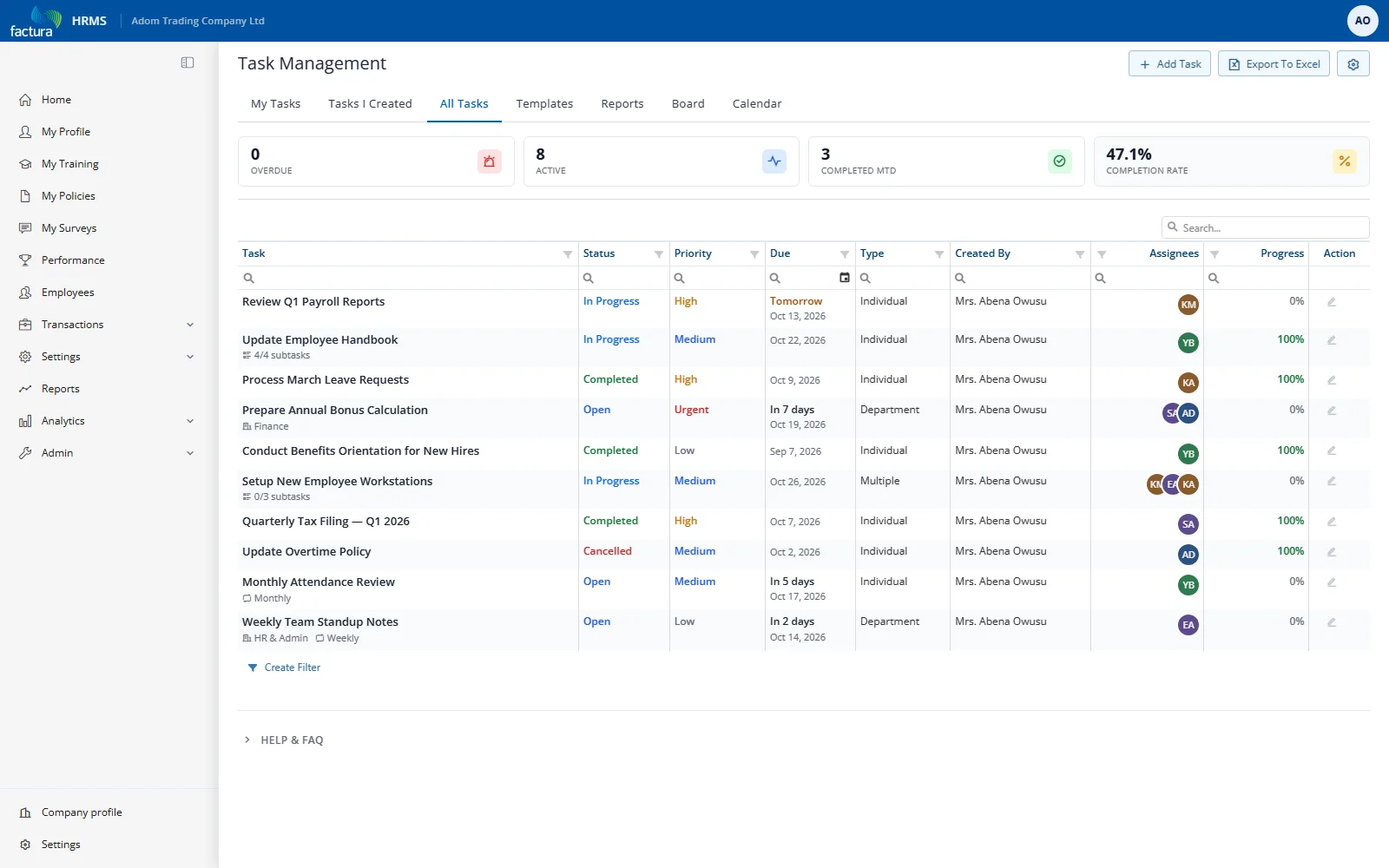
Shows every task in the system (subject to your role permissions). Includes both Created By and Assignees columns.
Grid Features
All three grid tabs support:
- Column sorting — Click any column header
- Header filters — Click the funnel icon on column headers
- Filter row — Type in the filter row below headers for instant filtering
- Search — Free-text search box (above the grid, on the right)
- Export — Export filtered data to Excel
- Column reorder — Drag column headers to rearrange
- Column resize — Drag column borders to resize
- State persistence — Your column order, widths, and filters are remembered