
How do I find my way around the separation list?
The Offboarding list has 4 tabs; All Cases, Active and Archive show a count pill in the tab heading:
| Tab | What It Shows |
|---|---|
| All Cases | Every separation regardless of status |
| Active | In-progress separations (Draft → Pending Final Pay) |
| Reports | Analytics dashboard (see Section 13) |
| Archive | Completed and Cancelled separations |
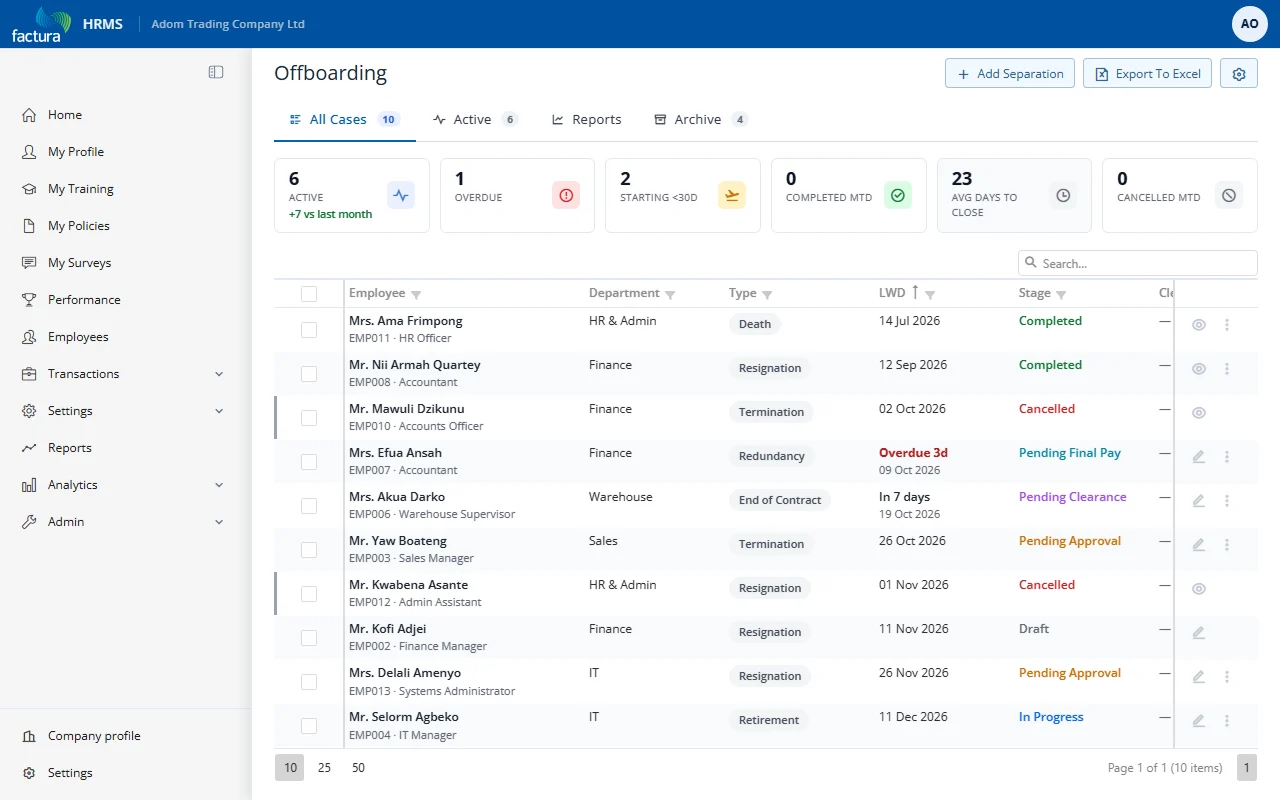
KPI Pills
On the All Cases tab, above the grid, a row of KPI cards surfaces the most useful slices. Click a card to filter the grid:
| Pill | Meaning | Click to filter |
|---|---|---|
| Active | All in-progress separations (with a comparison to last month) | Show active only |
| Overdue | Past LWD but not yet completed | Show overdue only |
| Starting < 30d | Last Working Date within 30 days | Show starting-soon only |
| Completed MTD | Closed this month | Show completed-this-month |
| Avg days to close | Average closure duration (read-only) | n/a |
| Cancelled MTD | Withdrawn this month | Show cancelled-this-month |
Active Separations Tab
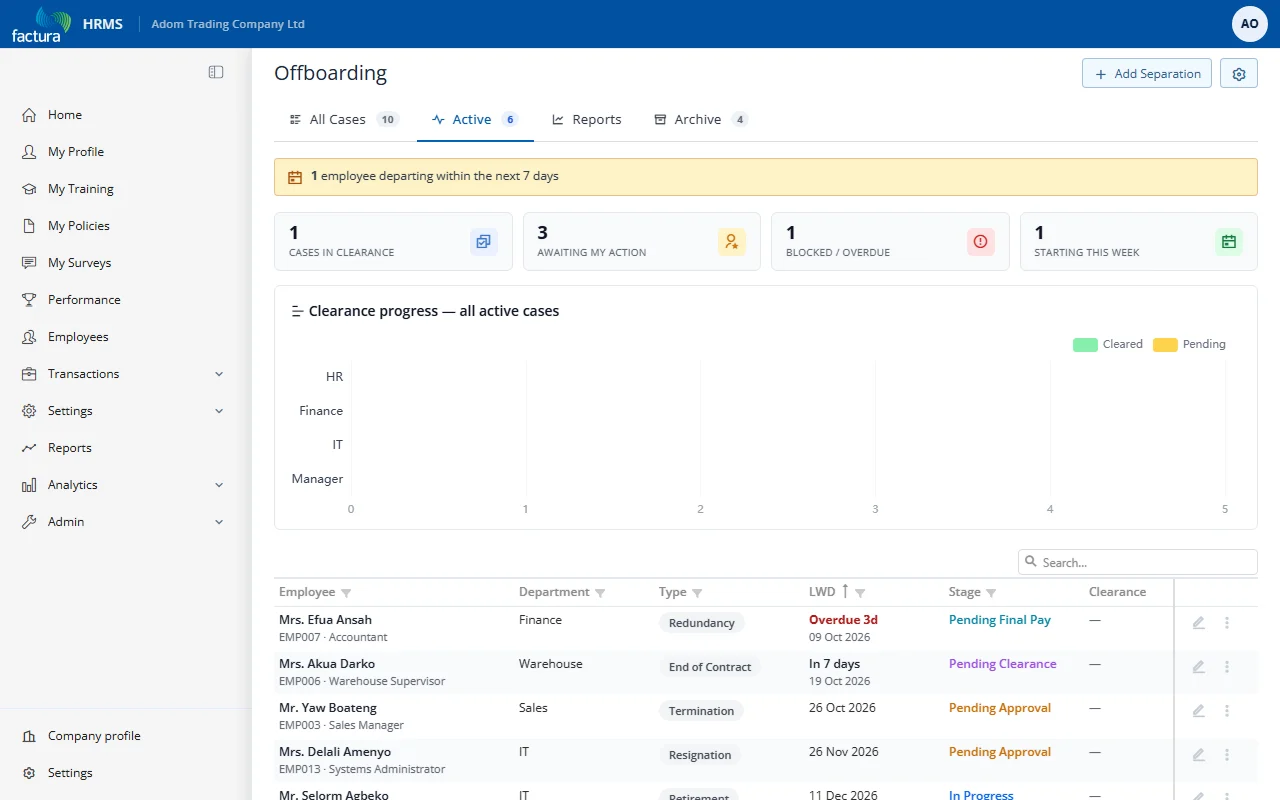
Above the grid, the Active tab shows a banner when someone is due to leave within the next 7 days, four summary cards (Cases in clearance, Awaiting my action, Blocked / Overdue and Starting this week), and a Clearance progress chart that compares cleared and pending tasks by department for all active cases.
The grid supports:
- Column sorting — Click any column header to sort
- Header filters — Click the funnel icon on column headers for value-based filtering
- Filter row — Type directly in the filter row below column headers
- Search — Free-text search across all visible columns (top-right)
- Action column — A pencil icon to edit a separation, an eye icon to view one that is closed (Completed or Cancelled), and a ⋮ menu for further actions
Action Bar (top-right)
- + Add Separation — Creates a new separation
- Export To Excel — Exports the current grid (visible on All Cases and Archive)
- Settings (gear icon) — Module settings (admin only)