
How do I find my way around the training list?
The Training List has 5 tabs:
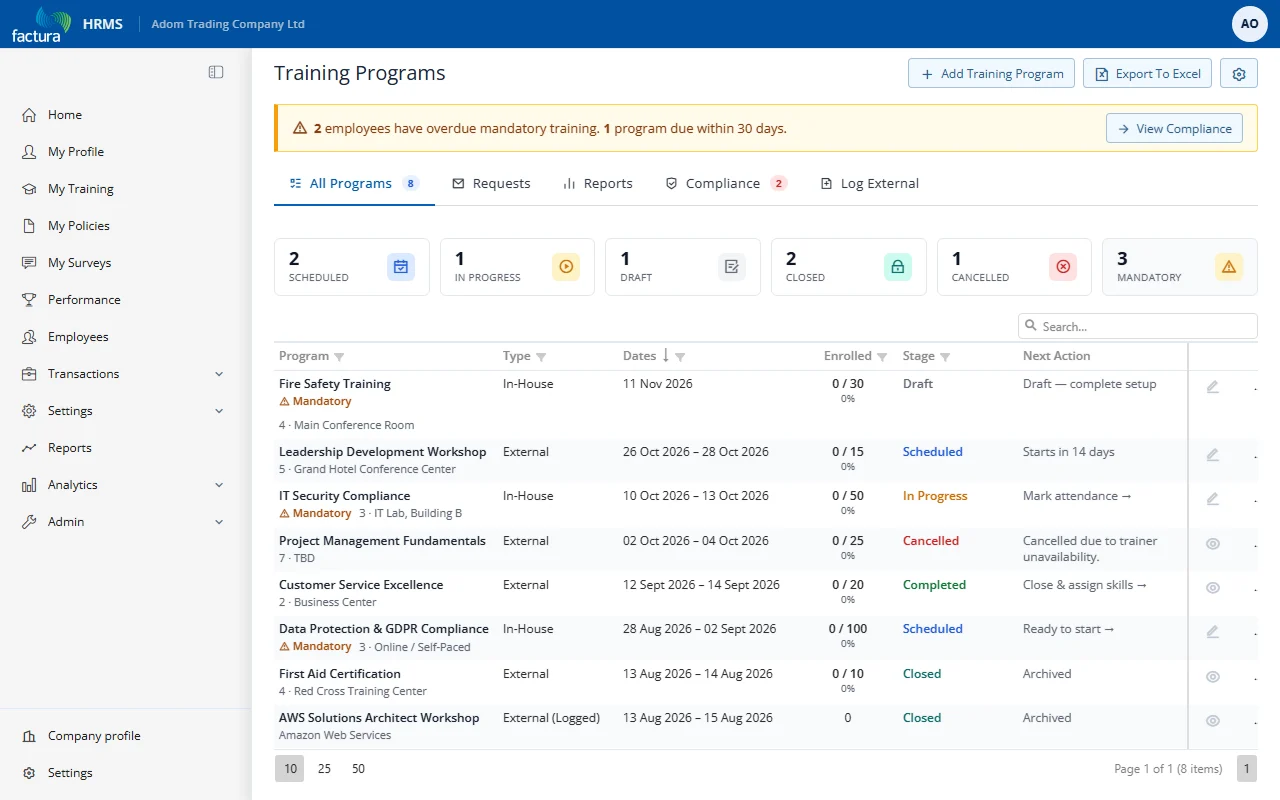
| Tab | What It Shows | Best For |
|---|---|---|
| All Programs | Every training program regardless of status | Full overview (with KPI status filters) |
| Requests | Employee/manager training nominations | Approving demand |
| Reports | KPI cards and analytics | Management dashboards |
| Compliance | Mandatory training tracking | Audit and compliance |
| Log External | Training taken outside the system | Logging external development |
The previous Upcoming, In Progress, Completed, and Calendar tabs were consolidated. Use the KPI pill row on All Programs to filter by status, or the Reports tab for a calendar-style monthly trend view.
KPI Pills (All Programs)
A row of one-click status filters sits above the grid:
| Pill | Click to Filter |
|---|---|
| Scheduled | Show Scheduled only |
| In Progress | Show In Progress only |
| Draft | Show Draft only |
| Closed | Show Closed only |
| Cancelled | Show Cancelled only |
| Mandatory | Read-only count of mandatory programs |
Click an active pill again (or use Clear filter) to remove it.
Compliance Banner
When mandatory training is overdue or programs are due within 30 days, an amber banner appears above the tabs with a View Compliance shortcut to the Compliance tab.
Grid Columns (All Programs)
- Program — Title in bold + subtitle (Mandatory badge, venue)
- Type — In-House, External, or External (Logged)
- Dates — Start and End date
- Enrolled —
<completed>/<total>plus completion % - Stage — Status badge (Draft / Scheduled / In Progress / Completed / Closed / Cancelled)
- Next Action — Stage-specific guidance text (e.g., "Mark attendance →", "Close & assign skills")
- Action — A pencil icon to edit a program, or an eye icon to view one that is Completed, Closed or Cancelled