
How do I create a task?
Navigate to the task edit form by clicking + Add Task.
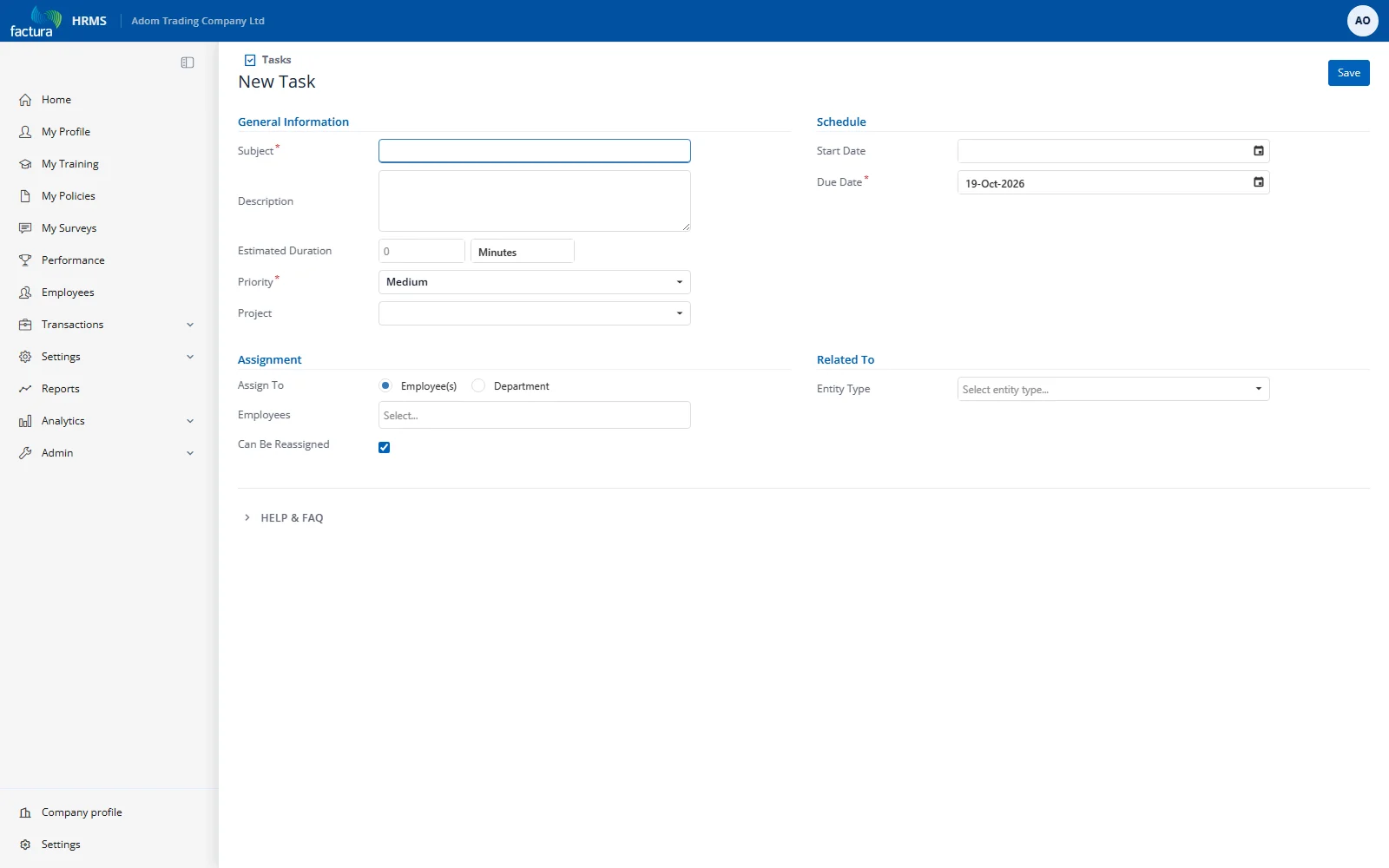
Form Layout
The new task form has a Details tab with four sections:
General Information (left column):
| Field | Description |
|---|---|
| Subject * | Short title for the task (max 200 characters) |
| Description | Detailed instructions or context (max 2000 characters) |
| Estimated Duration | Expected time — enter a number and select Minutes, Hours, or Days |
| Priority * | Low, Medium (default), High, or Urgent |
| Project | Optional project grouping |
Schedule (right column):
| Field | Description |
|---|---|
| Start Date | When work should begin (optional) |
| Due Date * | Deadline for the task |
Assignment (left column):
| Field | Description |
|---|---|
| Assign To | Choose Employee(s) or Department |
| (Employee picker) | Search and select one or more employees |
| Can Be Reassigned | Whether assignees can be reassigned (checkbox) |
When two or more people are assigned, choose a Completion Mode: All Must Complete, Any One Completes, or Claim & Complete. Any One Completes cancels the other assignments when one person finishes. With Claim & Complete, an assignee uses Claim Task before completing it; the other assignments are cancelled on claim, and Release Claim makes them available again.
Related To (right column):
| Field | Description |
|---|---|
| Entity Type | Link to an Employee, Leave Request, Expense Request, or Separation Request |
| Record | Search and select the specific record |
Assignment Types
| Type | How It Works |
|---|---|
| Employee(s) | Select one or more employees from the tag box. Each person gets an independent assignment with separate status tracking. |
| Department | Select a department. The system creates assignments for all active employees in that department. |
Saving Options
- Save — The only button on a new task form. Saves the task.
- Save & Create another — Appears in the ⋯ overflow menu once the task has been saved (edit mode). Saves and opens a blank form.
- Tasks (breadcrumb at the top of the form) — Returns to the task list without saving.
Priority Levels
| Priority | Color | When to Use |
|---|---|---|
| Low | Grey | Nice-to-have items, no urgency |
| Medium | Blue | Standard work items (default) |
| High | Orange | Important items needing attention soon |
| Urgent | Red | Critical items requiring immediate action |