
How do I submit a loan request for approval?
Draft Edit View
After saving, open the draft from the 1. Draft tab (pencil icon) to review and submit. The form also has an AI Insights button that gives an AI-generated review of the request:
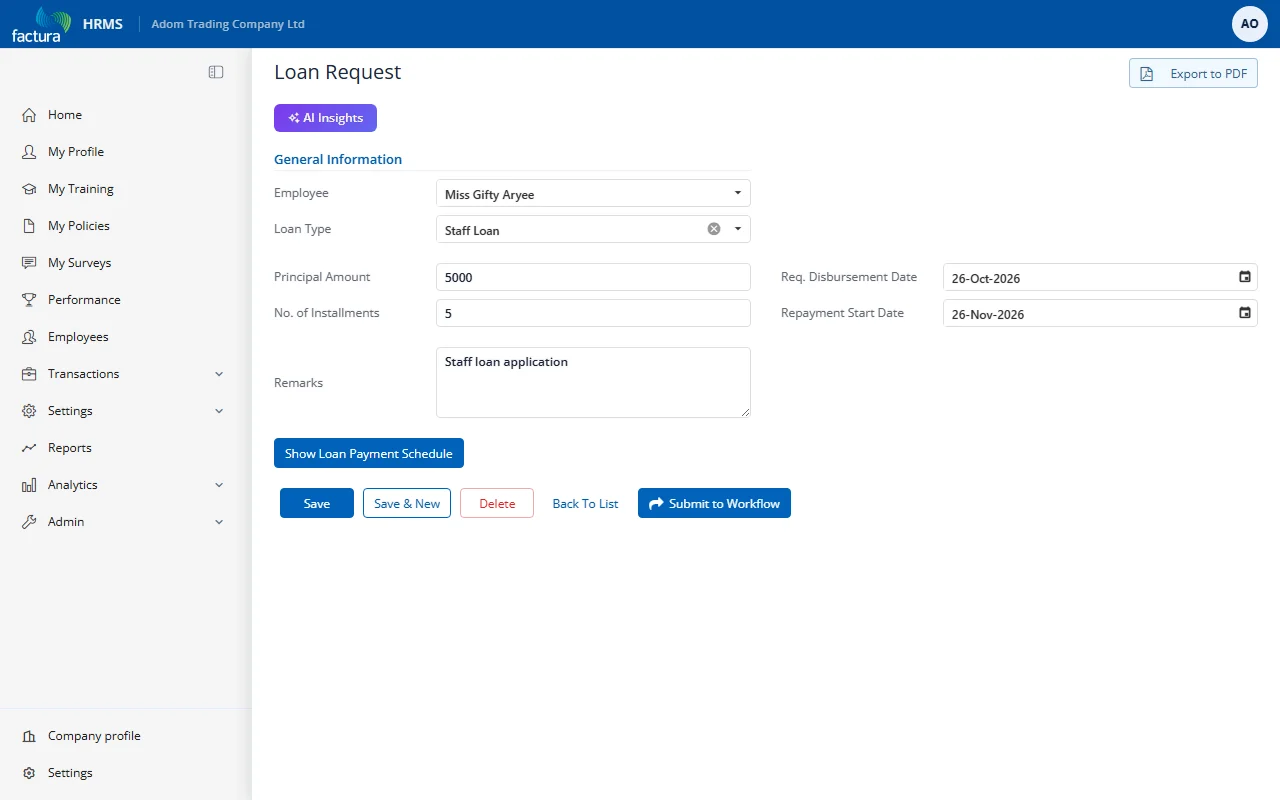
Available Actions on a Draft
| Button | Description |
|---|---|
| Save | Save changes without submitting |
| Save & New | Save and immediately create another loan request |
| Delete | Delete the draft request entirely |
| Back To List | Return to the loan request list |
| Submit to Workflow | Send the request into the approval chain |
| Export to PDF | Download the request as a PDF document |
| Show Loan Payment Schedule | Preview the repayment schedule |
Submitting
- Review all loan details and the payment schedule.
- Click the Submit to Workflow button (blue button with arrow icon).
- The request is sent to the Level 1 approver(s) in the configured approval chain.
- The status changes from Draft to Submitted for Approval.
- The request moves from the Draft tab to the In Progress tab.
- An email and/or SMS notification is sent to the first approver(s).