
How do I verify an employee document?
The Inbox Documents folder
Pending uploads appear in Inbox, in the Documents folder, for users who can verify that type and can see that employee. The folder is listed only while something is waiting. The folder count and the list always match. A Done list shows the decisions you made.
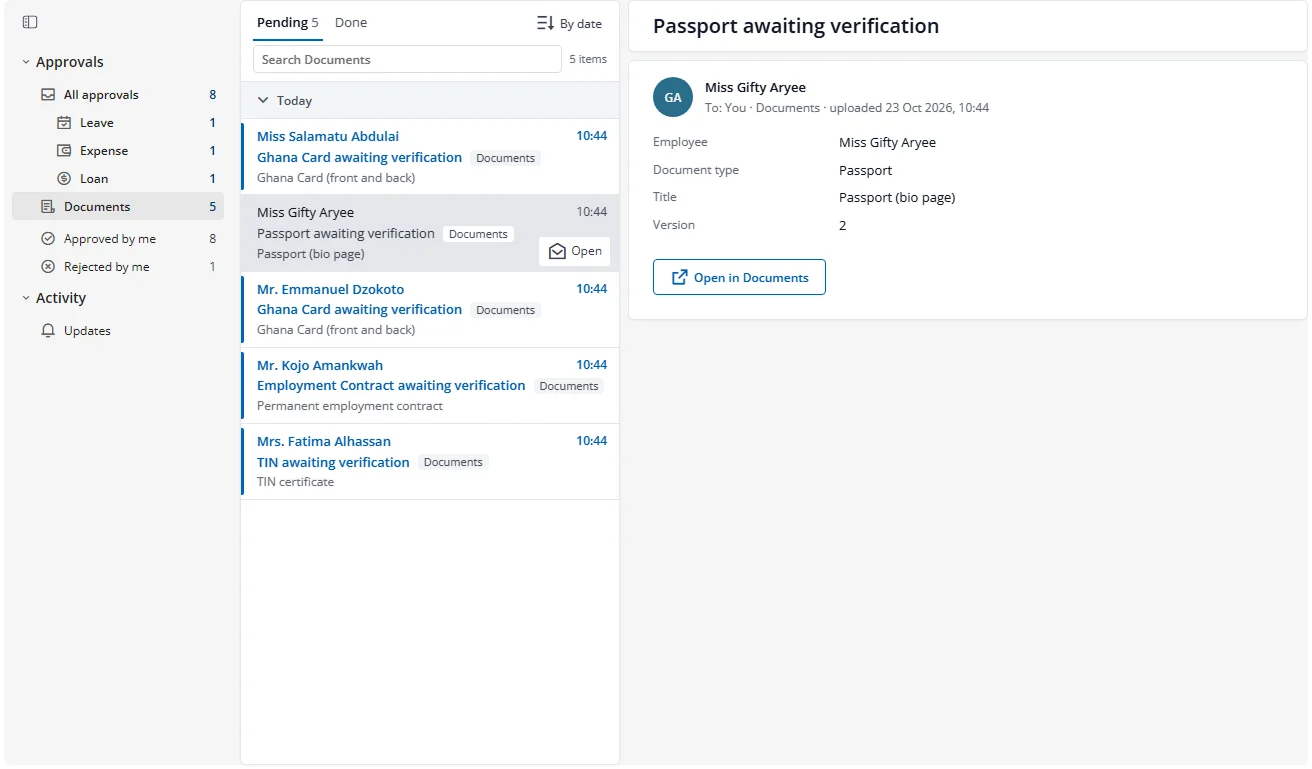
Select an item to read it in the reading pane, then choose Open in Documents to go to the verify page: the current verified document next to the new upload, a preview, and a rejection reason box.
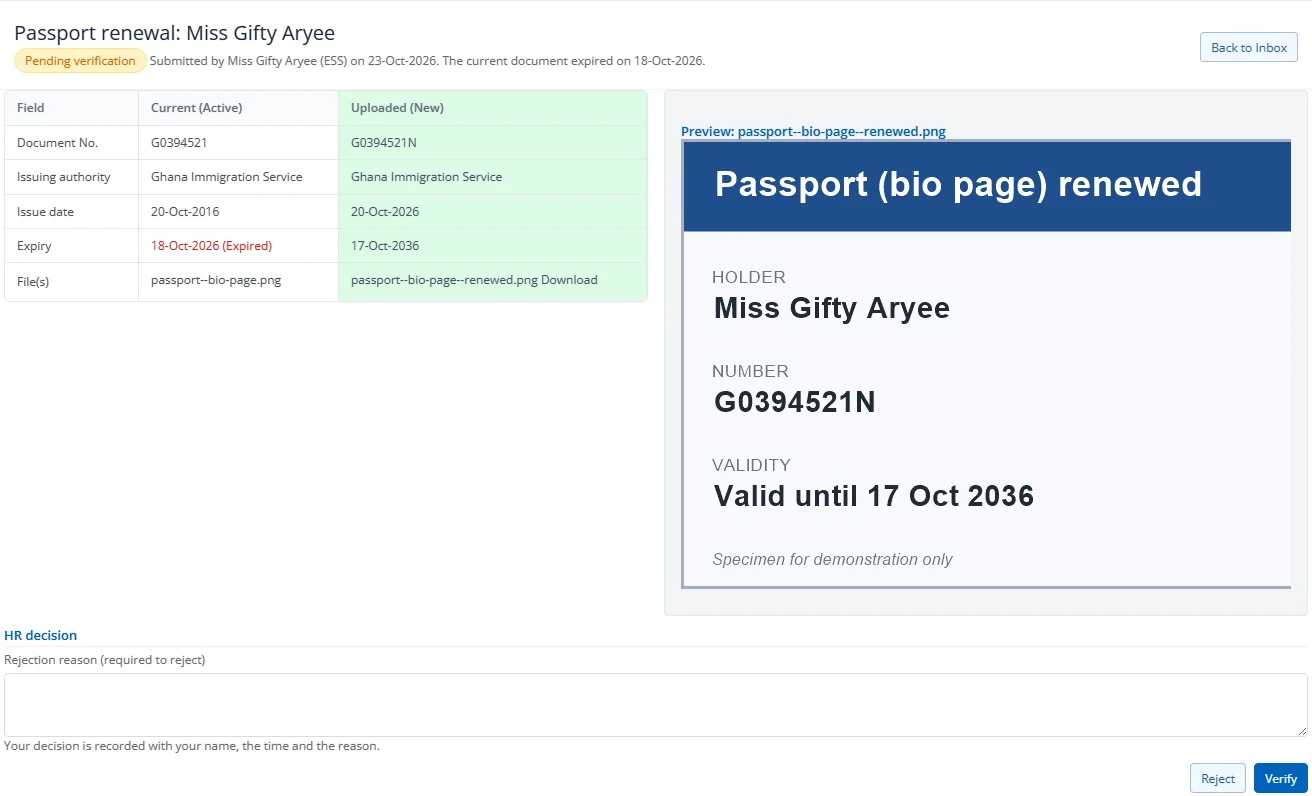
- Verify makes the version Verified. If it is a renewal, it becomes current and the old version is Superseded.
- Reject needs a reason (up to 500 characters). The version is marked Rejected and the employee sees the reason in ESS.
Verification is a single step. Anyone with verify rights for the type, inside their employee scope, can decide. The employee gets an email with the decision.
Your own request
If the document belongs to you (or you uploaded it), the page shows This is your own request. You can still verify it. Self-approval is allowed here, and the notice is only a reminder.
Updating the employee record (optional)
For some types the verify page offers a box: Update
| Document type | Employee record field |
|---|---|
| Ghana Card | National ID number |
| SSNIT | Social security number |
| TIN | Tax identification number |
Passport is not linked to any field.
The page shows the current value and the value on the document. The box is ticked by you; it is not on by default. The update happens together with the verification, and only the field name is recorded in the history.
The box is not available (it is hidden) when any of these is true:
- Data Approval is switched on for the company. Employee record changes must go through the approval flow instead, so the update is not made from here.
- The employee record is locked by a pending Data Approval request.
- You uploaded this document yourself. Someone else must verify it if you want to update the record.
- The employee's final settlement is done.
- You do not have rights to edit the Employee module, or the employee is outside your scope.
- The document has no number, or is no longer pending.
If another employee already holds the same number, the box is shown but disabled, with a warning. The document can still be verified; the record is not changed. Check the number first.