How do I check document compliance?
Requirement rules
For each type you can say who must hold it. In the Employee Document Types list, choose Edit rules in the Required for column. The column itself reads, for example, All employees, Designation: Driver or Department: Warehouse.
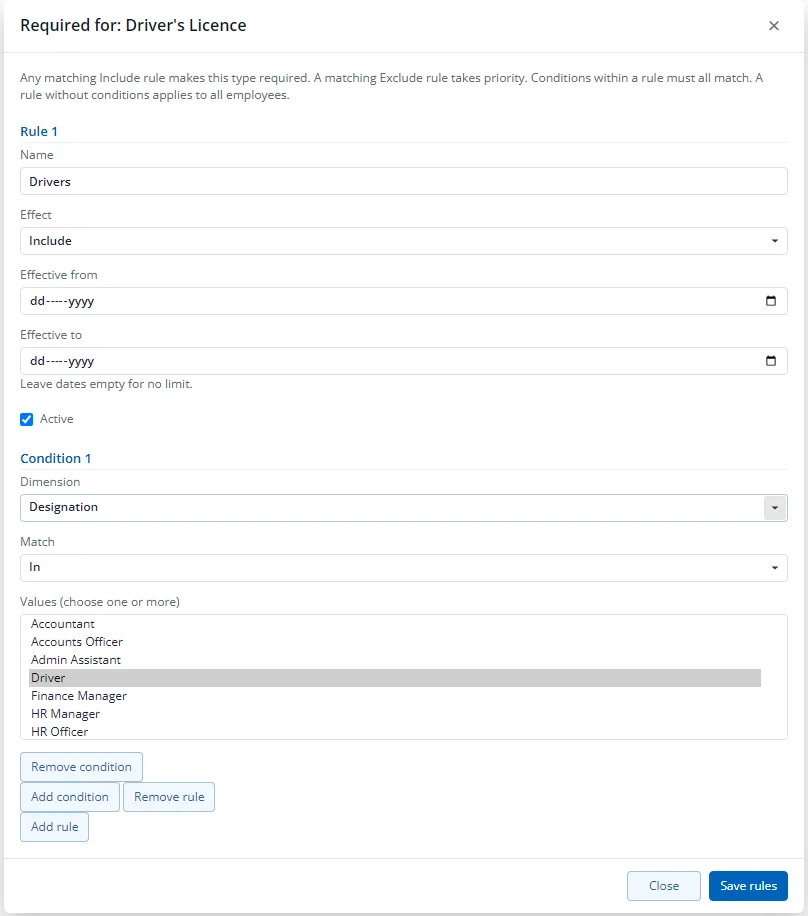
A rule has:
- a name (for example "Non-Ghanaian staff");
- an effect: Include (these employees must hold the document) or Exclude (they need not);
- conditions on employment type, department, designation, nationality, location or group;
- optional start and end dates, and an Active switch.
How rules combine:
- Within a rule, each condition is In or Not in a set of values. All conditions in a rule must be true.
- A rule with no conditions applies to everyone.
- A type's rules are alternatives: if any Include rule matches, the document is required.
- An Exclude rule that matches always wins.
- Only active rules inside their dates count.
- A type with no Include rule is Not required.
- Only employees on Probation, Active or Notice are counted. Terminated, suspended and on-hold employees are left out.
Starter data only creates "all employees" rules. Rules based on values such as nationality or department must be set up for your company.
The matrix
Open Document compliance (People, Documents group). It lists employees in rows and required types in columns. Each cell shows one of:
| Cell | Meaning |
|---|---|
| OK | A valid verified document is held |
| Expiring | Verified, expires within the expiring window |
| Expired | Verified but past expiry |
| Pending verification | Waiting for verification (including a renewal) |
| Missing | Nothing held (a document that was only rejected also counts as Missing) |
| Waived | HR granted a waiver |
| n/a | The type is not required for this employee |
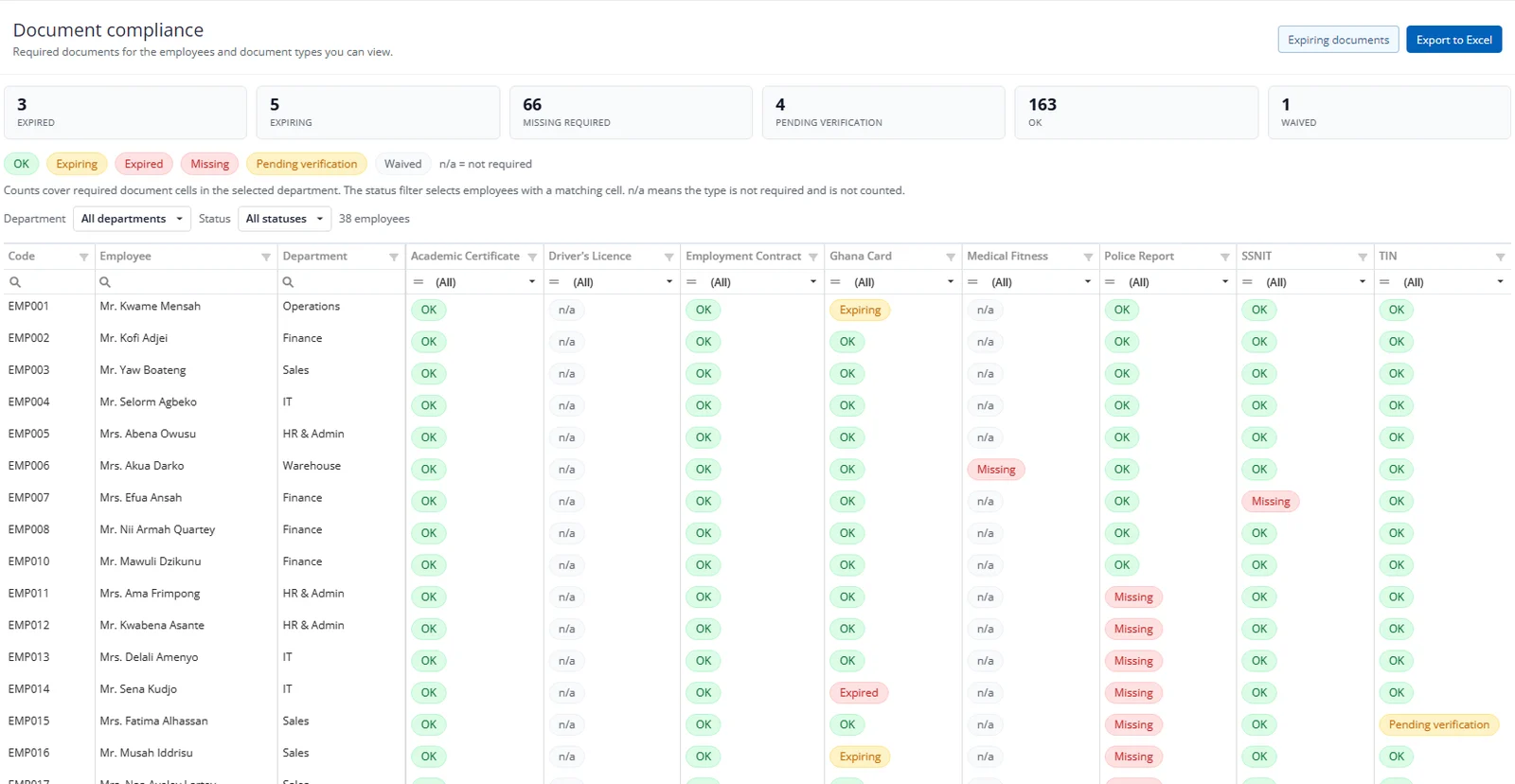
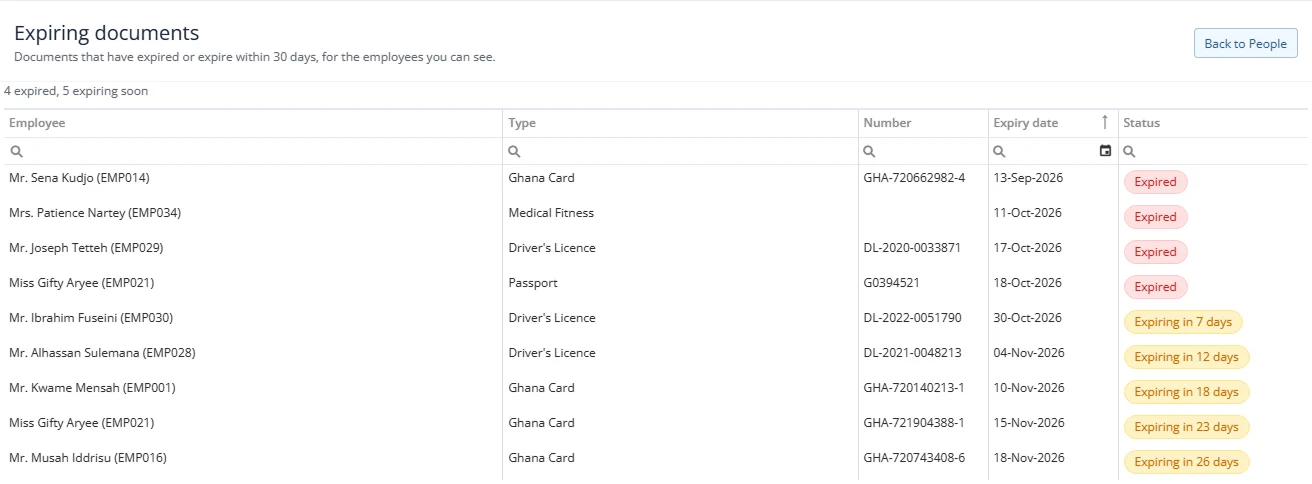
The row of counts at the top (Expired, Expiring, Missing required, Pending verification, OK, Waived) covers the selected department. The legend under it explains the cell colours. Filter by department and status. You see only the employees in your scope and the types your role can view. Export to Excel needs the module's Export right. Expiring documents opens the list of documents that have expired or will expire within the window.
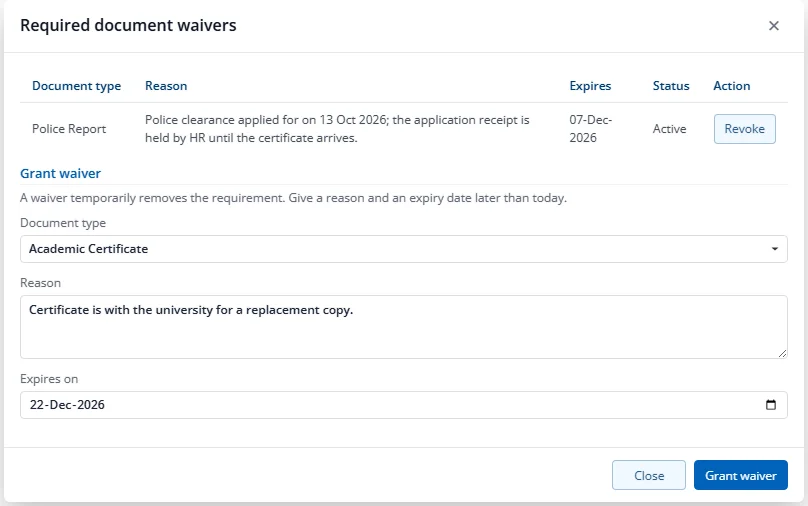
Waivers
If an employee does not need a document for a time, grant a waiver. Choose Waiver next to the missing document in the panel on the Documents tab, or Manage waivers on the toolbar. Choose the type, give a reason and an expiry date later than today. The cell then shows Waived and is not counted as missing. A waiver can be revoked, with a reason. Granting a new waiver for the same employee and type replaces the old one. Granting and revoking are recorded in the history.