
Which document types can each role see?
Types
Open Employee Document Types in Setup to see every type in one list. The columns show the group, which fields the type asks for, its reminder days, whether employees can see or upload it in ESS, who it is required for, who can access it, whether it is confidential, how many a person can hold, how long it is kept after exit, and how many documents of the type are on file.
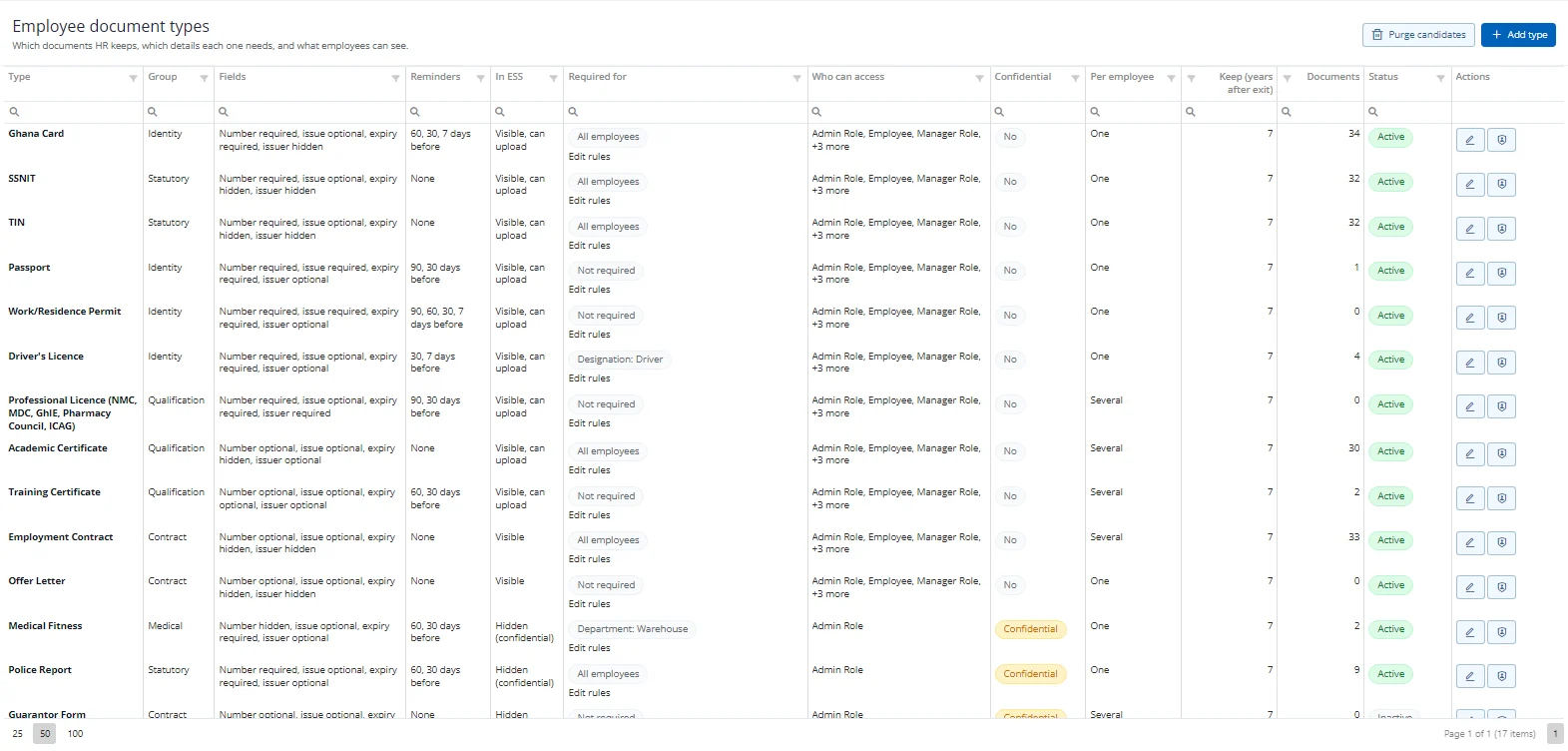
A document type decides which fields are asked for and how the document behaves. Choose Add type, or the pencil on a row, to open the type form.
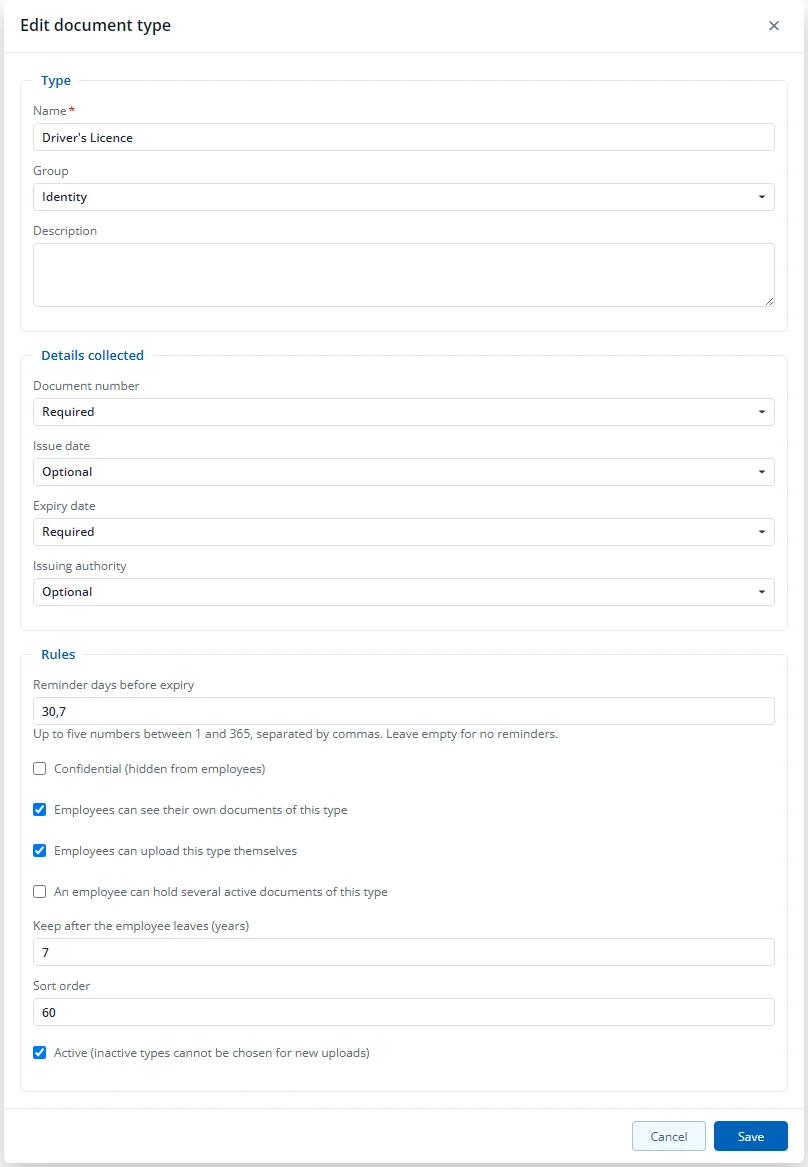
Each field (number, issue date, expiry date, issuer) is Hidden, Optional or Required. A type also has:
- a group (Identity, Statutory, Contract, Qualification, Medical, Other);
- reminder days (up to five numbers from 1 to 365, for example 60, 30, 7 days before expiry);
- whether employees can see their own documents of the type and whether they can upload it themselves in ESS;
- Confidential: hidden from ESS, and every view or download is recorded;
- An employee can hold several active documents of this type: if off, an employee can hold only one active document of that type (a second upload is offered as a renewal);
- Keep after the employee leaves (years), 7 by default.
New companies get a starter list that includes Ghana Card, SSNIT, TIN, Passport, Work/Residence Permit, Driver's Licence, Professional Licence, Academic Certificate, Training Certificate, Employment Contract, Offer Letter, Medical Fitness, Police Report, Guarantor Form (inactive), Disciplinary Letter and Clearance / Exit Letter. The Disciplinary Letter and Clearance / Exit Letter types are filled automatically by other modules (see section 10).
Uncategorised is a system type. Documents that existed before types were introduced were moved there and stay visible to employees as before. Assign a real type when convenient (the row action is Set type). You cannot upload new documents as Uncategorised, rename it or deactivate it.
Types are deactivated, never deleted.
Access rules
Seeing a document needs all of these:
- Access to the Employee Documents module (the module's View right).
- Access to that specific type for your role. This is set in the Who can access form of the type. Each role has four tick boxes: View, Upload, Verify, Archive. A role with no row for a type cannot see that type.
- The employee must be inside your normal employee scope (for example your department, if your access is limited by department).
In the types list, the Who can access column shows the roles that can see the type; a list of more than four roles is shortened to the first three and "+ n more". Choose the shield icon on a row to change it. Only an administrator can edit the access table.
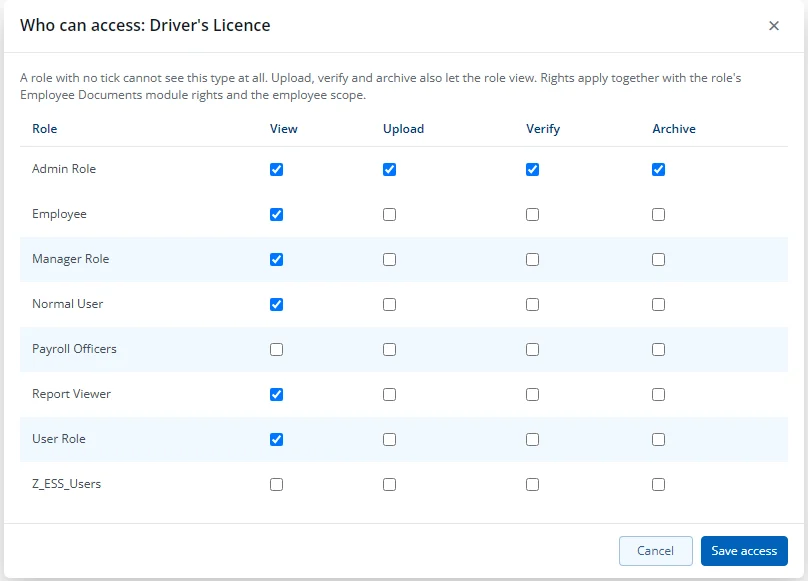
Defaults when the module was set up: administrator roles get every type. Other roles that could already see employees get the non-confidential types: they can view them, and they can also upload, verify and archive them if the role can edit Employee Documents. Review these defaults after setup and narrow them where needed. Confidential types (Medical Fitness, Police Report, Guarantor Form, Disciplinary Letter) go to administrator roles only. The company chooses which HR roles to grant per type.
The same rules apply to the document report, the compliance matrix, the home tile and direct file links.
Employees see their own documents through ESS, limited to types marked as visible to the employee and not confidential.