How do I upload and renew documents?
The Documents tab
Open the employee, then the Documents tab. Documents are grouped by type group (Identity, Statutory and so on). Each row shows the type, title, number, issue and expiry dates, verification and validity, who uploaded it and when.
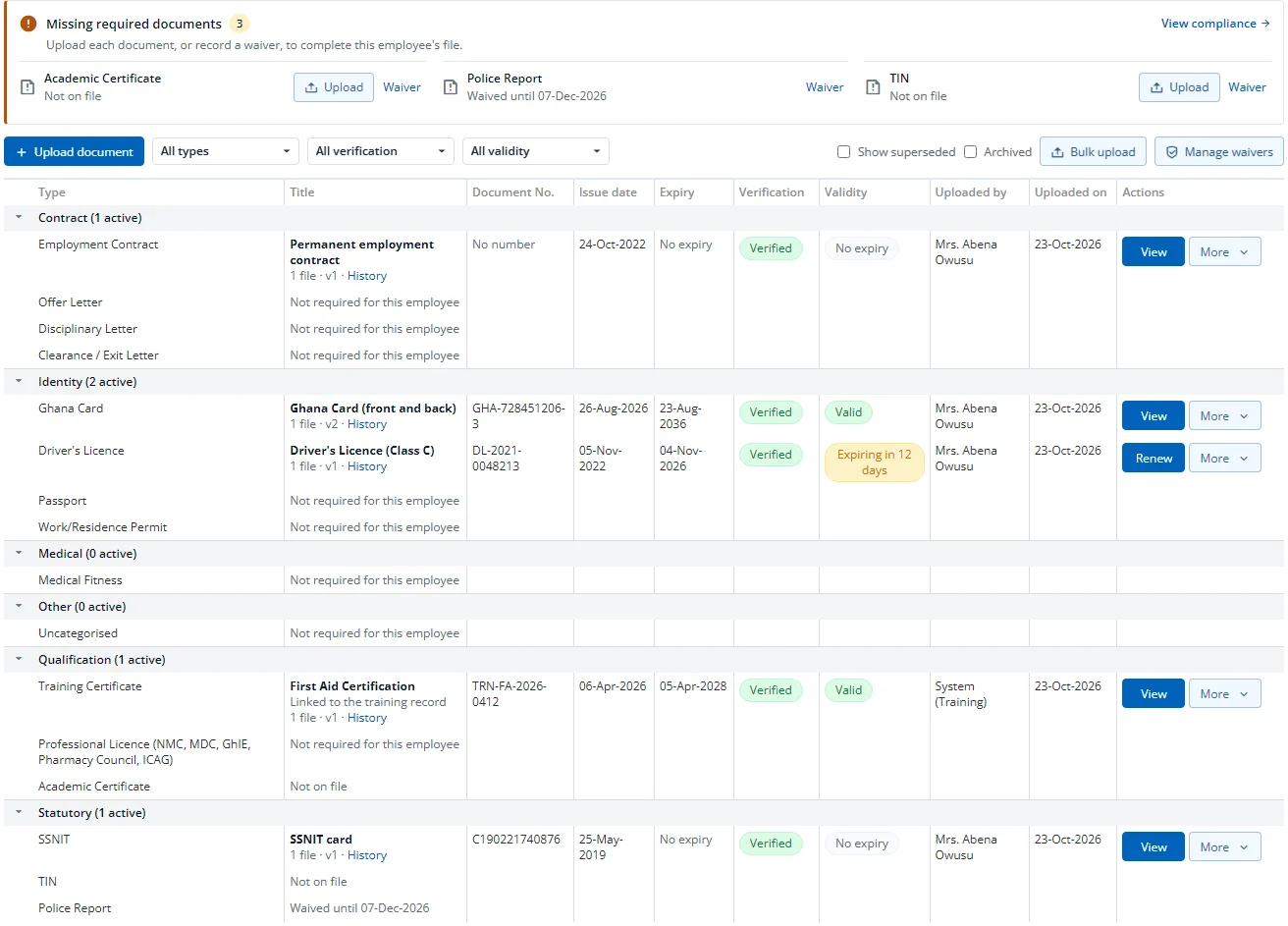
Things to notice on the tab:
- Missing required documents. When the employee is missing documents the company requires, a panel at the top lists them. Each line says Not on file, A rejected upload is on file or Waived until a date. It has an Upload button, and a Waiver link for users who may grant waivers (section 7). View compliance opens the compliance matrix.
- Placeholder rows. A type with no document on file still has a row. It says Not on file when the type is required for this employee, or Not required for this employee when the company's rules do not ask for it. A waived type says Waived until a date.
- Filters. Filter by type, verification (Verified, Pending verification, Rejected, Superseded) and validity (Valid, Expiring soon, Expired, No expiry). Show superseded reveals old versions and Archived shows archived documents.
- Uploaded by shows the person who uploaded the version, with the source in brackets when it did not come from HR: (ESS) for an employee's own upload, (Bulk upload), or System (Training), System (Disciplinary) and so on for documents filed by another module.
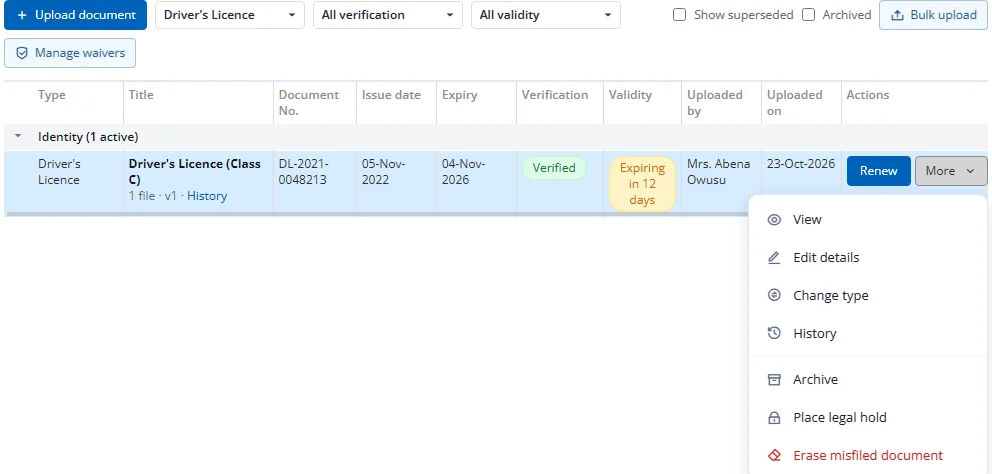
- Row actions. Each row has one main button and a More menu. The main button is View, or Renew when the document is expired or about to expire, or Set type for an Uncategorised document. More holds the rest: View, Renew, Edit details, Change type, History, and (when you have the right) Archive or Restore, Place or Lift legal hold, Erase misfiled document, Delete and Delete pending renewal. Actions you may not use are not shown.
Upload a document
- Open the employee, then the Documents tab.
- Choose Upload document, or Upload next to a missing document in the panel.
- Pick the type. The form shows only the fields that type uses; required ones are marked.
- Add one or more files (for example front and back of a card). The form states how many files, how large and which file types are allowed.
- Choose Upload.
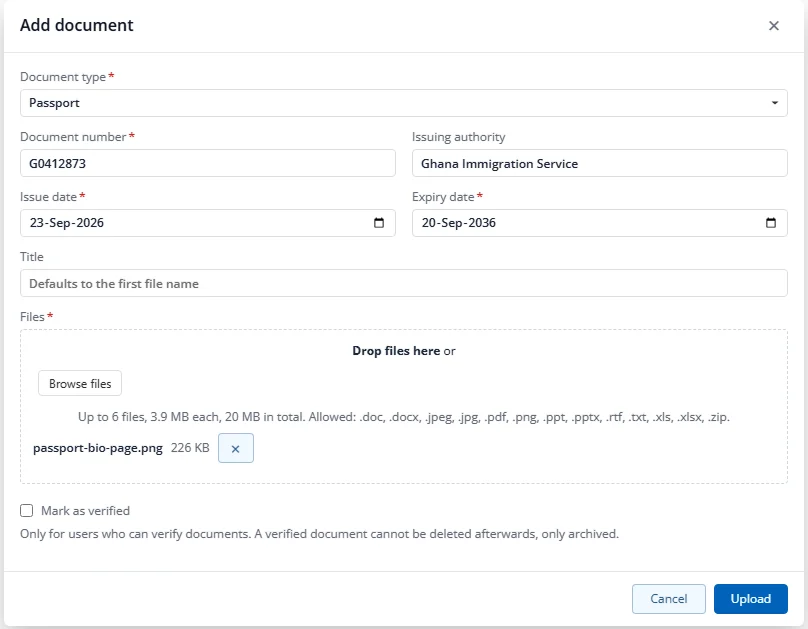
HR users who may verify the type see a Mark as verified box. It is off by default. If you tick it, the document is saved as verified, and you can no longer use the short undo window below.
A document uploaded by someone who cannot verify it lands as Pending verification.
If the type allows only one active document and the employee already has one, the form offers Renew the existing document instead.
Pressing the button twice does not create two documents.
Renew
Choose Renew on an existing document (the main button when it is expiring or expired, otherwise in the More menu). The new files become the next version (v2, v3 and so on) and the old version is kept. The form tells you which document it replaces.
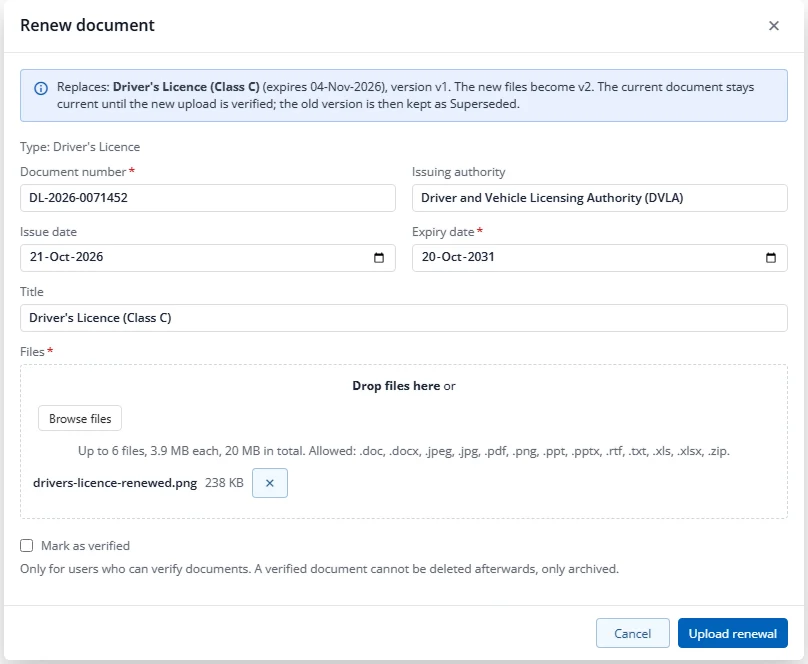
- If you can verify the type and tick Mark as verified (the button then reads Save and supersede old), the new version becomes current at once and the old one becomes Superseded.
- Otherwise the button reads Upload renewal and the renewal waits for verification. The old version stays current until then, and the compliance matrix shows the document as Pending verification.
- A document can have only one renewal waiting at a time, and a document that is itself still pending cannot be renewed (edit it or delete it instead).
If someone else renewed or verified the same document while your screen was open, you get a "changed by someone else" message. Reload and try again.
Edit details
You can correct the number, dates, issuer and notes of an unverified version if you may upload that type. Correcting a verified version needs verify rights for the type and a reason. Changing the type needs upload rights on both the old and the new type.
Undo an upload
The person who uploaded a document can delete it themselves for 24 hours, but only if it has not been verified and is not under legal hold. After that, use archive (section 5).
History and superseded versions
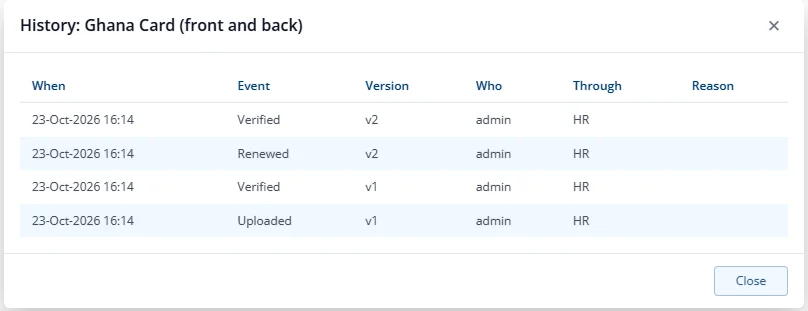
Choose the History link under the document title (or History in the More menu) to see everything that happened to it: uploads, verifications, rejections, renewals, edits, archive and hold actions, and (for confidential types) views and downloads. Each line shows when, what, which version, who, through which channel and the reason where one was given. Values such as numbers are never copied into the history, only the names of the fields that changed.
Bulk upload
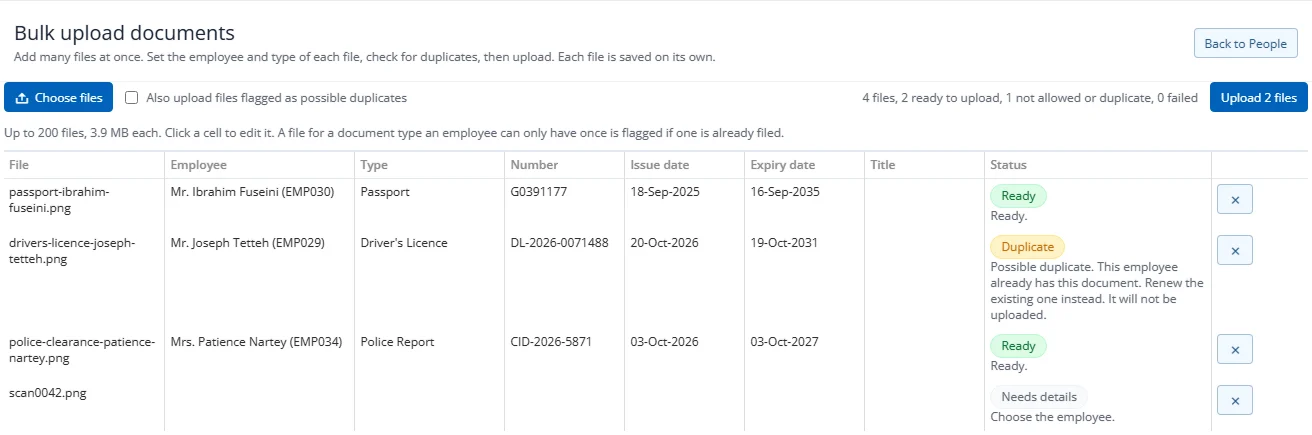
Use Bulk upload documents (People, Documents group) to file many documents at once. You can also open it from the Bulk upload button on the Documents tab.
- Choose the files. Each file becomes one row. You can add up to 200 files.
- Click a cell to edit it. For each row, pick the employee and type and fill the number, dates and title.
- Each row is checked before upload. A file the employee already has is flagged as a possible duplicate and is held back unless you tick Also upload files flagged as possible duplicates. A document type an employee can hold only once is never uploaded if one is already filed; renew the existing document instead.
- Choose Upload. Up to three files are sent at a time. Each row shows its own result; a failed row has Retry and does not affect the others.